Which AI Crawlers to Block (and Which Ones Send Customers)

Picture your website as a small bakery. Most mornings, the people at the door are customers. Lately, though, there are other visitors. A food critic shows up, takes notes, and writes you into a guide that sends hungry people your way. A personal shopper comes in to grab one loaf for a customer who asked for it. A culinary school sends a student with a notebook to copy every recipe on the wall for a class you will never see. And every now and then, somebody walks in, asks to sample everything, and does it two thousand times an hour.

They are all “visitors.” Only some of them bring in business. That is the whole question behind whether you should block AI crawlers: not “AI, yes or no,” but which of these people you want in your bakery.

Why Your Logs Suddenly Look Like a Bot Convention

You are not imagining it. Cloudflare Radar put bots at 57.5% of requests for HTML pages across its network, the first time automated traffic outnumbered humans on that measure (as reported by Forbes). That is an aggregate across a huge slice of the web, not a promise about your site, but it explains why your server stats feel busier than your phone.

The anecdotes are more pointed. One small-site owner shared on X that Google read their site 43 times and sent 145 visitors, while AI bots read it 6,051 times and sent 16. Another said they blocked AI crawlers after watching ClaudeBot make more than 2,000 requests in an hour. Those are single sites, not studies. Still, they capture the frustration: a lot of reading, not much referring.

The fix is not to slam the door on everything with “bot” in its name. It is to sort the visitors.

Meet the Three Kinds of AI Bots

Most of the big AI companies now split their bots by job, and they document that split. Roughly, there are three kinds:

  1. Search crawlers (the food critics). These index pages so an AI search product can show and link to them. Blocking them can make you disappear from those answers.
  2. User-triggered fetchers (the personal shoppers). A person asks a chatbot about something, and it fetches a page right then. These aren’t broad crawls, and several vendors say robots.txt may not apply to them because a human started the request.
  3. Training crawlers (the culinary students). These collect content that may be used to train future AI models. Blocking them is an opt-out from training, and per the vendors, it doesn’t remove you from their search features.

Here is how the major names sort out, according to each company’s own documentation as of October 2026:

Keep these allowed if you want to be found:

  • Googlebot and Bingbot: classic search. Block these and you’re blocking your own SEO.
  • OAI-SearchBot: OpenAI says it is used to surface sites in ChatGPT’s search features, and opted-out sites won’t show in ChatGPT search answers.
  • ChatGPT-User: fetches pages when a ChatGPT user asks. OpenAI notes robots.txt rules may not apply, and it isn’t used to decide search inclusion.
  • Claude-SearchBot and Claude-User: Anthropic says disabling either may reduce your visibility in Claude’s search results and user-directed lookups.
  • PerplexityBot and Perplexity-User: Perplexity says PerplexityBot surfaces and links sites in its results and isn’t used to crawl content for AI foundation models. Perplexity-User generally ignores robots.txt since a person requested the fetch.
  • Applebot: powers search in Spotlight, Siri, and Safari, per Apple.

Your call (training crawlers):

  • GPTBot (OpenAI): crawls content that may be used to train its generative AI foundation models.
  • ClaudeBot (Anthropic): collects content that could contribute to model training.
  • CCBot (Common Crawl): builds an open web archive that a lot of researchers and AI developers draw from.
  • Google-Extended: not a separate crawler, just a robots.txt token. Google says it controls whether content may be used to train future Gemini models and for grounding in Gemini Apps and Vertex AI, and that it doesn’t affect Google Search inclusion or ranking.
  • Applebot-Extended: also a control token, not a crawler. It opts you out of training Apple’s foundation models while regular Applebot keeps you in Apple search.
  • meta-externalagent (Meta): Meta says it crawls for uses such as training AI models or indexing content directly.
  • Bytespider (ByteDance): appears in Cloudflare’s AI crawler analytics, but I couldn’t find a current official ByteDance page describing it, so treat it as an AI crawler you manage at the CDN.

GPTBot vs OAI-SearchBot: The Distinction That Matters Most

If you only remember one thing, make it this. GPTBot vs OAI-SearchBot is the difference between “train on my stuff” and “show my stuff to people searching in ChatGPT.” OpenAI’s docs say the two settings are independent, so you can disallow GPTBot and still allow OAI-SearchBot.

A lot of the “block AI bots” robots.txt snippets floating around list every AI-sounding name in one big Disallow block. That is the robots.txt equivalent of locking out the food critic because you were annoyed with the culinary student. If you want your business to show up when someone asks ChatGPT for a web designer in Davenport, a blanket block works against you.

A Robots.txt for ChatGPT (and Friends) That Keeps the Door Open

Here’s a sensible starting point for a small-business site that wants to stay findable in search and AI answers but opt out of model training. Your robots.txt lives at the root of your domain, right next to the XML sitemap it should point to.

robots.txt: opt out of training, stay in search

# Training crawlers and tokens: opted out
User-agent: GPTBot
User-agent: ClaudeBot
User-agent: CCBot
User-agent: Google-Extended
User-agent: Applebot-Extended
User-agent: meta-externalagent
Disallow: /

# Everyone else (Googlebot, Bingbot, OAI-SearchBot,
# Claude-SearchBot, PerplexityBot, Applebot...): welcome
User-agent: *
Allow: /

Sitemap: https://example.com/sitemap.xml

A few notes so this doesn’t bite you later:

  • Grouping several User-agent lines over one rule is valid, but a bot that matches a named group ignores the * group. If you also keep Disallow: /wp-admin/ style rules under *, copy them into any named group you add.
  • If you’d rather be in the training data (some brands want models to know them), delete that first block. That’s a legitimate choice, not a mistake.
  • On WordPress, the robots.txt is usually virtual. SEO plugins such as Yoast and Rank Math include a robots.txt editor, or your host can place a physical file. If you use Cloudflare, it also offers a managed robots.txt option.

robots.txt is a “Please Don’t Feed the Ducks” sign. Most visitors read it. The ducks were never going to.

Robots.txt Is a Request, Not a Lock

This is where people overestimate the file. robots.txt is a public, polite request. Well-behaved crawlers from OpenAI, Anthropic, Google, Apple, Common Crawl, and Meta say they honor it. Anything that ignores it, or simply pretends to be one of those bots by faking its user agent, walks right past. Common Crawl explicitly warns that some crawlers falsely identify themselves as CCBot.

Also note the fine print above: the user-triggered fetchers (ChatGPT-User, Perplexity-User, Meta-ExternalFetcher) may not follow robots.txt at all, because a person asked for that page. That’s usually fine. It’s one page, for one person, roughly like a browser visit.

So robots.txt handles intent. For behavior, like a crawler hammering your server, you need something that actually enforces. Same lesson as protecting your WordPress site from hackers: signs are nice, locks are better.

When a Bot Gets Greedy, Handle It at the CDN

If you’re behind a content delivery network like Cloudflare, the edge is where to deal with abusive traffic, before it ever reaches your server or your hosting bill.

Cloudflare AI Crawl Control shows which AI crawlers are hitting your site, how many requests they make, and, per Cloudflare’s docs, how often each one violates your robots.txt. You can set each crawler to Allow or Block, and blocking creates a WAF rule for you. The docs even suggest allowing crawlers that “provide value through citations, referrals,” which is the same food-critic logic.

If a bot you want to keep is simply too eager, rate-limit it instead of banning it. In Cloudflare, that’s a rate limiting rule with an expression like this:

Cloudflare rate limiting rule: expression (example)

(http.user_agent contains "ClaudeBot") or
(http.user_agent contains "Bytespider")

Pair it with a sensible threshold for a small site (say, a few dozen requests per minute) and an action like Block or Managed Challenge for the cooldown period. Pick numbers based on your own traffic, not mine.

Not on Cloudflare? Many hosts and security plugins offer rate limiting too. If your current hosting provider can’t tell you who’s eating your bandwidth, that is worth knowing on its own. Anthropic also supports the non-standard Crawl-delay line for ClaudeBot. Apple says Applebot doesn’t follow it, so don’t lean on it as your only control.

What to Expect After You Change Things

Nothing here is instant. Crawlers cache robots.txt: OpenAI says it can take about 24 hours for its search systems to adjust after a robots.txt change, Perplexity says up to 24 hours, and Meta says the same. Training opt-outs apply going forward, not retroactively, to content already collected.

And allowing search bots is not a guarantee. Being crawlable makes you eligible for AI citations, the same way being indexed makes you eligible to rank. Whether an assistant actually mentions you still depends on whether your pages answer the question clearly. Keep an eye on referrals in your analytics and in Google Search Console, and judge over months, not days.

The Short Version

  • Keep search and answer bots allowed: Googlebot, Bingbot, OAI-SearchBot, Claude-SearchBot, PerplexityBot, Applebot.
  • Decide on training crawlers on purpose: GPTBot, ClaudeBot, CCBot, Google-Extended, Applebot-Extended, meta-externalagent.
  • Use robots.txt to state your preferences, and your CDN or WAF to enforce them.
  • Rate-limit a greedy bot before you ban a useful one.

Keep the Critics, Mind the Notebooks

Your bakery doesn’t need a bouncer who turns away everyone in a lanyard. It needs a door policy: critics welcome, personal shoppers fine, recipe copiers by invitation, and the two-thousand-samples-an-hour guy gets walked out.

If you’d like a second set of eyes on your robots.txt, CDN settings, or whether AI search is actually sending you anyone, that’s the kind of thing we set up for clients at Photricity. Request a quote and we’ll take a look.

Congrats on the New Website — Now Brace for the Spam

So your website is live, it looks great, and Google has noticed it. Unfortunately, so has everyone else with a mailing list and no conscience.

Within weeks of launching a site (or after a big SEO win), many business owners start getting official-looking letters, urgent emails, and phone calls from people who “just happened” to find their website. They did not just happen to find it. Domain registration data, business directories, and website scrapers make it easy to build a target list, and a fresh, visible site goes straight to the top.

Here is a field guide for what to expect, and what to do about it.

The “Domain Expiration Notice” Letter

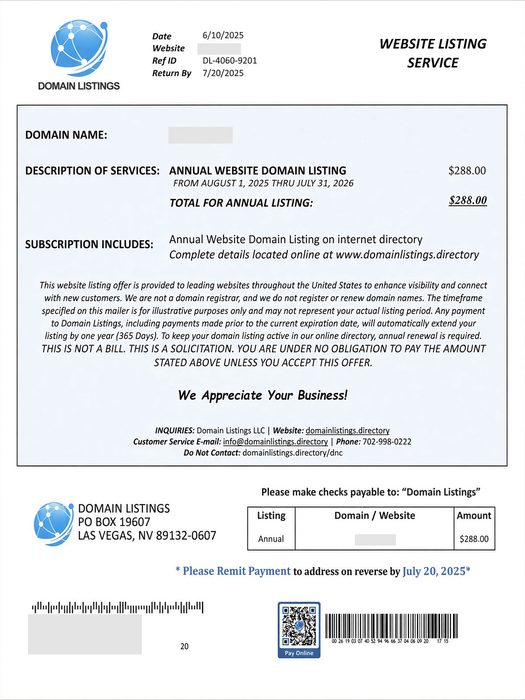
Domain registration solicitation

This one arrives in the mail and looks very official. It lists your real domain name, an expiration date, a deadline, a payment slip, and often a QR code. It warns that you could lose your online identity if you do not act now. Recent versions ask for around $265 for a five-year “renewal.”

Here is the catch: it usually is not from your registrar at all. It is a solicitation to transfer your domain to the sender, often at several times the going rate. The fine print tends to say something like “this is not a bill.” This tactic is called domain slamming, and the FTC went after one of its best-known practitioners years ago. The copycats never left.

How to check: Log in to the registrar where you actually bought your domain (GoDaddy, Namecheap, Squarespace, etc.) and look at the expiration date there. If the sender is not that company, you owe them nothing. Not sure where your domain is registered, or who handles your DNS records? Ask your web developer before you pay anyone.

Bonus move: Turn on registrar lock (transfer lock) and auto-renew for your domain.

The Friendly SEO Email

You know the one:

  • “I took a look at your website and found several issues hurting your ranking.”
  • “We can get you on page one of Google in 30 days. Guaranteed.”
  • “Your competitors are outranking you.”

The tells: The email never mentions anything specific about your site, your town, or your keywords. The list of “problems” is vague jargon (missing meta tags, poor image optimization) that could be pasted into any email to any business. And nobody, anywhere, can guarantee a ranking. Google says so itself.

If you get one, ask two questions: Which keywords, in which city, against which competitors? And can I see a client you have worked for? Real SEO professionals can answer. Mass-mailers go quiet.

Want to know how your site is really doing? You can see it for yourself, for free, in Google Search Console and Google Analytics. No cold email required.

(Quick sanity check: if you search your own business name and you are already on page one, congratulations, that is not a service you need to buy.)

The “Google Listing” Phone Call

Google business listing telemarketing call

The caller says they are with Google, or “Google Business Services,” and that your listing is about to be removed, needs verification, or can be bumped to the top of the map results. A robot voice may tell you to press 1 to continue.

What’s more, the call may even come from your local area code.

Google’s own guidance is clear: they will never ask for payment to keep, verify, or reinstate your Business Profile, and they will never guarantee you a special spot in search or Maps. They also will not ask for a PIN or one-time code.

What to do: Hang up. Do not press any buttons, even if the voice tells you to. If someone insists they work at Google, ask them to email you from an @google.com address. (They will not.)

The Fake Invoice and the “Free” Directory Listing

The FTC warned small businesses about this in May 2026: fake invoices for things you never ordered, like domain registration, SEO, or tech support. Some arrive as “past due.” Some look like they are from big names. Whoever handles your bills is the target, hoping they will just pay it.

A close cousin is the directory listing scam. A call or letter says you are being listed (for free, or as a “renewal”) in a business directory. A bill shows up later, along with a claim that you agreed to it. If you never agreed, do not pay.

Rule of thumb: Do not pay any invoice for a service you cannot connect to a person who actually sold it to you. Search the company name plus “scam,” “review,” or “complaint” first.

Someone Pretending to Be Your Web Designer or Host

Scammers can read a web designer’s portfolio page, collect the contact email from each client’s site, and send messages that look like they came from the designer. They say your site “is not compliant,” your plugins or hosting are “due for renewal,” or your account will be suspended in 48 hours. The goal is payment, or your WordPress or hosting login.

What to do: Do not click the link or call the number in the message. Contact your designer or host using a phone number or email address you already have. And never enter your credentials on a page you reached from an email.

Spoofed email is a big part of this one. It is worth reading up on securing your domain email with SPF, DKIM, and DMARC, and on protecting your WordPress site from hackers. Regular website maintenance also means you will know what is actually due and when.

The Quick Red Flag Checklist

  • Urgency. “Act now,” “final notice,” “48 hours.”
  • Guarantees. Rankings, results, or “priority” with Google.
  • Payment pressure. Gift cards, wire transfers, QR codes, or “pay to avoid suspension.”
  • Vague specifics. No mention of your actual site problems, or generic “errors.”
  • Wrong sender. Not the company you actually do business with.
  • Fine print that contradicts the headline. “This is not a bill.”

What to Do When One Shows Up

  1. Pause. Scammers rely on you reacting before thinking.
  2. Verify independently. Log in to your registrar, host, or Google account directly. Do not use links or phone numbers from the message.
  3. Do not engage. Replying, pressing buttons, and scanning QR codes confirm that your contact info is live.
  4. Tell whoever pays the bills. A one-line policy helps: we never pay anything domain-, SEO-, or Google-related unless it goes through our known vendors.
  5. Report it.
  6. FTC: ReportFraud.ftc.gov (phone scams and fake invoices)
  7. Phishing emails: [email protected]
  8. Scam texts: forward to 7726 (SPAM)
  9. Fake Google calls: report through Google Business Profile Help
  10. Do Not Call Registry: donotcall.gov (it will not stop scammers, but it is worth having)

Not Sure About Something?

When in doubt, do not pay, click, or call back. Send it to your web developer, your IT person, or a trusted friend who knows their way around the internet and ask for a second opinion first. A quick look usually settles it, and it is a lot cheaper than a five-year “renewal” from a company you have never heard of.

Introducing Evertongue: Multilingual WordPress That Scales

“Every tribe and tongue and people and nation.” (Revelation 5:9)

Most multilingual WordPress plugins work well for two or three languages. At ten or twenty, the language switcher is a wall of links, the admin is cluttered, and keeping translations in sync takes more effort than writing them.

Evertongue is a WordPress translation plugin built for sites with many languages. It is free, lightweight, and available on WordPress.org.

Why we built it

We built Evertongue with ministry and mission work in mind. Some of those sites need to reach people in dozens of languages from one WordPress install, such as discipleship courses, Bible resources, and outreach material.

The tools we tried were either too heavy or too narrow. We wanted something that felt like WordPress and stayed manageable as the language list grew.

How it works

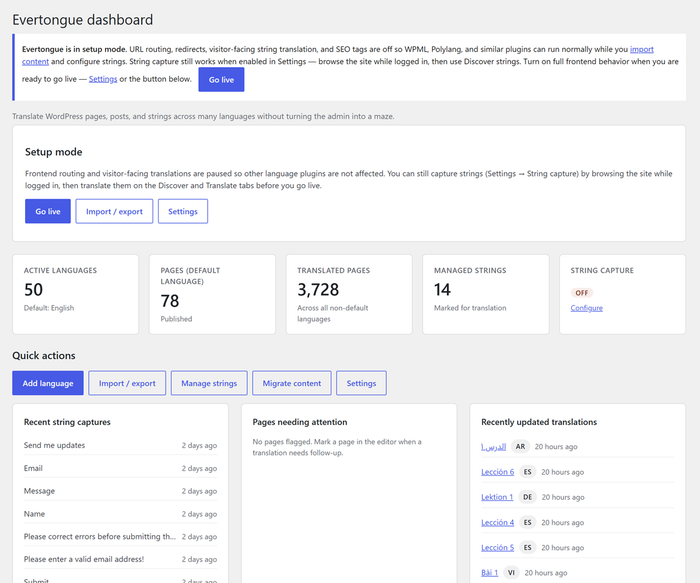
Evertongue dashboard

Every translation is a real WordPress page or post. Evertongue doesn’t hide translations in custom tables or serialized blobs. A French version of your Contact page is an ordinary page that you edit with the block editor you already know. Your page builder, custom fields, and SEO plugin all work as usual.

The URLs are simple. Your default language lives at the site root and every other language gets a prefix:

  • example.com/contact/
  • example.com/es/contact/
  • example.com/fr/contact/

Slugs stay identical across languages, so links are predictable and easy to share.

What you get

Page and post translation

Create a translation from the editor sidebar. Evertongue copies the content and custom fields into a new draft in the target language, and you replace the text. The pages list shows at a glance which languages exist for each page.

Theme and site string translation

Buttons, form labels, and other theme text are captured automatically as visitors and editors browse the site. You choose which strings to manage and translate them in one place. A progress view shows how complete each language is.

Shortcodes and custom strings

Every managed string gets a copyable shortcode, such as [evt_string id="42"]. Paste it into a page and it shows the right language for each visitor. You can also create custom strings for phrases that don’t come from your theme, such as a recurring call to action or a block label.

Identical phrases found in different places on the site can be merged into one string. They then share one translation and one shortcode, so you update the wording once.

Language switchers that handle large lists

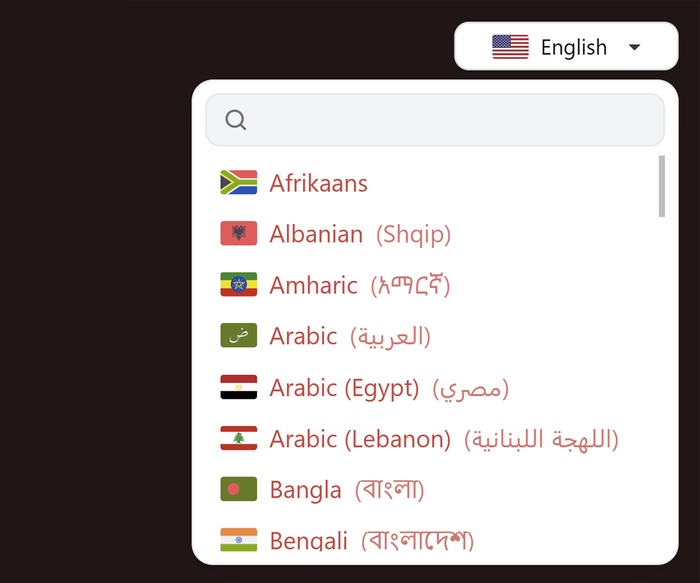
Evertongue combobox language switcher

Use the Language picker block, a floating button, a footer list, or a template tag. The searchable dropdown stays usable at 50 languages. The block supports alignment, colors, borders, radius, padding, and shadow. It can also hide languages that have no translation of the current page.

Two translation modes

  • Full site: translated menus, theme strings, text direction, and language attributes all follow the visitor’s language.
  • Content-only: translate pages and posts and leave the rest of the site alone. This is a good fit when you only need a few translated pages.

Built for real-world teams

  • Right-to-left support for languages such as Arabic and Hebrew
  • Role-based permissions. Choose which roles can translate and which can manage settings, right from the Settings screen.
  • Inactive languages. Keep a language out of the picker while you finish it. Anyone with the URL can still see it, so you can test it live.
  • Setup mode. Import and prepare content before your multilingual URLs go public.
  • SEO. hreflang alternate links and og:locale tags are added automatically.

Migration and portability

  • Importers for WPML and Polylang
  • PO file import and export, so translators can work in tools they already use
  • CSV import for adding many languages at once

Where it fits

Evertongue is a good fit if you:

  • Need to serve many languages without a bloated admin
  • Want translations to be ordinary WordPress content
  • Run a ministry, nonprofit, or educational site with a lot to translate
  • Want simple URLs and a front end with no unnecessary overhead

It is probably not the right tool if you want automatic machine translation, or an all-in-one localization suite with every integration built in. Evertongue keeps its scope small and its foundation clean, so it stays understandable and fast.

Get started

  1. Install Evertongue from the WordPress plugin directory.
  2. Add your languages under Evertongue → Languages, or import a CSV.
  3. Pick your translation mode in Settings.
  4. Translate a page from the editor sidebar.
  5. Turn off setup mode when you’re ready to go live.

If you reach people across language barriers, Evertongue gives your message a way to travel with it.

Questions or feedback? Reach out at photricity.com/contact.

Mastering CSS Shadows: From Subtle Glows to Dramatic Depth

Ever stared at a webpage and thought, “Why does this feel so flat?” Or flipped it—marveled at a design that practically leaps off the screen? Chances are, shadows are the unsung heroes (or culprits) behind it. CSS shadows—those sneaky little box-shadow and text-shadow properties—are more than just decorative fluff. They’re the secret sauce for depth, hierarchy, and that oh-so-satisfying tactile vibe.


Shadows 101: What Are We Working With?

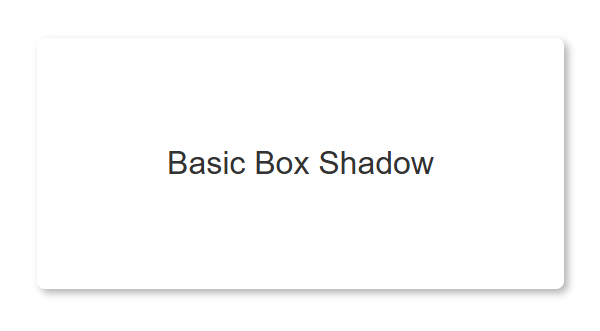
box shadow example

CSS gives us two main tools for shadow-casting: box-shadow for elements and text-shadow for, well, text. Think of them as the salt and pepper of web design—small additions that can transform the flavor of your layout. A basic box-shadow might look like this:

.shadow-box {
  box-shadow: 2px 2px 4px rgba(0, 0, 0, 0.3);
}

That’s a simple shadow—2px right, 2px down, 4px of blur, and a semi-transparent black. Slap it on a <div>, and boom: instant depth. Meanwhile, text-shadow does the same for typography:

text shadow example
.fancy-text {
  text-shadow: 1px 1px 2px #666;
}

Shadows are like ninjas—quietly enhancing your design without stealing the spotlight. But to wield them effectively, you need to know their anatomy.

Dissecting the Shadow

The box-shadow syntax is a playground of possibilities: offset-x, offset-y, blur-radius, spread-radius, and color. Each piece tweaks the shadow’s behavior. Let’s break it down:

  • Offset-x and Offset-y: Where the shadow lands relative to the element—like “2px over, 3px down.”
  • Blur-radius: How soft the edges get. Zero is crisp; 10px is a dreamy haze.
  • Spread-radius: The shadow’s size. Positive values puff it out; negative ones shrink it inward.
  • Color: Pick your poison—hex, RGB, or RGBA for transparency.

Here’s a tweakable example:

.shadow-play {
  box-shadow: 5px 5px 10px 2px rgba(0, 0, 0, 0.4);
}

Mess with those numbers, and you’ll see the shadow stretch, blur, or sharpen. Text-shadow is simpler—same offsets and blur, no spread—but just as powerful. Shadows aren’t static; they’re dynamic tools begging for experimentation.

Everyday CSS Shadows: Practical Wins

Shadows aren’t just for show—they solve real design problems. Here’s where they shine:

Subtle Elevation

Want that Material Design vibe? A light box-shadow lifts buttons and cards off the page. Try this:

.card {
  box-shadow: 0 4px 6px rgba(0, 0, 0, 0.1);
  transition: box-shadow 0.3s ease;
}
.card:hover {
  box-shadow: 0 6px 12px rgba(0, 0, 0, 0.2);
}

It’s subtle, but it screams “click me.” Many sites use this trick to make thumbnails feel grabbable.

Text That Pops

Over a noisy background? Text-shadow saves the day:

.hero-text {
  text-shadow: 0 2px 4px rgba(0, 0, 0, 0.5);
}

Suddenly, your white text on a gradient is legible. No squinting required.

Interactive Feedback

Hover effects with shadows feel alive. Pair them with transition, and you’ve got smooth, delightful motion. It’s the difference between a button that sits there and one that invites you in.

Level Up: Creative CSS Shadow Techniques

Now, let’s push the boundaries. CSS shadows can do more than “slightly raised.” They can dazzle.

Layered Shadows

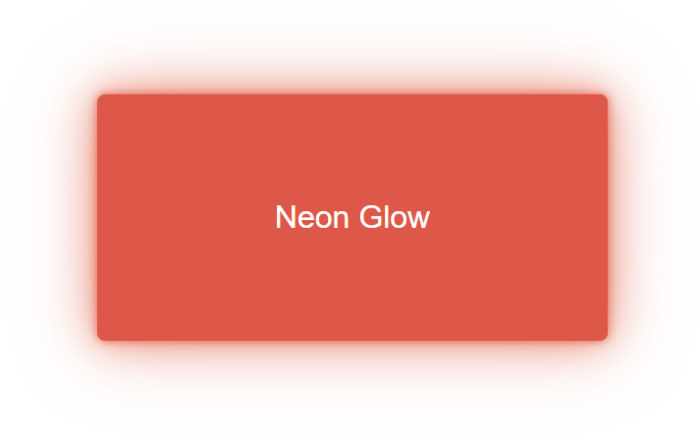
Stack multiple shadows for a neon glow or realistic depth. Check this out:

neon glow example
.neon-button {
  box-shadow: 
    0 0 5px rgba(255, 0, 0, 0.7),
    0 0 20px rgba(255, 0, 0, 0.5),
    0 0 40px rgba(255, 0, 0, 0.3);
}

That’s a button pulsing with sci-fi energy. Layering is your ticket to wow-factor.

Inner Shadows

Flip the script with inset:

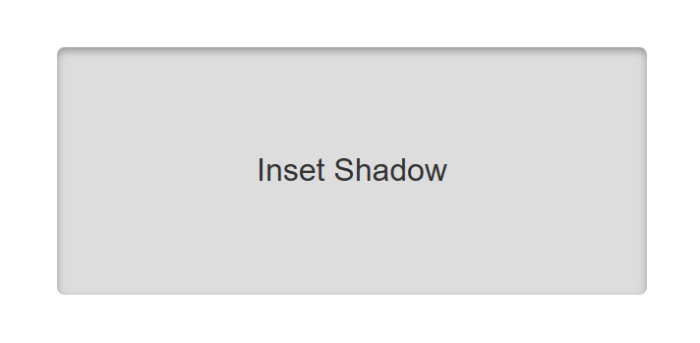
inset shadow example
.pressed {
  box-shadow: inset 0 2px 4px rgba(0, 0, 0, 0.3);
}

It’s perfect for a “clicked” effect—think sunken buttons or carved-out panels.

Long Shadows

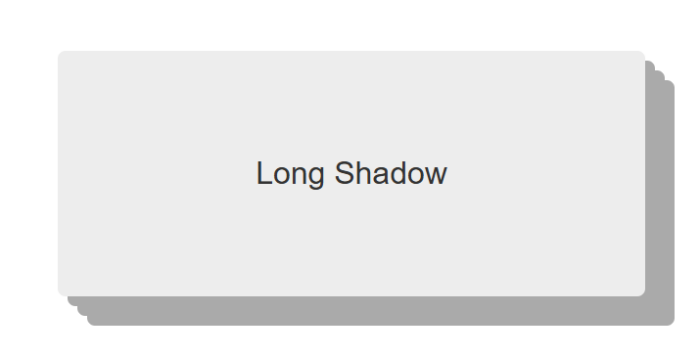
For a flat-design twist, use multiple shadows to create a diagonal stretched shadow effect:

stretched shadow effect
.long-shadow {
  box-shadow: 5px 5px 0 #ccc, 10px 10px 0 #ccc, 15px 15px 0 #ccc;
}

It’s retro, it’s bold, and it’s a conversation starter.

Watch Out: Shadow Pitfalls to Dodge

Shadows are awesome—until they’re not. Here’s how to avoid facepalms:

Performance Hits

A page with 50 elements rocking heavy box-shadows can chug like an old laptop. Blur and spread are GPU-intensive, so keep it lean on large layouts.

Overdesign Syndrome

Piling on too many shadows can make your site look like a haunted house at midnight. Less is often more—use shadows to enhance, not overwhelm.

Accessibility Snags

Text-shadow can muddy contrast. If your text blends into the background, you’ve got an accessibility fail.

Pro Tips: CSS Shadows That Slap

Ready to flex? These tricks will make your shadows stand out:

  • RGBA Transparency: Soften edges with rgba(0, 0, 0, 0.2). It’s gentler than solid black.
  • CSS Variables: Dynamic shadows for themes? Yes, please:
:root {
  --shadow: 0 4px 6px rgba(0, 0, 0, 0.1);
}
.card {
  box-shadow: var(--shadow);
}

Switch --shadow for dark mode in one line. Efficient and cool.

  • Drop-Shadow Filter: For SVGs or irregular shapes, filter: drop-shadow(2px 2px 4px #000) follows the contours where box-shadow can’t.

Hands-On: Build a Shadow-Powered Card

Let’s put it all together. Here’s a sleek card with hover magic:

.shadow-card {
  width: 300px;
  padding: 20px;
  background: white;
  border-radius: 8px;
  box-shadow: 
    0 4px 6px rgba(0, 0, 0, 0.1),
    0 1px 3px rgba(0, 0, 0, 0.08);
  transition: box-shadow 0.3s ease, transform 0.3s ease;
}
.shadow-card:hover {
  box-shadow: 
    0 7px 14px rgba(0, 0, 0, 0.1),
    0 3px 6px rgba(0, 0, 0, 0.08);
  transform: translateY(-5px);
}

Pair it with this HTML:

<div class="shadow-card">
  <h2>CSS Shadows Rock</h2>
  <p>Hover me for some depth!</p>
</div>

Shadow Play Is Your Superpower

CSS shadows are deceptively simple yet endlessly versatile. They can whisper “click here” with a soft lift, scream “look at me” with a neon glow, or just make text readable on a chaotic backdrop. Whether you’re a minimalist or a maximalist, shadows are your playground.

So, go experiment. Cast some shadows. Break the rules, then fix them. Next time you’re polishing a design, you’ll know exactly how to make it pop.

Search Upgraded: Supercharging Your WordPress Search

Let’s face it: the default WordPress search functionality is about as exciting as watching paint dry. Sure, it gets the job done, but in a world where users expect instant, relevant results served with a side of style, the vanilla search template just doesn’t cut it. So, how do we jazz it up? Get comfortable, because we’re about to turn that plain search bar into a powerhouse of user engagement!

Why Upgrade Your Search Experience?

Before we dive into the code, let’s chat about why you should care:

  • Enhanced User Experience: A better search helps visitors find what they need quickly.
  • Increased Engagement: Relevant results keep users on your site longer.
  • Competitive Edge: Stand out from the crowd with a search that doesn’t feel like an afterthought.

In other words, upgrading your search is like giving your website a secret weapon—minus the evil plan.

Tip 1: Customize the Search Form

First impressions matter. The default search form is, well, default. Let’s give it some personality!

Code Example: Custom Search Form Template

Create a searchform.php file in your theme’s root directory with the following code:

<form role="search" method="get" class="search-form" action="<?php echo esc_url( home_url( '/' ) ); ?>">
    <label>
        <span class="screen-reader-text"><?php echo _x( 'Search for:', 'label', 'your-textdomain' ); ?></span>
        <input type="search" class="search-field" placeholder="<?php echo esc_attr_x( 'Search &hellip;', 'placeholder', 'your-textdomain' ); ?>" value="<?php echo get_search_query(); ?>" name="s" minlength="3" required />
    </label>
    <button type="submit" class="search-submit">
        <?php echo esc_html_x( 'Search', 'submit button', 'your-textdomain' ); ?>
    </button>
</form>

Why This Works:

  • Accessibility: Proper labels and roles for screen readers.
  • Customization: Easy to style with CSS classes.

Now, style away in your style.css file. Make that search form so good-looking, it might just break the internet (not literally, of course).

Tip 2: Limit Search Scope

By default, WordPress searches all post types. Sometimes, less is more.

Code Example: Search Only Posts

Add this snippet to your functions.php file:

function wpb_search_filter( $query ) {
    if ( $query->is_search && !is_admin() ) {
        $query->set( 'post_type', 'post' );
    }
    return $query;
}
add_filter( 'pre_get_posts', 'wpb_search_filter' );

Explanation:

  • $query->is_search: Checks if it’s a search query.
  • !is_admin(): Ensures it doesn’t affect the admin dashboard.
  • Search Only Pages: Change post_type to ‘page’.

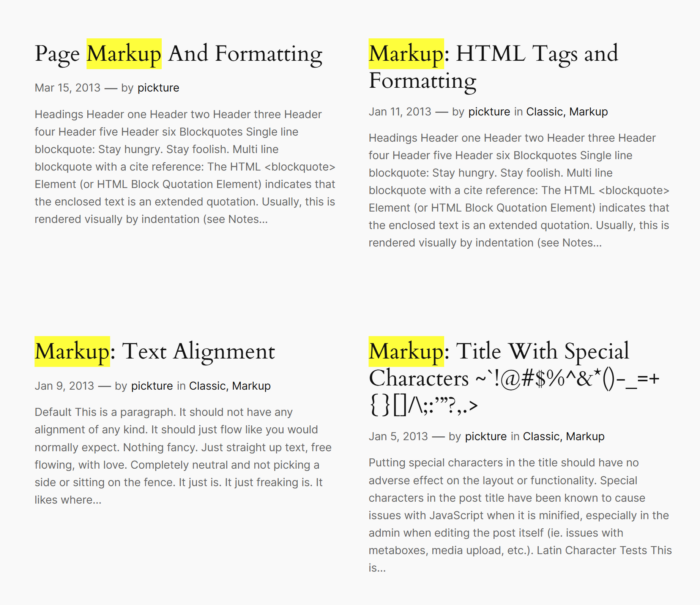
Tip 3: Highlight Search Terms in Results

Highlighted search terms

Help users see exactly where their search terms appear.

Code Example: Highlight Function

In your functions.php, add:

function highlight_search_terms( $text ) {
    if ( is_search() ) {
        $search_query = get_query_var( 's' );
        $keys = array_map( 'preg_quote', explode( ' ', $search_query ) );
        $regex = '/(' . implode( '|', $keys ) . ')/iu';
        $text = preg_replace( $regex, '<span class="search-highlight">\0</span>', $text );
    }
    return $text;
}
add_filter( 'the_excerpt', 'highlight_search_terms' );
add_filter( 'the_title', 'highlight_search_terms' );

Add to your style.css:

.search-highlight {
    background-color: yellow;
}

Note: Adjust the highlight color to match your theme. We wouldn’t want any fashion disasters!

Tip 4: Implement AJAX Search for Instant Results

Because waiting for a page reload is so 2005.

Code Example: AJAX Search Implementation

Step 1: Enqueue Scripts

In functions.php:

function enqueue_ajax_search_scripts() {
    wp_enqueue_script( 'ajax-search', get_template_directory_uri() . '/js/ajax-search.js', array( 'jquery' ), null, true );
    wp_localize_script( 'ajax-search', 'ajax_search_params', array(
        'ajax_url' => admin_url( 'admin-ajax.php' ),
    ) );
}
add_action( 'wp_enqueue_scripts', 'enqueue_ajax_search_scripts' );

Step 2: Create JavaScript File

Create ajax-search.js in your theme’s js directory:

jQuery(document).ready(function($) {
    $('.search-field').on('keyup', function() {
        var searchTerm = $(this).val();
        $.ajax({
            url: ajax_search_params.ajax_url,
            type: 'post',
            data: {
                action: 'ajax_search',
                search_term: searchTerm
            },
            success: function(response) {
                $('.search-results').html(response);
            }
        });
    });
});

Step 3: Handle AJAX Request

In functions.php:

function ajax_search_handler() {
    $search_term = sanitize_text_field( $_POST['search_term'] );
    $args = array(
        's' => $search_term,
        'posts_per_page' => 5,
    );
    $search_query = new WP_Query( $args );
    if ( $search_query->have_posts() ) {
        echo '<ul>';
        while ( $search_query->have_posts() ) {
            $search_query->the_post();
            echo '<li><a href="' . get_permalink() . '">' . get_the_title() . '</a></li>';
        }
        echo '</ul>';
    } else {
        echo '<p>No results found</p>';
    }
    wp_die();
}
add_action( 'wp_ajax_nopriv_ajax_search', 'ajax_search_handler' );
add_action( 'wp_ajax_ajax_search', 'ajax_search_handler' );

Step 4: Update Search Form

Ensure your search form has a container for results:

<div class="search-results"></div>

Caution: This is a basic implementation. For production sites, consider security and performance optimizations. Or, you know, keep an eye out for any rogue search terms trying to crash the party.

Tip 5: Sort Search Results by Relevance

Make sure the most relevant content surfaces first.

Code Example: Relevance Sorting

In functions.php:

function search_by_relevance( $search, $wp_query ) {
    global $wpdb;
    if ( ! $wp_query->is_search || ! $wp_query->is_main_query() ) {
        return $search;
    }
    $search_terms = get_query_var( 's' );
    $search = '';
    $search = " AND (";
    $search_words = explode( ' ', $search_terms );
    $i = 0;
    foreach ( $search_words as $word ) {
        $search_word = esc_sql( $wpdb->esc_like( $word ) );
        if ( $i > 0 ) {
            $search .= " AND ";
        }
        $search .= "(($wpdb->posts.post_title LIKE '%$search_word%') OR ($wpdb->posts.post_content LIKE '%$search_word%'))";
        $i++;
    }
    $search .= ')';
    return $search;
}
add_filter( 'posts_search', 'search_by_relevance', 10, 2 );

This tells WordPress to prioritize posts where the search term appears in the title or content.

Tip 6: Add a No Results Found Message

Avoid the awkward silence when no results are found.

Code Example: Custom No Results Template

In your search.php template, add:

<?php if ( have_posts() ) : ?>
    <!-- Your loop code here -->
<?php else : ?>
    <h2><?php esc_html_e( 'Nothing Found', 'your-textdomain' ); ?></h2>
    <p><?php esc_html_e( 'Sorry, but nothing matched your search terms. Please try again with different keywords.', 'your-textdomain' ); ?></p>
    <?php get_search_form(); ?>
<?php endif; ?>

Because even when there’s nothing to show, you can still show you care.

Enhancing your WordPress search doesn’t require a magic wand—just a bit of code and a sprinkle of creativity. With these seek-rets of search, you’re well on your way to providing an exceptional user experience.

DNS Records: From A to SRV

DNS, or the Domain Name System, is essentially the phonebook of the internet. It’s what turns those catchy, memorable domain names into the long strings of numbers that computers use to talk to each other. Think of it as the magic that transforms “example.com” into “192.0.2.1” – because who could remember all those numbers?

The Basics of DNS

What is DNS? At its core, DNS is like the internet’s GPS. You type in a web address, and DNS figures out where that site is actually located in the digital universe. It’s not just about finding websites; it’s about making the internet navigable for humans. Without DNS, we’d be lost in a sea of IP addresses, trying to remember if it’s “192.168.1.1” or “179.124.41.136” for our favorite cat video site.

Think about it: would you rather remember “easytoremember.com” or “2606:4700:4700::1111”? Exactly. DNS saves us from a world where every URL looks like a password you’d forget immediately. It’s the unsung hero of our daily internet adventures, making the web accessible, memorable, and just a bit more magical.

Types of DNS Records

  • A Record: This is the basic mapping of your domain name to an IPv4 address. Think of it as your website’s home address on the internet.
  • AAAA Record: For those embracing the future, AAAA records do the same as A records but for IPv6 addresses, which are longer and look like they’re from a sci-fi movie.
  • CNAME: Acts like an alias for your domain. If you want blog.example.com to point to example.com/blog, CNAME is your tool. Just remember, it’s not for the main domain.
  • MX: Essential for email, MX records tell the world where to send your emails. Without them, your digital mail would be lost in cyberspace.
  • TXT: Originally for text, now used for various security and verification purposes like SPF and DKIM for email authentication.
  • NS: These records delegate authority for your domain to specific name servers, essentially saying, “These guys are in charge here.”
  • SRV: Less common but important for services like VoIP, SRV records specify which server to use for a particular service.

How DNS Records Work

  • The DNS Query Process:
    1. Browser Request: You type a URL, your browser asks your local DNS resolver for the IP.
    2. Recursive Query: If the resolver doesn’t know, it starts asking root servers, then TLD servers, and finally the authoritative servers for the domain.
    3. Answer: The resolver gets the IP and sends it back to your web browser.
    4. Connection: Your browser uses this IP to connect to the web server.
  • Propagation:
    • When you update a DNS record, it doesn’t change everywhere instantly. DNS servers cache information, and this cache has a TTL (Time To Live). Changes can take from minutes to 48 hours to propagate globally, depending on the TTL set. Patience is key when making DNS changes.

Real-World Applications

Load Balancing: Imagine you’re hosting a massive party, but your house can only fit so many guests at once. DNS load balancing is like setting up multiple party venues across town. When someone types in your domain, DNS decides which venue (server) they’ll visit based on availability and load. It’s like having a bouncer who’s also a traffic cop, ensuring no server gets overwhelmed, and everyone gets to the party.

Geo-Targeting: Ever wonder why you see ads for local pizza when you’re in New York but not when you’re in Tokyo? That’s geo-targeting at play, often facilitated by DNS. It’s like having a global concierge service that knows where you are and gives you the local version of your site. DNS can route requests to servers based on the user’s location, serving up content tailored to where they’re standing on the planet.

Security: DNS isn’t just about finding websites; it’s also your first line of defense. Think of DNSSEC (DNS Security Extensions) as the bodyguard for your DNS records. It ensures that the DNS data you receive hasn’t been tampered with, like making sure your party invitations haven’t been forged by party crashers. DNSSEC adds an extra layer of trust, ensuring the internet’s phonebook isn’t just a list of numbers but a secure directory.

The Future of DNS

DNS over HTTPS (DoH) and DNS over TLS (DoT): The internet’s been getting more private, and DNS is no exception. DoH and DoT are like giving your DNS queries a cloak of invisibility. They encrypt your DNS traffic, ensuring that your browsing habits are as private as your secret stash of vintage CSS books. It’s like sending your DNS requests in a secure, encrypted envelope, making sure no one can peek at what you’re up to online.

Decentralized DNS: Decentralized DNS systems like Handshake and ENS (Ethereum Name Service) are like the internet’s version of a blockchain party. They aim to remove the central authority from DNS, making it more democratic. Imagine a world where you can own your domain name on the blockchain, free from the whims of traditional registrars.

Ready to take your DNS game to the next level? Start by auditing your DNS settings. Online DNS tools and services can be your new best friends. Remember, a well-tuned DNS setup not only ensures your site is accessible but also fortifies your digital footprint. So, go on, explore, tweak, and maybe even experiment with some of those advanced features we’ve covered. You’ll be much happier with your site’s performance and security, and your users will enjoy a smoother, safer online experience.

Responsive Navigation: Designing a Seamless Menu Experience

Imagine walking into a restaurant where the menu automatically adjusts based on whether you’re in the mood for a quick bite or a full-course meal. If you’re in a hurry, it highlights the appetizers and daily specials. If you’re ready to indulge, it elegantly expands to showcase the chef’s signature dishes. That’s what a responsive navigation menu does for your website—tailors the browsing experience to fit the user’s needs, whether they’re on a desktop, tablet, or smartphone. It’s about serving up the perfect menu of options for every digital diner who visits your site, ensuring that everyone leaves satisfied, no matter the device they use.

A responsive navigation menu is much more than a fancy gadget in your web design toolkit; it’s your user’s personal guide in the vast and often chaotic digital landscape. As screen sizes shrink and expand from desktop giants to palm-sized smartphones, your site’s navigation should effortlessly adjust to meet each device’s needs.

Why is this crucial? Because in today’s world, a frustrating navigation experience is like a bad handshake—it’s awkward and starts things off on the wrong foot. Ensuring your menu morphs gracefully across devices enhances user experience, boosts accessibility, and keeps visitors coming back. It’s not just about making things look pretty; it’s about creating a fluid, intuitive pathway that makes your visitors feel right at home, whether they’re clicking on a desktop or tapping on a smartphone. Let’s dive in and see how you can roll out the red carpet for every device visiting your site.

Keep Reading

Type Right: The Art and Science of Typography

Ever wonder why some websites just feel right, effortlessly guiding your eyes from one section to the next? The secret ingredient is often typography. Good typography can transform a mundane webpage into a delightful reading experience, while bad typography… well, let’s just say it’s like reading a ransom note.

Typography is the unsung hero of web design, playing a crucial role in readability, aesthetics, and branding. It’s not just about choosing pretty fonts—it’s about creating a seamless visual journey for your users. The right typography can make your content more engaging and easier to digest, reinforce your brand identity, and even influence how users perceive your message. In web design, typography is more than just letters on a screen; it’s a powerful tool that shapes the entire user experience.

Understanding Typography Basics

Typography is the art and science of arranging text on a page. It’s about making your content not only legible but also visually appealing. Think of typography as the way you dress your text—it can be as casual as jeans and a t-shirt or as formal as a three-piece suit. In web development, typography ensures that your message gets across in the clearest and most attractive way possible.

Anatomy of Type

Let’s break down the anatomy of type, because just like humans, letters have body parts too! Here are some basic terms to get you started:

Keep Reading

Securing Your Domain Email: DMARC, SPF, and DKIM Demystified

Think forgetting your password is scary? Imagine sending an important email and having it intercepted by cybercriminals, or worse, impersonated. In the world of digital communication, email security isn’t just a nice-to-have; it’s a must-have.

Securing your domain email is akin to locking your front door at night. Just as you wouldn’t leave your house open to intruders, you shouldn’t leave your email vulnerable to phishing, spoofing, and other malicious attacks. Securing your domain email with protocols like DMARC, SPF, and DKIM not only protects against these threats but also ensures your emails actually reach their intended recipients.

Email security isn’t just about keeping the bad guys out; it’s also about maintaining your reputation and trust with your audience. An email from your domain is a digital handshake, and ensuring it’s authentic is crucial. A secure email system can enhance deliverability, reduce the risk of your emails being marked as spam, and build trust with your recipients.

Understanding the Threat

Emails are the lifeblood of modern communication—essential, versatile, and, sadly, a magnet for cybercriminals. Let’s delve into the underworld of common email threats:

Keep Reading

Styling Lists With CSS: Transform Your Lists with Stunning Style

Imagine walking into a library where all the books are stacked in one giant heap. Chaos, right? That’s what a website without well-styled lists feels like. Lists are the librarians of web design, organizing content and guiding users through the maze of information. For creating clear navigation paths or breaking down complex ideas into bite-sized nuggets, lists are essential for a seamless and enjoyable user experience.

Think about it: lists help break down information into digestible chunks, making it easier for users to scan and find what they’re looking for. Navigation menus rely on lists to create a coherent and intuitive structure, ensuring that visitors can effortlessly explore your site.

Basics of HTML Lists

Before we dive into the wonders of CSS, let’s start with the first “order” of business. There are three main types of lists you need to know:

  1. Unordered Lists (<ul>): Think of these as the bullet points of your website. They’re perfect for items that don’t need a specific order.
  2. Ordered Lists (<ol>): Use these when you need to count your items or show them in a specific sequence. Think top ten lists, step-by-step instructions, or rankings.
  3. Definition Lists (<dl>): These are like the glossary section of your website. Use them for terms and their corresponding definitions, making your content more organized and easy to understand.

See what we did there? We used a list to organize the types of lists!

Now let’s take a look at some basic HTML code for each type of list:

Keep Reading