Mastering CSS Shadows: From Subtle Glows to Dramatic Depth

Ever stared at a webpage and thought, “Why does this feel so flat?” Or flipped it—marveled at a design that practically leaps off the screen? Chances are, shadows are the unsung heroes (or culprits) behind it. CSS shadows—those sneaky little box-shadow and text-shadow properties—are more than just decorative fluff. They’re the secret sauce for depth, hierarchy, and that oh-so-satisfying tactile vibe.


Shadows 101: What Are We Working With?
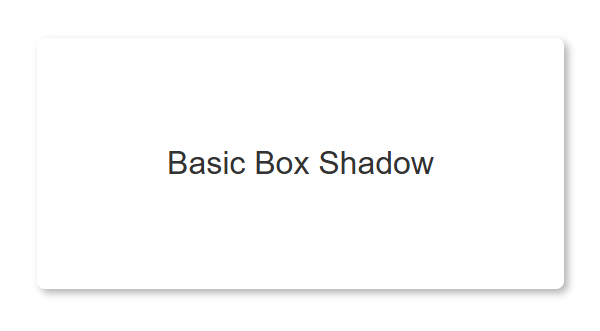
box shadow example

CSS gives us two main tools for shadow-casting: box-shadow for elements and text-shadow for, well, text. Think of them as the salt and pepper of web design—small additions that can transform the flavor of your layout. A basic box-shadow might look like this:

.shadow-box {
  box-shadow: 2px 2px 4px rgba(0, 0, 0, 0.3);
}

That’s a simple shadow—2px right, 2px down, 4px of blur, and a semi-transparent black. Slap it on a <div>, and boom: instant depth. Meanwhile, text-shadow does the same for typography:

text shadow example
.fancy-text {
  text-shadow: 1px 1px 2px #666;
}

Shadows are like ninjas—quietly enhancing your design without stealing the spotlight. But to wield them effectively, you need to know their anatomy.

Dissecting the Shadow

The box-shadow syntax is a playground of possibilities: offset-x, offset-y, blur-radius, spread-radius, and color. Each piece tweaks the shadow’s behavior. Let’s break it down:

  • Offset-x and Offset-y: Where the shadow lands relative to the element—like “2px over, 3px down.”
  • Blur-radius: How soft the edges get. Zero is crisp; 10px is a dreamy haze.
  • Spread-radius: The shadow’s size. Positive values puff it out; negative ones shrink it inward.
  • Color: Pick your poison—hex, RGB, or RGBA for transparency.

Here’s a tweakable example:

.shadow-play {
  box-shadow: 5px 5px 10px 2px rgba(0, 0, 0, 0.4);
}

Mess with those numbers, and you’ll see the shadow stretch, blur, or sharpen. Text-shadow is simpler—same offsets and blur, no spread—but just as powerful. Shadows aren’t static; they’re dynamic tools begging for experimentation.

Everyday CSS Shadows: Practical Wins

Shadows aren’t just for show—they solve real design problems. Here’s where they shine:

Subtle Elevation

Want that Material Design vibe? A light box-shadow lifts buttons and cards off the page. Try this:

.card {
  box-shadow: 0 4px 6px rgba(0, 0, 0, 0.1);
  transition: box-shadow 0.3s ease;
}
.card:hover {
  box-shadow: 0 6px 12px rgba(0, 0, 0, 0.2);
}

It’s subtle, but it screams “click me.” Many sites use this trick to make thumbnails feel grabbable.

Text That Pops

Over a noisy background? Text-shadow saves the day:

.hero-text {
  text-shadow: 0 2px 4px rgba(0, 0, 0, 0.5);
}

Suddenly, your white text on a gradient is legible. No squinting required.

Interactive Feedback

Hover effects with shadows feel alive. Pair them with transition, and you’ve got smooth, delightful motion. It’s the difference between a button that sits there and one that invites you in.

Level Up: Creative CSS Shadow Techniques

Now, let’s push the boundaries. CSS shadows can do more than “slightly raised.” They can dazzle.

Layered Shadows

Stack multiple shadows for a neon glow or realistic depth. Check this out:
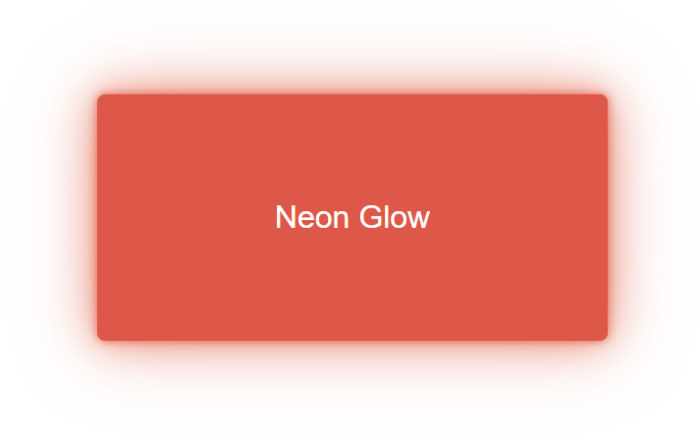
neon glow example
.neon-button {
  box-shadow: 
    0 0 5px rgba(255, 0, 0, 0.7),
    0 0 20px rgba(255, 0, 0, 0.5),
    0 0 40px rgba(255, 0, 0, 0.3);
}

That’s a button pulsing with sci-fi energy. Layering is your ticket to wow-factor.

Inner Shadows

Flip the script with inset:
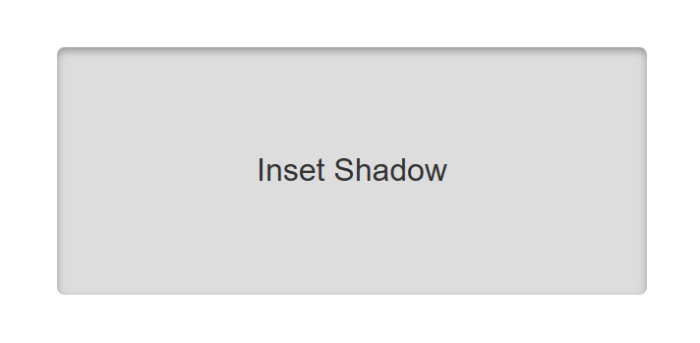
inset shadow example
.pressed {
  box-shadow: inset 0 2px 4px rgba(0, 0, 0, 0.3);
}

It’s perfect for a “clicked” effect—think sunken buttons or carved-out panels.

Long Shadows

For a flat-design twist, use multiple shadows to create a diagonal stretched shadow effect:
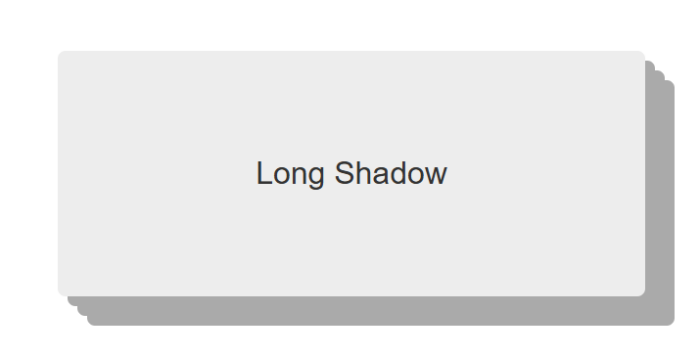
stretched shadow effect
.long-shadow {
  box-shadow: 5px 5px 0 #ccc, 10px 10px 0 #ccc, 15px 15px 0 #ccc;
}

It’s retro, it’s bold, and it’s a conversation starter.

Watch Out: Shadow Pitfalls to Dodge

Shadows are awesome—until they’re not. Here’s how to avoid facepalms:

Performance Hits

A page with 50 elements rocking heavy box-shadows can chug like an old laptop. Blur and spread are GPU-intensive, so keep it lean on large layouts.

Overdesign Syndrome

Piling on too many shadows can make your site look like a haunted house at midnight. Less is often more—use shadows to enhance, not overwhelm.

Accessibility Snags

Text-shadow can muddy contrast. If your text blends into the background, you’ve got an accessibility fail.

Pro Tips: CSS Shadows That Slap

Ready to flex? These tricks will make your shadows stand out:

  • RGBA Transparency: Soften edges with rgba(0, 0, 0, 0.2). It’s gentler than solid black.
  • CSS Variables: Dynamic shadows for themes? Yes, please:
:root {
  --shadow: 0 4px 6px rgba(0, 0, 0, 0.1);
}
.card {
  box-shadow: var(--shadow);
}

Switch --shadow for dark mode in one line. Efficient and cool.

  • Drop-Shadow Filter: For SVGs or irregular shapes, filter: drop-shadow(2px 2px 4px #000) follows the contours where box-shadow can’t.

Hands-On: Build a Shadow-Powered Card

Let’s put it all together. Here’s a sleek card with hover magic:

.shadow-card {
  width: 300px;
  padding: 20px;
  background: white;
  border-radius: 8px;
  box-shadow: 
    0 4px 6px rgba(0, 0, 0, 0.1),
    0 1px 3px rgba(0, 0, 0, 0.08);
  transition: box-shadow 0.3s ease, transform 0.3s ease;
}
.shadow-card:hover {
  box-shadow: 
    0 7px 14px rgba(0, 0, 0, 0.1),
    0 3px 6px rgba(0, 0, 0, 0.08);
  transform: translateY(-5px);
}

Pair it with this HTML:

<div class="shadow-card">
  <h2>CSS Shadows Rock</h2>
  <p>Hover me for some depth!</p>
</div>

Shadow Play Is Your Superpower

CSS shadows are deceptively simple yet endlessly versatile. They can whisper “click here” with a soft lift, scream “look at me” with a neon glow, or just make text readable on a chaotic backdrop. Whether you’re a minimalist or a maximalist, shadows are your playground.

So, go experiment. Cast some shadows. Break the rules, then fix them. Next time you’re polishing a design, you’ll know exactly how to make it pop.


DNS Records: From A to SRV

DNS, or the Domain Name System, is essentially the phonebook of the internet. It’s what turns those catchy, memorable domain names into the long strings of numbers that computers use to talk to each other. Think of it as the magic that transforms “example.com” into “192.0.2.1” – because who could remember all those numbers?

The Basics of DNS

What is DNS? At its core, DNS is like the internet’s GPS. You type in a web address, and DNS figures out where that site is actually located in the digital universe. It’s not just about finding websites; it’s about making the internet navigable for humans. Without DNS, we’d be lost in a sea of IP addresses, trying to remember if it’s “192.168.1.1” or “179.124.41.136” for our favorite cat video site.

Think about it: would you rather remember “easytoremember.com” or “2606:4700:4700::1111”? Exactly. DNS saves us from a world where every URL looks like a password you’d forget immediately. It’s the unsung hero of our daily internet adventures, making the web accessible, memorable, and just a bit more magical.

Types of DNS Records

  • A Record: This is the basic mapping of your domain name to an IPv4 address. Think of it as your website’s home address on the internet.
  • AAAA Record: For those embracing the future, AAAA records do the same as A records but for IPv6 addresses, which are longer and look like they’re from a sci-fi movie.
  • CNAME: Acts like an alias for your domain. If you want blog.example.com to point to example.com/blog, CNAME is your tool. Just remember, it’s not for the main domain.
  • MX: Essential for email, MX records tell the world where to send your emails. Without them, your digital mail would be lost in cyberspace.
  • TXT: Originally for text, now used for various security and verification purposes like SPF and DKIM for email authentication.
  • NS: These records delegate authority for your domain to specific name servers, essentially saying, “These guys are in charge here.”
  • SRV: Less common but important for services like VoIP, SRV records specify which server to use for a particular service.

How DNS Records Work

  • The DNS Query Process:
    1. Browser Request: You type a URL, your browser asks your local DNS resolver for the IP.
    2. Recursive Query: If the resolver doesn’t know, it starts asking root servers, then TLD servers, and finally the authoritative servers for the domain.
    3. Answer: The resolver gets the IP and sends it back to your web browser.
    4. Connection: Your browser uses this IP to connect to the web server.
  • Propagation:
    • When you update a DNS record, it doesn’t change everywhere instantly. DNS servers cache information, and this cache has a TTL (Time To Live). Changes can take from minutes to 48 hours to propagate globally, depending on the TTL set. Patience is key when making DNS changes.

Real-World Applications

Load Balancing: Imagine you’re hosting a massive party, but your house can only fit so many guests at once. DNS load balancing is like setting up multiple party venues across town. When someone types in your domain, DNS decides which venue (server) they’ll visit based on availability and load. It’s like having a bouncer who’s also a traffic cop, ensuring no server gets overwhelmed, and everyone gets to the party.

Geo-Targeting: Ever wonder why you see ads for local pizza when you’re in New York but not when you’re in Tokyo? That’s geo-targeting at play, often facilitated by DNS. It’s like having a global concierge service that knows where you are and gives you the local version of your site. DNS can route requests to servers based on the user’s location, serving up content tailored to where they’re standing on the planet.

Security: DNS isn’t just about finding websites; it’s also your first line of defense. Think of DNSSEC (DNS Security Extensions) as the bodyguard for your DNS records. It ensures that the DNS data you receive hasn’t been tampered with, like making sure your party invitations haven’t been forged by party crashers. DNSSEC adds an extra layer of trust, ensuring the internet’s phonebook isn’t just a list of numbers but a secure directory.

The Future of DNS

DNS over HTTPS (DoH) and DNS over TLS (DoT): The internet’s been getting more private, and DNS is no exception. DoH and DoT are like giving your DNS queries a cloak of invisibility. They encrypt your DNS traffic, ensuring that your browsing habits are as private as your secret stash of vintage CSS books. It’s like sending your DNS requests in a secure, encrypted envelope, making sure no one can peek at what you’re up to online.

Decentralized DNS: Decentralized DNS systems like Handshake and ENS (Ethereum Name Service) are like the internet’s version of a blockchain party. They aim to remove the central authority from DNS, making it more democratic. Imagine a world where you can own your domain name on the blockchain, free from the whims of traditional registrars.

Ready to take your DNS game to the next level? Start by auditing your DNS settings. Online DNS tools and services can be your new best friends. Remember, a well-tuned DNS setup not only ensures your site is accessible but also fortifies your digital footprint. So, go on, explore, tweak, and maybe even experiment with some of those advanced features we’ve covered. You’ll be much happier with your site’s performance and security, and your users will enjoy a smoother, safer online experience.

Type Right: The Art and Science of Typography

Ever wonder why some websites just feel right, effortlessly guiding your eyes from one section to the next? The secret ingredient is often typography. Good typography can transform a mundane webpage into a delightful reading experience, while bad typography… well, let’s just say it’s like reading a ransom note.

Typography is the unsung hero of web design, playing a crucial role in readability, aesthetics, and branding. It’s not just about choosing pretty fonts—it’s about creating a seamless visual journey for your users. The right typography can make your content more engaging and easier to digest, reinforce your brand identity, and even influence how users perceive your message. In web design, typography is more than just letters on a screen; it’s a powerful tool that shapes the entire user experience.

Understanding Typography Basics

Typography is the art and science of arranging text on a page. It’s about making your content not only legible but also visually appealing. Think of typography as the way you dress your text—it can be as casual as jeans and a t-shirt or as formal as a three-piece suit. In web development, typography ensures that your message gets across in the clearest and most attractive way possible.

Anatomy of Type

Let’s break down the anatomy of type, because just like humans, letters have body parts too! Here are some basic terms to get you started:

Keep Reading

Styling Lists With CSS: Transform Your Lists with Stunning Style

Imagine walking into a library where all the books are stacked in one giant heap. Chaos, right? That’s what a website without well-styled lists feels like. Lists are the librarians of web design, organizing content and guiding users through the maze of information. For creating clear navigation paths or breaking down complex ideas into bite-sized nuggets, lists are essential for a seamless and enjoyable user experience.

Think about it: lists help break down information into digestible chunks, making it easier for users to scan and find what they’re looking for. Navigation menus rely on lists to create a coherent and intuitive structure, ensuring that visitors can effortlessly explore your site.

Basics of HTML Lists

Before we dive into the wonders of CSS, let’s start with the first “order” of business. There are three main types of lists you need to know:

  1. Unordered Lists (<ul>): Think of these as the bullet points of your website. They’re perfect for items that don’t need a specific order.
  2. Ordered Lists (<ol>): Use these when you need to count your items or show them in a specific sequence. Think top ten lists, step-by-step instructions, or rankings.
  3. Definition Lists (<dl>): These are like the glossary section of your website. Use them for terms and their corresponding definitions, making your content more organized and easy to understand.

See what we did there? We used a list to organize the types of lists!

Now let’s take a look at some basic HTML code for each type of list:

Keep Reading

6 Tips for Visually Appealing Web Design

Picture a website that instantly grabs your attention with its stunning visuals, seamlessly blending colors, typography, and imagery to create an immersive experience. In web design, aesthetics hold immense power. They can captivate users, communicate brand identity, and leave a lasting impression. It’s no wonder that designing a visually appealing website is a top priority for every web designer.

Here we will explore some of the top tips and best practices that will empower you to craft designs that not only look stunning but also enhance user engagement and create a memorable digital presence. With the perfect blend of aesthetics, functionality, and user experience, your website can leave visitors awestruck and craving for more.

Use a Consistent and Cohesive Color Scheme

When it comes to creating a visually appealing website, color is a powerful tool that can evoke emotions, convey meaning, and establish a strong brand identity. Choosing a consistent and cohesive color scheme is essential for creating a harmonious visual experience.

Start by understanding your brand’s personality and the emotions you want to evoke in your audience. Are you aiming for a bold and energetic vibe, or perhaps a calm and serene atmosphere? Once you have clarity on your brand’s essence, carefully select a color palette that reflects these qualities.

Consider using colors that complement each other and create a sense of visual harmony. A good rule of thumb is to choose a primary color as the foundation and then select a few complementary or analogous colors to accompany it. Remember to strike a balance between using bold, attention-grabbing colors and more subtle shades that provide balance and contrast.

Use colors strategically to guide users’ attention and create visual hierarchy. For instance, make important elements, such as call-to-action buttons or key headings, stand out by using a contrasting color that draws the eye. Use more subdued colors for secondary elements to ensure they don’t compete for attention.

With a consistent and cohesive color scheme, you not only create an aesthetically pleasing website but also establish a strong brand presence that resonates with your audience. Let your colors speak for your brand and create an immersive visual experience that leaves a lasting impression.

Choose Complementary Fonts

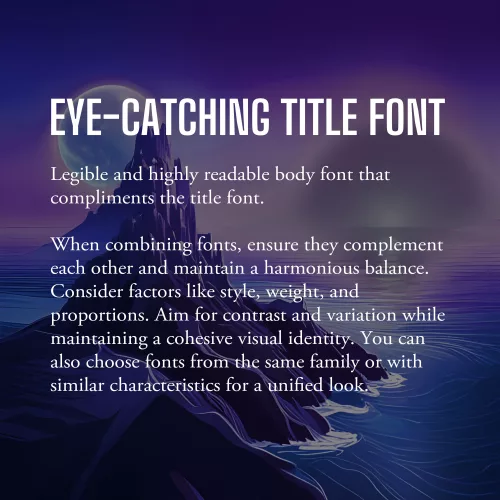
Example font pairing

Fonts play a significant role in web design, as they contribute to the overall look and feel of your website. When selecting fonts, it’s essential to choose ones that are not only legible but also visually appealing and complementary to your design aesthetic.

The first consideration when choosing fonts is legibility. Ensure that the fonts you select are easy to read, even at smaller sizes or on different devices. Legible fonts have clear and distinct letterforms, appropriate spacing between characters, and consistent stroke widths. Test the fonts across various screen sizes and devices to ensure they maintain their readability.

Once you have identified legible fonts, it’s time to think about the visual appeal and creating a harmonious typography scheme. Consider using a combination of fonts to add visual interest and establish a clear hierarchy within your design. One popular approach is to pair a sans-serif font with a serif font.

Sans-serif fonts, with their clean and modern appearance, are often used for headings and titles. They provide a contemporary and straightforward look that grabs attention and makes a bold statement. Serif fonts, on the other hand, have decorative strokes at the ends of characters, giving them a more traditional and elegant feel. They are commonly used for body text as they enhance readability and create a sense of familiarity.

When combining fonts, ensure that they complement each other and create a harmonious balance. Consider their overall style, weight, and proportions. Aim for contrast and variation between the fonts while maintaining a cohesive visual identity. Pairing fonts from the same font family or fonts that share similar characteristics can also create a cohesive and unified look.

Additionally, be mindful of the number of fonts you use on your website. Using too many fonts can lead to visual clutter and confusion. Stick to a limited number of fonts (typically two or three) to maintain consistency and a polished appearance throughout your website.

As with all design choices, it’s crucial to consider your target audience and the message you want to convey. Fonts can evoke different emotions and associations, so choose fonts that align with your brand personality and the overall tone of your website.

Incorporate Whitespace

Whitespace, or negative space, is a powerful yet often underutilized element. It refers to the empty space between elements on a webpage, and it plays a crucial role in creating a visually appealing and user-friendly design.

Whitespace is not just empty space; it is a deliberate design choice that brings balance, clarity, and elegance to your website. Incorporate ample white space to give your content room to breathe, allowing it to stand out and capture the user’s attention. This clean and uncluttered layout creates a sense of organization and makes it easier for visitors to navigate and digest your content.

One of the key benefits of whitespace is enhanced readability. The absence of visual clutter allows users to focus on the important elements and absorb information more easily. Whitespace also helps guide the user’s eye and establish a clear visual hierarchy, making it easier to prioritize content and highlight key messages.

Aesthetically, whitespace creates a sense of elegance and sophistication in your design. It gives your website a modern and spacious feel, conveying a sense of professionalism and attention to detail. When used strategically, whitespace can evoke a sense of luxury, simplicity, and elegance that resonates with your audience.

When incorporating whitespace, consider the overall layout and spacing between elements. Give generous margins around text blocks, images, and buttons. Be mindful of the spacing between different sections and elements on the page. Experiment with different layouts and proportions to find the right balance that suits your content and design aesthetic.

Use High-quality and Relevant Images

Incorporating visually appealing images is a powerful way to enhance the overall aesthetic of your website and captivate your audience. Well-chosen and carefully curated images can communicate your brand message, evoke emotions, and provide valuable context to your content.

First and foremost, prioritize high-quality images. Blurry or pixelated images can significantly impact the visual appeal of your website and create an unprofessional impression. Invest in high-resolution images that are crisp, clear, and vibrant. If you’re using photographs, ensure they are well-lit and properly composed.

Relevance is another crucial aspect to consider when choosing images. Select visuals that are closely aligned with your brand identity, content, and target audience. The images you choose should enhance the message you’re trying to convey and resonate with your visitors. For example, if you’re designing a website for a travel agency, incorporating captivating images of beautiful destinations can inspire and entice potential travelers.

Consider the placement and context of images within your website design. Images should be strategically positioned to support and complement your content. Use them to break up text, highlight key points, or create visual interest. For example, you can use images as background elements or hero banners to make a strong visual statement. The right images have the power to leave a lasting impression on your visitors and make your website truly visually appealing.

Create a Balanced Layout

Creating a balanced layout is crucial in web design as it contributes to the overall visual appeal and user experience of a website. When elements are evenly distributed and placed thoughtfully, they create a sense of visual equilibrium and harmony.

To achieve a balanced layout, consider the placement and arrangement of text, images, and other design elements on the page. Distribute them strategically, ensuring that no single element overpowers or dominates the others. This can be achieved through techniques such as symmetry, asymmetry, or a grid-based layout.

Symmetrical balance involves arranging elements in a mirrored or evenly distributed manner, creating a formal and harmonious feel. It is often used in more traditional and conservative designs. Asymmetrical balance, on the other hand, involves arranging elements in an intentionally unbalanced but visually pleasing way. This approach adds a sense of dynamism and can be used to create more modern and creative designs.

With careful consideration of the placement, size, and visual weight of each element, you can create a balanced layout that guides the user’s eye, communicates hierarchy, and enhances the overall visual appeal. A well-balanced layout not only creates a visually pleasing design but also improves readability and usability, making it easier for visitors to navigate and engage with your website’s content.

Apply Visual Hierarchy

Visual hierarchy is a fundamental principle in web design that helps guide users’ attention and prioritize information effectively. By strategically applying various design elements such as size, color, contrast, and placement, you can establish a clear visual hierarchy on your website.

One of the key aspects of visual hierarchy is utilizing size appropriately. Larger elements tend to attract more attention, so use larger fonts for headings or important sections to make them stand out. Similarly, consider increasing the size of buttons or interactive elements to encourage user engagement. With contrasting sizes, you create a distinction between different elements and help users understand their relative importance.

Color is another powerful tool in establishing visual hierarchy. Use color strategically to draw attention to key elements. Vibrant or contrasting colors can make important elements stand out, while more muted or harmonious colors can be used for less prominent elements. Additionally, consider using color to create consistency and coherence with your brand identity.

Honorable Mentions

Designing a visually appealing website is essential for capturing the attention of users and creating a memorable browsing experience.

While we’ve covered some of the key aspects of visual design, there are some honorable mentions worth talking about. Visual multimedia elements, such as videos, animations, and interactive components, can enhance engagement and add an interactive dimension to your design. However, it’s important to use them judiciously and ensure they contribute to the overall user experience.

Additionally, responsive design deserves a special mention. Ensuring your website is responsive and adapts seamlessly to different screen sizes and devices is crucial in today’s mobile-first era. Responsive design guarantees that your website looks visually appealing and functions optimally across a range of devices, providing a consistent experience for users.

Remember, creating a visually appealing website goes beyond aesthetics—it also contributes to user satisfaction, brand perception, and ultimately, the success of your online presence. Take some time to think about how you can implement these tips into your design workflow. Standing on the shoulders of design giants, you can create a website that not only looks visually stunning but also delivers an exceptional user experience.

Top 10 Best Practices in Web Design

In web design, the key to standing out lies in creating a memorable and impactful user experience. Your website’s design plays a critical role in capturing and retaining the attention of visitors. The secret lies in adhering to the best practices in web design—time-tested principles that elevate your website above the rest and make it shine.

Today we explore the fundamental principles that underpin successful web design, empowering you to craft visually stunning, user-friendly, and high-performing websites. From responsive design and clear navigation to fast loading speeds and engaging call-to-actions, each best practice plays a pivotal role in shaping the user experience. By understanding and implementing these principles, you’ll not only create websites that captivate and delight visitors, but also establish a strong foundation for driving engagement, conversions, and long-term success.

#1: Responsive Design

Responsive design is a fundamental best practice of modern web design. It ensures that your website adapts seamlessly to different screen sizes and devices, providing a consistent and user-friendly experience.

Neglecting mobile-friendliness can result in a loss of potential visitors and customers. Responsive web design showcases your commitment to accessibility and delivers optimal viewing experiences across devices.

Responsive design uses fluid grids, flexible layouts, and media queries to adjust the website’s content and layout dynamically. This approach saves time, ensures consistency, and reduces the need for separate designs for different devices.

Benefits of responsive design:

  1. Improved user experience: Seamless navigation and content adaptation enhance user satisfaction and engagement.
  2. Higher search engine rankings: Mobile-friendliness is a ranking factor, improving visibility and organic traffic.
  3. Cost-effectiveness: Maintaining a single responsive website streamlines resources and simplifies maintenance.

Implementing responsive design:

  1. Fluid grids: Use relative units for defining widths and heights to ensure flexibility.
  2. Flexible images: Optimize and scale images appropriately using CSS media queries.
  3. Media queries: Apply specific styles and layout adjustments based on device characteristics using CSS media queries.

Responsive design future-proofs your website and delivers consistent experiences across devices.

#2: Clear Navigation

Exploring navigation

A user-friendly and intuitive navigation system is crucial for a successful website. It allows visitors to find information easily and enhances their overall browsing experience.

Clear navigation ensures that visitors can quickly locate the desired information without confusion or frustration. It improves usability, engagement, and satisfaction.

Elements of effective navigation:

  1. Clear menu structure: Organize content logically with descriptive labels for easy understanding.
  2. Intuitive placement: Position the navigation menu prominently, preferably at the top, for easy access on every page.
  3. Descriptive labels: Use clear and concise labels that accurately represent the content they link to.
  4. User-friendly patterns: Implement familiar navigation patterns like drop-down menus or breadcrumb navigation for intuitive browsing.

Enhancing navigation usability:

  1. Keep it concise: Limit menu items to essential sections to avoid overwhelming visitors.
  2. Highlight the current page: Use visual cues to indicate the visitor’s location within the website.
  3. Implement search functionality: Include a search bar for direct content or product search.

#3: Consistent Branding

Uniform branding across your website is essential for creating a cohesive and memorable user experience. It reinforces your brand identity, builds trust, and enhances recognition. By maintaining consistency in colors, fonts, and visual elements, you establish a strong and recognizable presence.

Consistent branding helps convey a professional image, fosters trust, and strengthens brand recall. It creates a cohesive visual language that aligns with your brand values and messaging, enhancing the user experience.

Elements of consistent branding:

  1. Colors: Select a primary color palette and use it consistently. Incorporate secondary colors that complement the primary palette.
  2. Fonts: Choose a set of fonts that align with your brand’s personality and use them consistently for headings, subheadings, and body text.
  3. Visual elements: Define and use consistent icons, buttons, and graphical elements that reflect your brand’s style.

Implementing consistent branding:

  1. Create a style guide that outlines your brand’s visual guidelines, including color codes, font usage, and logo placement.
  2. Develop reusable templates and design systems that incorporate your brand elements.
  3. Regularly audit your website to ensure consistent application of branding elements.

#4: Fast Loading Speed

The website weight loss guide

Quick loading speed is vital for a positive user experience and improved search engine rankings. Optimizing your website’s performance ensures quick loading times, reducing bounce rates and increasing engagement.

Significance of fast loading speed:

  • Users expect fast-loading websites, and slow pages can frustrate them.
  • Search engines prioritize fast websites, leading to higher rankings and increased visibility.

Strategies for optimization:

  • Compress files to reduce their size without compromising quality.
  • Enable browser caching to store static files locally.
  • Minify CSS, JavaScript, and HTML files by removing unnecessary elements.
  • Optimize code by eliminating unused or redundant parts.
  • Utilize a Content Delivery Network (CDN) to distribute content globally.

Tools for measuring speed:

  • Google PageSpeed Insights provides recommendations for improvement.
  • GTmetrix and WebPageTest offer detailed performance analysis.

#5: Use of White Space

White space is a key element in web design that improves readability, establishes hierarchy, and creates a clean layout. Incorporating ample white space offers the following benefits:

Readability:

  • Clear content separation for easier comprehension.
  • Improved legibility by reducing visual noise.

Visual Hierarchy:

  • Emphasis on focal points and important elements.
  • Grouping and organizing related content.

Clean Layout:

  • Promotes minimalism and elegance.
  • Directs user focus and reduces distractions.

Strategies for effective use of white space:

  • Maintain balance and proportion.
  • Use appropriate margins and padding.
  • Ensure consistency throughout the design.
  • Experiment and test to find the optimal amount of white space.

Remember, white space is not wasted space. It not only enhances the overall aesthetics of your website, but the user experience as well.

#6: Legible Typography

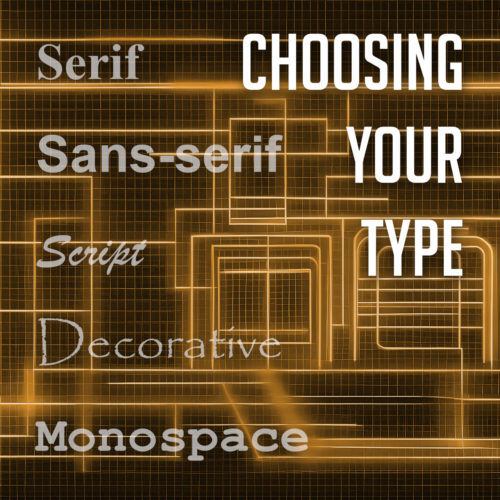
Choosing your type

Choosing legible typography is essential for ensuring easy readability and accessibility on your website. Consider the following key aspects:

Font selection:

  • Prioritize readability over novelty.
  • Choose fonts that align with your brand identity.

Font size and spacing:

  • Set appropriate font sizes for different screen sizes.
  • Pay attention to line spacing and letter spacing.

Contrast and legibility:

  • Maintain sufficient contrast between text and background.
  • Ensure consistency in contrast throughout the website.

Responsive typography:

#7: Engaging Calls-to-Action (CTAs)

Calls-to-Action play a crucial role in driving user engagement and conversions on your website. By strategically placing clear and visually appealing CTAs throughout your web pages, you can effectively guide visitors towards desired actions, whether it’s making a purchase, subscribing to a newsletter, or filling out a form. Let’s explore the key considerations for creating engaging CTAs.

  • Clear messaging: Use action-oriented language and highlight the benefits users will gain.
  • Visual design: Create eye-catching CTAs with contrasting colors and proper sizing and placement.
  • Responsive and interactive: Optimize CTAs for mobile devices and add hover or animation effects.
  • A/B testing and optimization: Experiment with different variations and continuously optimize based on data.
  • Alignment with user expectations: Place CTAs contextually and ensure consistency with page content.

Implementing engaging CTAs will drive user engagement and motivate visitors to take action, leading to more conversions.

#8: Accessible Design

Accessibility and usability

Designing websites with accessibility in mind is crucial to ensure the widest possible audience and provide equal access to all users. Consider the following guidelines for creating an accessible design:

  • Alt tags for images: Use descriptive alternative text (alt tags) for images to assist visually impaired users in understanding the content.
  • Proper heading structure: Utilize heading tags (h1, h2, h3, etc.) in a logical order to facilitate navigation for screen readers and provide structure to your content.
  • Color contrast: Ensure sufficient contrast between text and background colors to aid users with visual impairments in reading the content.
  • Keyboard accessibility: Make sure all website functions and interactive elements can be accessed and operated using a keyboard alone, without relying solely on a mouse or touch input.
  • Descriptive links: Use descriptive link text instead of vague phrases like “click here” to provide clarity and context to screen reader users.

#9: Optimized Images

Optimizing images is vital for enhancing website performance and delivering a seamless user experience. Consider the following techniques to optimize your images effectively:

  • Image compression: Use tools or plugins to compress images without compromising quality. Reduce file sizes to minimize loading times.
  • Proper file formats: Choose the appropriate image format based on the content. Modern formats like WebP and AVIF offer more efficient compression.
  • Resizing and cropping: Resize images to fit their display dimensions on the website. Crop images to remove unnecessary elements and focus on the subject.
  • Lazy loading: Implement lazy loading techniques to load images only when they come into the user’s view, reducing initial page load time.
  • Image caching: Leverage browser caching to store images temporarily, reducing the need to download them with each page visit.
  • Image optimization plugins: Utilize image optimization plugins or online services that automatically optimize images upon upload.

#10: SEO-Friendly Design

Maximizing keyword density

Incorporating SEO best practices into your web design is essential for maximizing your website’s visibility in search engine results. Consider the following strategies to create an SEO-friendly design:

  • Proper use of headings: Utilize heading tags (h1, h2, h3, etc.) to structure your content and highlight important keywords. This helps search engines understand the hierarchy and relevance of your content.
  • Descriptive meta tags: Craft unique and compelling meta titles and descriptions for each page, incorporating relevant keywords to entice users to click through from search results.
  • Keyword optimization: Conduct keyword research and strategically place relevant keywords throughout your content, including headings, paragraphs, and image alt tags. However, ensure that the keywords are used naturally and do not compromise the readability of your content.
  • Descriptive URLs: Create clean and descriptive URLs that accurately reflect the content of the page. Avoid using vague or generic URLs and include relevant keywords when appropriate.
  • Mobile-friendly design: Optimize your website for mobile devices, as mobile-friendliness is a crucial factor in search engine rankings. Ensure your design is responsive and provides a seamless user experience across different screen sizes.
  • Fast loading speed: Improve your website’s loading speed by optimizing images, minifying code, and leveraging caching techniques. A fast-loading website not only enhances user experience but also positively impacts search engine rankings.

With these SEO-friendly design practices, you can improve your website’s visibility and attract more organic traffic from search engines.

Honorable Mentions

Following these ten best practices in web design will help you create exceptional websites that engage visitors, provide a seamless user experience, and achieve your goals. From responsive design and clear navigation to consistent branding and fast loading speeds, each best practice plays an important role in crafting a successful website.

Other honorable mentions worth considering include incorporating social media integration to enhance engagement, implementing secure HTTPS protocol to build trust and protect user data, and leveraging analytics tools to gather insights and make data-driven decisions.

Remember, web design is an ever-evolving field, and staying updated with the latest trends and technologies is essential. Continuously seek inspiration, explore new techniques, and adapt to the changing needs of your audience. By adhering to these best practices and continuously refining your design skills, you can create visually appealing, user-friendly, and high-performing websites that leave a lasting impression on your visitors.

Top 10 Tips for an Exceptional User Experience

In this digital and connected world, where users have countless options at their fingertips, delivering an exceptional user experience has become a crucial aspect of successful web design. It’s not enough to simply have a visually appealing website; you must also prioritize usability, accessibility, and engagement to captivate your audience and keep them coming back for more.

In this article, we will explore ten essential tips that can significantly enhance UX in web design. From intuitive navigation to responsive layouts, we will discuss the fundamental elements that contribute to creating a seamless and delightful visit. Implementing these strategies can elevate your website’s usability, improve customer satisfaction, and ultimately drive conversions and success.

Clear and Intuitive Navigation

An effortless navigation experience is crucial for engaging website visitors. Clear labels, logical organization, and intuitive menus are key elements that contribute to a user-friendly interface.

Position your navigation menu at the top of the webpage for easy visibility and consistency across all pages. Use concise and descriptive labels that accurately represent the content of each page. Visual cues, such as icons or dropdown menus, can enhance clarity.

Organize your content into meaningful sections and subcategories, prioritizing important pages. Regularly test your navigation with real users to identify and address any pain points or confusion.

By implementing clear and intuitive navigation, you create a seamless user path that fosters trust and professionalism. Visitors will appreciate a website that respects their time and provides information effortlessly, ultimately leaving a positive and lasting impression.

Responsive Design

Mobile-first responsive design

In today’s mobile-centric world, a responsive design is no longer an option but a necessity. With an increasing number of users accessing websites from a variety of devices, it’s crucial to create a seamless and enjoyable experience across all screen sizes.

Responsive design allows your website to automatically adapt its images, layout, and content to provide optimal viewing and interaction on desktops, laptops, tablets, and smartphones. This adaptability ensures that users can easily navigate and consume your content without the frustration of zooming or scrolling excessively.

When implementing responsive design, focus on optimizing the user interface for touch interactions on mobile devices. Consider the hierarchy of information, prioritize key content, and maintain consistent branding and design elements across different screen sizes.

With a mobile-first responsive design, you demonstrate your commitment to user convenience and accessibility, while your website becomes a versatile and flexible platform that seamlessly adapts to any device, enhancing user engagement and satisfaction.

Lightning-Fast Load Times

Things aren’t slowing down. With attention spans shorter than ever, the need for a blazing-fast website cannot be overstated. Users expect instant gratification, and any delay in loading can quickly lead to frustration and abandonment.

To meet these expectations, it is crucial to optimize your website’s performance and ensure lightning-fast load times. Start by focusing on reducing file sizes, such as images, scripts, and CSS files. Compress and optimize these assets without sacrificing quality to minimize the data that needs to be transferred to the user’s device.

Leveraging caching techniques is another effective strategy. Implement browser caching, which stores certain elements of your website on the user’s device, allowing subsequent visits to load faster. Additionally, utilize server-side caching to generate and store static versions of your web pages, reducing the processing time required for each request.

Optimizing your code is equally important. Minify HTML, CSS, and JavaScript files by removing unnecessary spaces, comments, and line breaks. Consider using asynchronous loading for JavaScript files to prevent blocking the rendering of your web page.

Regularly monitor and analyze your website’s performance using tools like Google PageSpeed Insights or GTmetrix. These tools provide insights and recommendations for improving load times. Address any identified issues promptly, making performance optimization an ongoing priority.

With faster load times, you create a positive user experience that keeps visitors engaged and satisfied. Users will appreciate your website’s responsiveness, resulting in increased conversions, lower bounce rates, and improved search engine rankings.

Readable Typography

Choosing your type

Your choice of typography plays a vital role in shaping the overall user experience. Aesthetically pleasing fonts are undoubtedly important, but it is equally crucial to prioritize readability to ensure that your content is effortlessly consumed.

Selecting legible fonts is the first step towards enhancing readability. Opt for fonts that are easy on the eyes and maintain clarity even at smaller sizes. Sans-serif fonts like Arial, Helvetica, or Roboto are popular choices due to their clean and modern appearance. However, serif fonts like Times New Roman or Georgia can also be effective for conveying a sense of elegance and sophistication.

Alongside font selection, consider the appropriate font size to facilitate comfortable reading. Text that is too small strains the eyes, while text that is excessively large disrupts the flow of content. Strike a balance by choosing a font size that allows users to effortlessly consume the information without squinting or feeling overwhelmed.

Line spacing, also known as leading, plays a significant role in improving readability. Ample spacing between lines prevents the text from appearing cramped and enhances the overall clarity of the content. Aim for a line spacing that provides enough breathing room between each line while maintaining a cohesive and visually pleasing structure.

Consistent and Engaging Visual Design

Consistency is a cornerstone of effective web design, especially when it comes to visual elements. Establishing a consistent and engaging visual design creates a cohesive experience that captivates users and reinforces your brand identity.

Start by selecting a color palette that reflects your brand and evokes the desired emotions. Consistency in color usage across your website’s various elements, such as buttons, headers, and backgrounds, creates visual harmony and familiarity.

Incorporate captivating imagery that resonates with your audience and aligns with your brand identity. High-quality images can communicate your message effectively and evoke emotions. Consistency in imagery style and quality further enhances the visual appeal.

By maintaining consistency in color schemes, typography, and imagery, you establish brand recognition and create a unified experience across your website. This consistency instills trust, helps users navigate intuitively, and reinforces your brand’s identity. A cohesive visual design captivates users, encourages engagement, and leaves a lasting impression.

Clear Call-to-Action

A well-designed call-to-action (CTA) stands out from the rest of the page, capturing users’ attention and compelling them to act. It should clearly communicate the desired action, whether it’s signing up for a newsletter, making a purchase, or contacting your business.

Placement is key when it comes to CTAs. Position them strategically within your website’s layout, ensuring they are easily noticeable and accessible. Consider placing CTAs above the fold or in prominent areas where users’ attention is naturally drawn.

A clear and persuasive CTA is a vital element of your website design, driving user engagement and achieving your goals. Use action-oriented language and attention-grabbing colors to create a sense of urgency. Test and optimize your CTAs regularly to maximize their impact and guide users towards desired actions. Effective CTAs are the catalyst for increased user engagement and conversions.

Streamlined Forms

Web forms

Streamlining the form completion process is crucial for enhancing UX and increasing form submissions. Simplify forms by minimizing the number of required fields and only requesting essential information. Use inline validation to provide real-time feedback and guide users in filling out the form correctly.

Clear and concise instructions help users understand the purpose of each field and how to complete the form. Further optimize the form submission process by eliminating unnecessary steps and providing a clear confirmation message upon submission. With well-designed forms, you improve user satisfaction and encourage higher conversion rates.

Error Handling and Feedback

Effective error handling and feedback play a vital role in creating a seamless user experience on your website. When users encounter errors or perform actions that require feedback, it is crucial to provide clear and informative messages. Error messages should clearly communicate what went wrong in a concise and understandable manner, avoiding technical jargon.

Additionally, offer specific guidance on how users can rectify the issue or provide alternative solutions. Visual cues such as color changes or icons can also help draw attention to errors and provide visual feedback. Implementing robust error handling and feedback mechanisms empowers users to navigate through potential obstacles and ensures a smoother and more user-friendly experience.

Accessibility

Designing with accessibility in mind is essential to create an inclusive and user-centric user experience. Considering the needs of users with disabilities ensures that your website is usable by a wider audience.

One crucial aspect is screen reader compatibility, where providing appropriate alternative text for images and implementing semantic markup allows visually impaired users to navigate and understand the content effectively. Keyboard navigation is another vital consideration, enabling users to navigate through your website using only the keyboard, without relying on a mouse.

Additionally, pay attention to color contrast to ensure that text and other visual elements are easily distinguishable for users with visual impairments.

Personalization

Personalization has become a key factor in enhancing user experience. Tailoring content and experiences based on user preferences and behaviors can greatly improve engagement and satisfaction. Utilize user data and technologies like cookies and user accounts to deliver personalized recommendations, relevant content, and targeted offers.

Personalization goes beyond addressing users by name; it involves understanding their needs and providing them with tailored information or experiences. Incorporating personalization strategies creates a unique and engaging website that keeps users coming back for more.

Incorporating these tips into your web design practices can greatly enhance the overall user experience of your website. From intuitive navigation to responsive design, fast load times to readable typography, each aspect plays a crucial role in creating a positive and engaging feel for the user. By prioritizing user needs and preferences, you can build a website that not only captivates and delights your visitors but also drives business success. So, go ahead and implement these tips, and watch as your website becomes a user-friendly destination that delights and engages your users.

CSS Resets: A Clean Slate for a Solid Foundation

Have you have ever wondered why your web pages look different across different browsers? Don’t worry, you’re are not alone. One of the reasons for this inconsistency is that browsers have their own default styles for various HTML elements, such as margins, paddings, fonts, colors, etc. These default styles can interfere with your own custom styles and create unwanted effects.

To avoid this problem, many web developers use a CSS reset. A reset is a set of rules that normalize the default styles of all HTML elements to a consistent baseline. This way, you can have more control over the appearance of your web pages and ensure that they look the same across different browsers and devices.

Why Do I Need a CSS Reset?

CSS Resets may sound fancy, but at their core, they are simply a set of styles that aim to reset or normalize the default browser styles applied to HTML elements. In other words, they wipe the slate clean, providing you with a consistent starting point for your web designs.

Now, before we delve into the nitty-gritty of CSS resets, let’s take a quick detour to talk about the CSS box model. Understanding the box model is essential because it forms the foundation of how elements are rendered and positioned on a webpage.

In a nutshell, the box model refers to the way elements are structured and sized in CSS. Each element can be thought of as a box, with four main components: content, padding, border, and margin. These components determine the element’s overall size and spacing.

By default, different browsers have their own unique interpretations of the box model, leading to inconsistencies in how elements are displayed. This is where CSS resets come to the rescue. They help establish a consistent box model across browsers, ensuring that your designs look as intended, regardless of the user’s browser. This can simplify your web design workflow and save you from the headaches of cross-browser inconsistencies.

What’s Wrong With Default Browser Styles?

When it comes to default browser styles, it’s a wild west out there. Different browsers have their own default styles for HTML elements, which means that the same element can look drastically different across various browsers. This poses a significant challenge for web designers who strive for consistency and want their designs to look the same regardless of the browser being used.

Default browser styles can vary in terms of font sizes, colors, margins, paddings, and even how elements like headings or lists are rendered. These inconsistencies can lead to a disjointed and unprofessional appearance, making it difficult to create a cohesive and polished website.

CSS resets help neutralize these default browser styles, providing a level playing field for web designers. By applying a reset, you can start with a clean slate, establishing a consistent baseline across browsers. This ensures that your designs are not at the mercy of default styles and gives you greater control over the visual presentation of your website.

What Are the Benefits of Using CSS Resets?

Using CSS resets offers a range of benefits that can greatly enhance your web design process. Let’s explore some of the key advantages:

  1. Consistent Starting Point: By applying a CSS reset, you establish a consistent starting point for styling across different browsers. This means that you no longer have to worry about browser defaults interfering with your design intentions. Instead, you have full control over how elements are rendered, allowing you to create a consistent and harmonious look and feel across all browsers.
  2. Elimination of Inconsistencies: CSS resets help eliminate unexpected layout and styling issues caused by browser defaults. These defaults can vary significantly, leading to inconsistencies in spacing, font sizes, and other visual aspects. With a CSS reset, you can ensure a level playing field and avoid spending hours trying to figure out why your layout is behaving differently across browsers.
  3. Improved Cross-Browser Compatibility: By neutralizing browser defaults, CSS resets promote improved cross-browser compatibility. They provide a solid foundation for your styles, reducing the likelihood of elements appearing drastically different or breaking in specific browsers. This allows you to reach a broader audience and ensure that your website looks great and functions properly regardless of the browser being used.
  4. Time and Effort Savings: CSS resets can save you valuable time and effort by streamlining your design workflow. Instead of manually overriding default styles for each element, you can rely on a CSS reset to do the heavy lifting. This means less code to write and maintain, allowing you to focus on the creative aspects of your design rather than troubleshooting inconsistencies.

Incorporating a CSS reset into your web design toolkit is a wise choice, especially if you’re a beginner looking to establish a solid foundation. It helps you start on the right foot, ensuring a consistent and predictable styling experience across browsers.

What Does a CSS Reset Look Like?

Now that we understand the importance and benefits of CSS resets, let’s take a closer look at what a CSS reset actually looks like. A CSS reset is essentially a set of CSS rules that aim to remove or reset default browser styles, allowing you to start with a clean slate for your own custom styling.

Here’s an example of a minimal CSS reset:

/* CSS Reset by photricity.com */
html, body, div, span,
h1, h2, h3, h4, h5, h6,
form, label, input, button,
p, a, img, ul, ol, li, blockquote,
article, aside, footer, header, section {
    border: 0;
    margin: 0;
    padding: 0;
    font: inherit;
    font-size: 100%;
    vertical-align: baseline;
}

body {
    line-height: 1;
}

ul, ol {
    list-style: none;
}

img {
    max-width: 100%;
    height: auto;
}

button {
    cursor: pointer;
}

In this example, we’re targeting a range of HTML elements and applying reset styles to them. We remove margins, padding, borders, and set font sizes and families to inherit for consistency. We also handle lists, images, buttons, and some basic form elements.

It’s important to note that this is just a minimal CSS reset, and you can customize it further based on your specific project needs. Some CSS resets may include additional rules to reset more elements or handle specific edge cases. However, remember to use resets judiciously and avoid over-resetting, as it can inadvertently remove necessary styling or functionality.

Once you’ve applied the CSS reset, you can proceed to add your custom styles below it. This way, you have a solid foundation to build on, ensuring your styles are consistent across different browsers and devices.

Feel free to experiment with different CSS resets or use and modify this example to fit your requirements. The goal is to establish a clean slate for your styles and create a more consistent and predictable design experience.

What Are Some Popular CSS Resets?

When it comes to CSS resets, there are a few popular options that have gained recognition and widespread usage among web designers. Let’s take a closer look at two of the most well-known CSS resets.

  1. Eric Meyer Reset
    The Eric Meyer reset is one of the earliest and most widely adopted CSS resets. Created by Eric Meyer, a renowned web design expert, this reset aims to neutralize browser defaults and provide a clean slate for styling. It resets many common elements like margins, paddings, font sizes, and lists, ensuring a consistent starting point for your design.
  2. Normalize.css
    Normalize.css is another popular CSS reset option that focuses on preserving useful browser defaults while normalizing styles across different browsers. It aims to fix inconsistencies in rendering, ensuring a consistent and predictable experience. Normalize.css provides a solid foundation by addressing common issues like font variations, element inconsistencies, and handling of HTML5 elements.

Customizing CSS Resets

Now that you’ve got a solid understanding of popular CSS resets, it’s time to put your personal touch on things. Customizing CSS resets allows you to fine-tune the styles and make them align perfectly with your project’s needs. Let’s explore a couple of ways you can make these resets your own:

  1. Modifying Existing Resets
    If you’ve found a CSS reset that closely matches your requirements but needs a few tweaks, don’t hesitate to make adjustments. You can selectively modify certain styles or properties to retain specific browser defaults while resetting others. This approach allows you to maintain a balance between consistency and preserving the unique characteristics of your design.
  2. Creating Your Own Reset
    For those seeking complete control over their styles, creating a custom CSS reset from scratch is the way to go. By starting with a clean slate, you can meticulously define the exact styles and properties you want to reset. This level of customization ensures that every aspect of your project adheres to your design vision, without any unwanted surprises caused by default browser styles.

Now, before you dive headfirst into customization, it’s important to consider the scope of your project. Not every project requires a full-blown reset. If you’re working on a small-scale project or prefer to keep certain default styles intact, a selective reset might be more suitable. This approach allows you to target specific elements or properties that commonly cause compatibility issues, leaving the rest untouched.

Remember, customization is about finding the right balance. You want to ensure consistency while still embracing the unique character of your design.

Best Practices for Using CSS Resets

Now that you’re familiar with CSS resets and their customization options, let’s discuss some best practices for effectively using them in your web design projects. While CSS resets can be incredibly useful, it’s important to approach them with caution and find the right balance. Here are some recommendations to keep in mind:

  • Assess the Project Needs
    Before diving into a CSS reset, consider the specific requirements of your project. Not every project will benefit from a reset. Simple and lightweight websites may not require a full reset, while complex web apps with intricate styling may greatly benefit from starting with a clean slate. Evaluate the scope and complexity of your project to determine if a reset is necessary.
  • Selective Resets
    Remember, you don’t always need to reset every single style. Opt for selective resets by focusing on elements or properties that commonly cause cross-browser inconsistencies. This approach allows you to address the specific pain points while retaining other default styles that work well for your design. Be mindful of the balance between consistency and preserving the unique aspects of your design.
  • Use Resets as a Foundation
    CSS resets are meant to provide a consistent starting point for styling across different browsers. Treat them as a foundation upon which you build your custom styles. Avoid relying solely on a reset to dictate all your design decisions. Instead, leverage the reset as a starting point and gradually add your own styles to create a unique and visually appealing website.
  • Consider the Drawbacks
    While CSS resets can be advantageous, they also have potential drawbacks. Overusing resets or applying them without careful consideration can lead to unintended consequences and additional maintenance. Resetting styles too aggressively may remove valuable default behaviors or accessibility features. Be mindful of the potential drawbacks and assess the impact of resets on your specific project.
  • Test and Refine
    As with any aspect of web design, testing is crucial. Test your website across different browsers and devices to ensure that the reset is working as intended and producing the desired results. Make adjustments as necessary and refine your reset to strike the right balance between consistency and customization.

Remember, CSS resets are a tool to enhance your design workflow and achieve a more consistent cross-browser experience. With thoughtful consideration and selective use, you’ll be able to create stunning and harmonious designs that captivate your users.

Alternatives to CSS Resets

While CSS resets can be a great solution for achieving consistent styling across browsers, they are not the only approach available.

CSS frameworks, such as Bootstrap, Foundation, and Bulma, offer a comprehensive set of pre-designed styles, components, and layout systems. These frameworks often come with their own reset or normalization styles, eliminating the need for a separate CSS reset. By using a framework, you can start your project with a predefined and consistent design foundation, saving you time and effort. However, keep in mind that using a CSS framework may introduce additional overhead and customization limitations. Evaluate the needs of your project and the level of flexibility required before deciding to incorporate a framework.

When considering alternatives to CSS resets, weigh the benefits and trade-offs of CSS frameworks against your project requirements. Each approach has its own advantages and considerations, so choose the option that aligns best with your design goals and development workflow.

By now, you should have a clear understanding of how CSS resets can save you from unexpected styling issues and help you create a more consistent and predictable design experience. However, it’s important to remember that CSS resets are just one tool in your web design arsenal. They are not a one-size-fits-all solution and should be used judiciously. Evaluate the needs of your project, consider the alternatives, and strike a balance between achieving consistent styling and maintaining flexibility.

Now it’s time to put your newfound knowledge into practice. Experiment with different CSS resets, explore customization options, and fine-tune your approach to suit each unique project. Don’t be afraid to push the boundaries, try alternatives like CSS frameworks, and discover what works best for you.

The Anatomy of a Website

A website is made up of many components that all work together to create a functional and informative whole. Those components can be compared to the anatomy of a human body. Just like a human body is made up of different organs and systems that each perform specific functions, a website consists of various components that work together to deliver content and functionality to users. Let’s take a closer look at the anatomy of a website and how it compares to human anatomy.

Skeletal System

Just like how the skeletal system is the foundation of the human body, HTML (Hypertext Markup Language) serves as the foundation of a website. HTML provides the structure and organization for the content on a web page, defining the different elements and their relationships to each other. Just as the skeletal system provides support for the body, HTML provides the structure that supports the design, functionality, and usability of a website. Without a solid HTML structure, a website would lack the necessary foundation to be easily navigated and displayed across various devices and browsers.

Muscular System

In the analogy of comparing the parts of a website to human anatomy, the web server can be thought of as the muscular system. Just as the muscles provide movement and structure to the human body, web hosting provides the support and structure for a website to function. It is responsible for delivering the content of a website to its visitors and ensuring that it is always available and accessible. Without web hosting, a website cannot exist and function properly, just as the human body cannot function without its muscles. Therefore, it is crucial to choose a reliable and trustworthy web hosting provider to ensure the smooth functioning of a website.

Nervous System

Just as the nervous system is responsible for controlling and coordinating the body’s responses to stimuli, JavaScript plays a vital role in web development by controlling and coordinating the behavior of a website in response to user interactions. JavaScript is a high-level programming language that is often used to add interactivity, animations, and other dynamic features to a website. By manipulating HTML and CSS, JavaScript can create a rich user experience and improve the functionality of a website. This is what makes it the nerves of a website because it allows it to react and respond to the user’s actions, making it an essential part of modern web development.

A Content Management System (CMS) can be compared to the human brain. It is the control center of the website, where content is created, managed, and published. Just as the human brain is responsible for controlling the body’s functions, a CMS like WordPress is responsible for managing a website’s content.

The MySQL database is like the hippocampus of a website because it is responsible for storing and organizing memories, or in this case, website data. The hippocampus is a part of the human brain responsible for long-term memory storage and retrieval. Similarly, the MySQL database stores all the data for a website, such as user information, product details, and website content. It allows the website to quickly retrieve this information and present it to the user. Without the MySQL database, websites would not be able to store and organize large amounts of data efficiently.

The navigation of a website is like the spinal cord of the human body. Just as the spinal cord connects the various parts of the body, the navigation connects the different pages and sections of a website. It serves as a roadmap for users, guiding them to the content they want to find. A well-designed navigation system can make it easy for users to find what they are looking for and explore the website, while a poorly designed one can cause frustration and confusion. It is important to keep the navigation system simple, intuitive, and consistent throughout the website to ensure a smooth user experience.

Cardiovascular System

PHP (Hypertext Preprocessor) is a server-side programming language used to develop dynamic web pages and web applications such as WordPress. It can be considered as the cardiovascular system of a website as it is responsible for handling the flow of data between the server and client. PHP processes and manages requests, accesses and manipulates databases, and dynamically generates web pages. Just like the cardiovascular system carries blood and nutrients to all parts of the body, PHP handles and delivers information to all parts of the website, making it functional and interactive for the user. Without PHP or a similar architecture, a website would be static and lack the necessary functionalities to make it engaging and interactive.

The server CPU is like the heart of a website because it performs essential functions that keep the site running smoothly. The CPU (Central Processing Unit) is responsible for processing all of the requests made to the server, executing scripts, and handling other system-level tasks. Without a properly functioning CPU, a website may run slowly, suffer from errors, or even crash.

Immune System

Just like our immune system protects our body from viruses and diseases, website security protects the website from various cyber threats such as hacking, malware, and phishing attacks. Security measures include installing SSL certificates, implementing strong passwords, two-factor authentication, and regular software updates. Additionally, security plugins can be installed to further enhance website security. A strong immune system keeps us healthy, and a strong security system keeps the website safe and functional. Just as a disease can affect multiple parts of the body, a security breach can affect different areas of a website, including sensitive data, user information, and website functionality. Therefore, it is crucial to prioritize website security as part of website maintenance.

Skin

In comparing the parts of a website to the human body, CSS can be thought of as the skin. Just like how the skin gives a person’s body a certain look and feel, CSS is responsible for the visual appearance and style of a website. It allows web developers to change the color, font, layout, and overall design of a website, making it more appealing and user-friendly. CSS can also be used to create responsive designs that adjust the layout of the website to fit different screen sizes, making it accessible on a wide range of devices. Without CSS, websites would be limited to a default, plain appearance, making them less engaging and less likely to attract visitors.

Additional Components

  • Face: The homepage can be compared to a human body’s face. It is the first thing users see when they visit a website, and it sets the tone for the rest of the site. Just as a human face is the first thing people see and can leave a lasting impression, the homepage is the first thing users see and can determine whether they stay or leave.
  • Torso: The body of a website can be compared to a human body’s torso. It is the main part of the website that contains the content and functionality. Just as the torso contains the vital organs and performs important functions, the body of a website contains the content and performs the primary functions.
  • Arms: The sidebar can be compared to a human body’s arms. It is the part of the website that supports and enhances the body’s main functions. Just as the arms support and enhance the body’s functions, the sidebar supports and enhances the main content of the website.
  • Name: Just as a child is given a name and ID at birth, any new website requires a domain name. Similarly to how you would use your name to identify yourself, a domain name allows users to find and identify your website.

The same way the human body is made up of various parts that work together to create a cohesive and functional whole, a website is composed of different elements that work together to create a complete and effective online presence. By understanding the different parts of a website and how they relate to one another, website owners can create a site that is both visually appealing and user-friendly, and provides visitors with a positive experience.

CSS Variables: The Power of Custom Properties in Web Design

CSS custom properties, also known as CSS variables, were introduced in CSS3 as a way to make it easier to reuse and maintain styling across a website. With CSS custom properties, you can define a value once and use it throughout your stylesheet, making it easier to make global changes to your website’s design without having to edit multiple places. In this article, we’ll explore how to use CSS custom properties and some of the benefits they provide.

To create a custom property, you simply define it with a double hyphen prefix, followed by a name and a value:

:root {
    --primary-color: #0088cc;
}

In this example, we’ve defined a variable named “--primary-color” and given it a value of “#0088cc“. We’ve placed this definition in the :root selector to make it global to the entire document.

Once you’ve defined a custom property, you can use it throughout your stylesheet by referencing its name with the var() function:

a {
    color: var(--primary-color);
}

In this example, we’re setting the color of all anchor tags to the value of our custom property, “--primary-color“. This makes it easy to change the color of all links on our website by simply changing the value of the custom property. You can also use this same variable to color other highlighted elements like buttons, borders, and backgrounds.

One of the key benefits of CSS custom properties is that they make it easier to maintain a consistent design across your website. By defining global values in custom properties, you can make sure that your colors, fonts, and other design elements are consistent across all pages.

Custom properties can also make it easier to create responsive designs. Let’s say you have a navigation menu on your website that collapses into a hamburger menu on smaller screens. You want to change the background color of the navigation menu when it’s in its collapsed state to make it more visible. You can use CSS variables to define the background color for different screen sizes.

First, define a custom property for the background color:

--menu-bg-color: #ffffff;

Next, use media queries to change the value of the custom property for different screen sizes:

@media screen and (max-width: 768px) {
    :root {
        --menu-bg-color: #333333;
    }
}

Finally, use the custom property to style the navigation menu:

.nav-menu {
    background-color: var(--menu-bg-color);
}

In this example, the background color of the navigation menu will be white by default, but will change to dark gray when the screen width is 768px or less. This makes the menu more visible and easier to use on smaller screens. By using CSS custom properties and media queries, you can create responsive designs that adapt to different screen sizes and provide a better user experience.

In addition to making it easier to maintain a consistent design and create responsive layouts, CSS custom properties can also help reduce the size of your stylesheets. By using custom properties to define global values, you can avoid repeating the same values throughout your stylesheet, which can help reduce the file size and make your site faster. This is especially beneficial when using long values like gradients and clip paths.

Here’s an example where CSS variables can save a considerable amount of time and file size. Instead of defining your font families on each element, you can define custom properties for each style:

--title-font: Impact, 'Helvetica Neue Condensed', 'Arial Narrow', sans-serif;
--body-font: Helvetica, Tahoma, Arial, sans-serif;

Now you can use the title font variable to style each of your headings, and the body font property to style your paragraphs and list items.

So, instead of entering a long list of font families dozens of times throughout your document, you can define one list to be used any number of times throughout your document. Any time you decide to change your title font or body font, you only have to enter it once.

CSS custom properties can be used to save values for any property, from simple margins, to binary images. They can also be used to store complex values, such as the results of CSS calculations. Here’s an example of using the calc() function in a variable:

--box-width: calc(100vw - 20px);

This custom property can then be used to set the width of any element:

.box {
    width: var(--box-width);
}

This would set the width of all .box elements to 20 pixels smaller than the width of the viewport.

Here are some additional tips and techniques for using CSS custom properties:

  • Use descriptive names. This will make your code more readable and easier to understand down the road.
  • Use consistent naming conventions. This will help you to keep track of your custom properties and make it easier to find them when you need them.
  • Group related variables together. This will help to keep your code organized and easier to read.
  • Use custom properties to store complex values. This can be useful for things like storing the results of calculations or storing data that needs to be reused throughout a stylesheet.
  • Combine with other CSS features. CSS custom properties can be used in conjunction with other advanced CSS features such as calc(), media queries, and animations to create complex and dynamic designs.
  • Use custom properties to create accessible designs. You can use custom properties to store values that can be used to make your designs more accessible, such as the color of text or the contrast between text and background. This can help people with disabilities to use your website more easily.
  • Use fallback values. CSS custom properties can be nested, so it’s possible to set a fallback value for a property in case the browser doesn’t support custom properties. This ensures that the website will still be functional and styled even on browsers that don’t support CSS custom properties.

CSS custom properties are a hugely powerful new web technology that changes the game for web designers. They make it easier to create consistent designs and responsive layouts, as well as reducing the size of your stylesheets. By using custom properties to define global values, you can make it easier to maintain and update your website’s design, saving you time and effort in the long run.