Multiply Your Web Design Skills Exponentially With CSS Calculations

CSS calculations allow web developers to perform arithmetic calculations directly within CSS. This capability allows for more flexible and responsive web design, where styles can be adapted based on the dimensions of the viewport or other factors. In this article, we will explore this powerful CSS3 feature and provide code examples to demonstrate their use. Topics to be covered include various types of calculations, units of measurement, and browser compatibility. By the time you’re done reading, you will have a better understanding of how CSS calculations can be used to create dynamic and engaging web designs.

Understanding CSS Units

CSS calculations require an understanding of the different units of measurement used in CSS. These units can be divided into two categories: absolute units and relative units.

Absolute units, as the name implies, are fixed values that don’t change regardless of the context. Common examples of absolute units include pixels (px), points (pt), inches (in), and centimeters (cm).

Relative units, on the other hand, are values that are calculated based on the context in which they are used. This means that they can change depending on the size and properties of the parent element or browser window. Examples of relative units include em, rem, and percentage (%).

Two more essential relative units worth mentioning are viewport width (vw) and viewport height (vh). These units represent 1% of the viewport width and height, respectively. They allow elements to be sized relative to the dimensions of the viewport. For example, using “50vw” sets the width of an element to be 50% of the viewport width, or the browser window. Similarly, “50vh” sets the height to be 50% of the viewport height. These units are useful for creating responsive designs that adapt to different screen sizes and devices.

It’s important to choose the appropriate unit for your calculations based on the context and the desired result. For example, if you’re designing for print, using absolute units like inches or centimeters may be more appropriate. However, for web design, using relative units like em or rem can provide more flexibility and responsiveness.

Basic CSS Calculations

CSS calculations involve basic arithmetic operations like addition, subtraction, multiplication, and division. These calculations should be enclosed inside a calc() function and can be performed on any numerical CSS property value, such as length, width, margin, and padding. For example, if you want to subtract a padding of 5 pixels from the width of an element, you can write it in CSS using the subtraction operator as follows:

width: calc(100% - 5px);

Multiplication and division can also be used in CSS calculations. For instance, if you want to increase the font size of an element by 20%, you can write it in CSS using the multiplication operator as follows:

font-size: calc(16px * 1.2);

It’s important to note that calculations in CSS follow the same order of operations as in mathematics. To control the order of operations, you can use parentheses to group the operations as needed. For example:

width: calc((100% - 20px) / 2);

This code first subtracts 20 pixels from 100%, and then divides the result by 2.

Advanced CSS Calculations

CSS offers more advanced calculations beyond basic arithmetic. These calculations involve the use of trigonometric functions, logarithmic functions, and other mathematical operations. For instance, you can use sin(), cos(), and tan() functions to calculate values based on angles, or use log(), exp(), and sqrt() functions to perform logarithmic, exponential, and square root operations respectively.

Here’s an example of using the calc() function to perform an advanced CSS calculation:

.element {
    width: calc(sqrt(25) * 20px);
}

In this example, the width property of an element is set using the calc() function. The sqrt() function is used to calculate the square root of 25, and the resulting value is multiplied by 20px. This can be used for creating dynamic width calculations based on square root values.

CSS variables can also be used in calculations. This is particularly useful when you need to perform calculations based on dynamic values. Here’s an example of using CSS variables in a calculation:

:root {
    --base-size: 16px;
}

div {
    font-size: calc(var(--base-size) * 1.5);
}

In the example above, we’re using a CSS variable named --base-size to set the base font size to 16px. We’re then using calc() to multiply var(--base-size) by 1.5 to determine the font size of a div element.

When using advanced CSS calculations, it’s important to be mindful of performance implications. Complex calculations can slow down page load times and negatively impact user experience. It’s best to keep calculations as simple as possible and test them thoroughly to ensure they work as expected.

Common Use Cases for CSS Calculations

CSS calculations can be used in a variety of ways to make web design more efficient and responsive. Here are some common use cases:

Responsive Design: CSS calculations are particularly useful for creating responsive design that adapts to different screen sizes and resolutions. With calculations, designers can create flexible layouts that adjust to the available space, without needing to define specific pixel widths for each element. For example, calculations can be used to specify the width of a container as a percentage of the available screen width, or to adjust font sizes based on the viewport size.

.container {
    width: calc(50% - 20px);
    /* the container will be half of the available space, minus 20 pixels */
}

@media screen and (max-width: 768px) {
    .container {
        width: calc(100% - 40px);
        /* the container will take up all available space, minus 40 pixels */
    }
}

Grid Systems: CSS calculations can also be used to create flexible grid systems, where the column widths are determined by calculations rather than fixed pixel values. For example, a three-column layout could be created using calc(33.33% - 20px) for the column width, with 20 pixels of gutter space between each column.

.col {
    float: left;
    margin-right: 20px;
    width: calc(33.33% - 20px);
}

.col:last-child {
    margin-right: 0;
}

Typography: CSS calculations can be used to create dynamic typography that scales based on the size of the browser window. For example, the vw unit can be combined with calculations to create font sizes that adjust to the screen width.

h1 {
    font-size: calc(4vw + 20px);
    /* the font size will be 4% of the viewport width, plus 20 pixels */
}

p {
    font-size: calc(1em + 0.5vw);
    /* the font size will be 1em plus 0.5% of the viewport width */
}

By using CSS calculations in these and other ways, designers can create more efficient and flexible layouts that adapt to the needs of the user and the device.

Performance Considerations

While CSS calculations can be useful for creating dynamic and responsive web designs, they can also impact website performance if not used appropriately. This is because the browser needs to perform each calculation before the page can be rendered.

To optimize CSS calculations for performance, it’s important to avoid unnecessary calculations and minimize the number of times they are used. This can be achieved by simplifying the calculations and reducing the number of elements that use them.

To identify performance bottlenecks with CSS calculations, there are several tools available. The Chrome DevTools Performance panel, for example, can be used to measure the performance of a website and identify areas that need improvement. Other tools like PageSpeed Insights and WebPageTest can also provide insights into website performance and offer suggestions for optimization.

Unleash the Power of CSS Calculations

CSS calculations are a powerful tool that can improve the flexibility and responsiveness of your website design. By understanding the different CSS units and basic arithmetic calculations, you can create more dynamic and engaging layouts. Advanced CSS calculations offer even more possibilities, allowing you to create complex animations and interactions on your website. However, it’s important to consider performance implications and optimize your CSS calculations for faster page load times. With the right tools and best practices, you can take advantage of CSS calculations to create more compelling and effective web designs.

To continue learning about CSS calculations and improving your web design skills, there are many resources available online. Some recommended resources include CSS Tricks and W3Schools. These websites offer tutorials, examples, and documentation on CSS calculations and other web design topics.

I encourage you to experiment with CSS calculations and try incorporating them into your own web design projects. By utilizing the power of CSS calculations, you can create websites that are more responsive, dynamic, and engaging for your users.

The Anatomy of a Website

A website is made up of many components that all work together to create a functional and informative whole. Those components can be compared to the anatomy of a human body. Just like a human body is made up of different organs and systems that each perform specific functions, a website consists of various components that work together to deliver content and functionality to users. Let’s take a closer look at the anatomy of a website and how it compares to human anatomy.

Skeletal System

Just like how the skeletal system is the foundation of the human body, HTML (Hypertext Markup Language) serves as the foundation of a website. HTML provides the structure and organization for the content on a web page, defining the different elements and their relationships to each other. Just as the skeletal system provides support for the body, HTML provides the structure that supports the design, functionality, and usability of a website. Without a solid HTML structure, a website would lack the necessary foundation to be easily navigated and displayed across various devices and browsers.

Muscular System

In the analogy of comparing the parts of a website to human anatomy, the web server can be thought of as the muscular system. Just as the muscles provide movement and structure to the human body, web hosting provides the support and structure for a website to function. It is responsible for delivering the content of a website to its visitors and ensuring that it is always available and accessible. Without web hosting, a website cannot exist and function properly, just as the human body cannot function without its muscles. Therefore, it is crucial to choose a reliable and trustworthy web hosting provider to ensure the smooth functioning of a website.

Nervous System

Just as the nervous system is responsible for controlling and coordinating the body’s responses to stimuli, JavaScript plays a vital role in web development by controlling and coordinating the behavior of a website in response to user interactions. JavaScript is a high-level programming language that is often used to add interactivity, animations, and other dynamic features to a website. By manipulating HTML and CSS, JavaScript can create a rich user experience and improve the functionality of a website. This is what makes it the nerves of a website because it allows it to react and respond to the user’s actions, making it an essential part of modern web development.

A Content Management System (CMS) can be compared to the human brain. It is the control center of the website, where content is created, managed, and published. Just as the human brain is responsible for controlling the body’s functions, a CMS like WordPress is responsible for managing a website’s content.

The MySQL database is like the hippocampus of a website because it is responsible for storing and organizing memories, or in this case, website data. The hippocampus is a part of the human brain responsible for long-term memory storage and retrieval. Similarly, the MySQL database stores all the data for a website, such as user information, product details, and website content. It allows the website to quickly retrieve this information and present it to the user. Without the MySQL database, websites would not be able to store and organize large amounts of data efficiently.

The navigation of a website is like the spinal cord of the human body. Just as the spinal cord connects the various parts of the body, the navigation connects the different pages and sections of a website. It serves as a roadmap for users, guiding them to the content they want to find. A well-designed navigation system can make it easy for users to find what they are looking for and explore the website, while a poorly designed one can cause frustration and confusion. It is important to keep the navigation system simple, intuitive, and consistent throughout the website to ensure a smooth user experience.

Cardiovascular System

PHP (Hypertext Preprocessor) is a server-side programming language used to develop dynamic web pages and web applications such as WordPress. It can be considered as the cardiovascular system of a website as it is responsible for handling the flow of data between the server and client. PHP processes and manages requests, accesses and manipulates databases, and dynamically generates web pages. Just like the cardiovascular system carries blood and nutrients to all parts of the body, PHP handles and delivers information to all parts of the website, making it functional and interactive for the user. Without PHP or a similar architecture, a website would be static and lack the necessary functionalities to make it engaging and interactive.

The server CPU is like the heart of a website because it performs essential functions that keep the site running smoothly. The CPU (Central Processing Unit) is responsible for processing all of the requests made to the server, executing scripts, and handling other system-level tasks. Without a properly functioning CPU, a website may run slowly, suffer from errors, or even crash.

Immune System

Just like our immune system protects our body from viruses and diseases, website security protects the website from various cyber threats such as hacking, malware, and phishing attacks. Security measures include installing SSL certificates, implementing strong passwords, two-factor authentication, and regular software updates. Additionally, security plugins can be installed to further enhance website security. A strong immune system keeps us healthy, and a strong security system keeps the website safe and functional. Just as a disease can affect multiple parts of the body, a security breach can affect different areas of a website, including sensitive data, user information, and website functionality. Therefore, it is crucial to prioritize website security as part of website maintenance.

Skin

In comparing the parts of a website to the human body, CSS can be thought of as the skin. Just like how the skin gives a person’s body a certain look and feel, CSS is responsible for the visual appearance and style of a website. It allows web developers to change the color, font, layout, and overall design of a website, making it more appealing and user-friendly. CSS can also be used to create responsive designs that adjust the layout of the website to fit different screen sizes, making it accessible on a wide range of devices. Without CSS, websites would be limited to a default, plain appearance, making them less engaging and less likely to attract visitors.

Additional Components

  • Face: The homepage can be compared to a human body’s face. It is the first thing users see when they visit a website, and it sets the tone for the rest of the site. Just as a human face is the first thing people see and can leave a lasting impression, the homepage is the first thing users see and can determine whether they stay or leave.
  • Torso: The body of a website can be compared to a human body’s torso. It is the main part of the website that contains the content and functionality. Just as the torso contains the vital organs and performs important functions, the body of a website contains the content and performs the primary functions.
  • Arms: The sidebar can be compared to a human body’s arms. It is the part of the website that supports and enhances the body’s main functions. Just as the arms support and enhance the body’s functions, the sidebar supports and enhances the main content of the website.
  • Name: Just as a child is given a name and ID at birth, any new website requires a domain name. Similarly to how you would use your name to identify yourself, a domain name allows users to find and identify your website.

The same way the human body is made up of various parts that work together to create a cohesive and functional whole, a website is composed of different elements that work together to create a complete and effective online presence. By understanding the different parts of a website and how they relate to one another, website owners can create a site that is both visually appealing and user-friendly, and provides visitors with a positive experience.

CSS Variables: The Power of Custom Properties in Web Design

CSS custom properties, also known as CSS variables, were introduced in CSS3 as a way to make it easier to reuse and maintain styling across a website. With CSS custom properties, you can define a value once and use it throughout your stylesheet, making it easier to make global changes to your website’s design without having to edit multiple places. In this article, we’ll explore how to use CSS custom properties and some of the benefits they provide.

To create a custom property, you simply define it with a double hyphen prefix, followed by a name and a value:

:root {
    --primary-color: #0088cc;
}

In this example, we’ve defined a variable named “--primary-color” and given it a value of “#0088cc“. We’ve placed this definition in the :root selector to make it global to the entire document.

Once you’ve defined a custom property, you can use it throughout your stylesheet by referencing its name with the var() function:

a {
    color: var(--primary-color);
}

In this example, we’re setting the color of all anchor tags to the value of our custom property, “--primary-color“. This makes it easy to change the color of all links on our website by simply changing the value of the custom property. You can also use this same variable to color other highlighted elements like buttons, borders, and backgrounds.

One of the key benefits of CSS custom properties is that they make it easier to maintain a consistent design across your website. By defining global values in custom properties, you can make sure that your colors, fonts, and other design elements are consistent across all pages.

Custom properties can also make it easier to create responsive designs. Let’s say you have a navigation menu on your website that collapses into a hamburger menu on smaller screens. You want to change the background color of the navigation menu when it’s in its collapsed state to make it more visible. You can use CSS variables to define the background color for different screen sizes.

First, define a custom property for the background color:

--menu-bg-color: #ffffff;

Next, use media queries to change the value of the custom property for different screen sizes:

@media screen and (max-width: 768px) {
    :root {
        --menu-bg-color: #333333;
    }
}

Finally, use the custom property to style the navigation menu:

.nav-menu {
    background-color: var(--menu-bg-color);
}

In this example, the background color of the navigation menu will be white by default, but will change to dark gray when the screen width is 768px or less. This makes the menu more visible and easier to use on smaller screens. By using CSS custom properties and media queries, you can create responsive designs that adapt to different screen sizes and provide a better user experience.

In addition to making it easier to maintain a consistent design and create responsive layouts, CSS custom properties can also help reduce the size of your stylesheets. By using custom properties to define global values, you can avoid repeating the same values throughout your stylesheet, which can help reduce the file size and make your site faster. This is especially beneficial when using long values like gradients and clip paths.

Here’s an example where CSS variables can save a considerable amount of time and file size. Instead of defining your font families on each element, you can define custom properties for each style:

--title-font: Impact, 'Helvetica Neue Condensed', 'Arial Narrow', sans-serif;
--body-font: Helvetica, Tahoma, Arial, sans-serif;

Now you can use the title font variable to style each of your headings, and the body font property to style your paragraphs and list items.

So, instead of entering a long list of font families dozens of times throughout your document, you can define one list to be used any number of times throughout your document. Any time you decide to change your title font or body font, you only have to enter it once.

CSS custom properties can be used to save values for any property, from simple margins, to binary images. They can also be used to store complex values, such as the results of CSS calculations. Here’s an example of using the calc() function in a variable:

--box-width: calc(100vw - 20px);

This custom property can then be used to set the width of any element:

.box {
    width: var(--box-width);
}

This would set the width of all .box elements to 20 pixels smaller than the width of the viewport.

Here are some additional tips and techniques for using CSS custom properties:

  • Use descriptive names. This will make your code more readable and easier to understand down the road.
  • Use consistent naming conventions. This will help you to keep track of your custom properties and make it easier to find them when you need them.
  • Group related variables together. This will help to keep your code organized and easier to read.
  • Use custom properties to store complex values. This can be useful for things like storing the results of calculations or storing data that needs to be reused throughout a stylesheet.
  • Combine with other CSS features. CSS custom properties can be used in conjunction with other advanced CSS features such as calc(), media queries, and animations to create complex and dynamic designs.
  • Use custom properties to create accessible designs. You can use custom properties to store values that can be used to make your designs more accessible, such as the color of text or the contrast between text and background. This can help people with disabilities to use your website more easily.
  • Use fallback values. CSS custom properties can be nested, so it’s possible to set a fallback value for a property in case the browser doesn’t support custom properties. This ensures that the website will still be functional and styled even on browsers that don’t support CSS custom properties.

CSS custom properties are a hugely powerful new web technology that changes the game for web designers. They make it easier to create consistent designs and responsive layouts, as well as reducing the size of your stylesheets. By using custom properties to define global values, you can make it easier to maintain and update your website’s design, saving you time and effort in the long run.

Browser Testing for Website Compatibility and Consistency

Browser testing is an essential part of web design to ensure that your website looks and works correctly across different web browsers and devices. With so many different browsers and versions available, it can be challenging to create a website that looks and works consistently on all of them. Let’s take some time to explore the importance of browser testing and some best practices to ensure your website performs optimally across different browsers.

It’s important to understand that different web browsers can interpret and display HTML, CSS, and JavaScript differently. This means that a website or web app that looks great in one browser might look completely different in another browser. For example, Google Chrome may render a web page the way you expect, but it may appear broken or out of place in Safari or Firefox. Therefore, it’s crucial to test your website in all the popular browsers, including the latest versions of Google Chrome, Firefox, Safari, and Edge. You can even go the extra mile and test with other lesser used browsers like Brave, Opera, Samsung Internet, Internet Explorer, Vivaldi, and others.

There are a number of different ways to perform browser testing. The most obvious way is to install several different browsers on your computer and test manually. Or another common method is to use browser emulators or a virtual machine. These tools allow you to test your website in different browsers without having to install them on your own computer.

One of the quickest ways to test your website is to use an automated browser compatibility testing tool. These tools allow you to test your website on multiple browsers and devices, so you can identify any issues that need to be addressed. Some popular browser compatibility testing tools include BrowserStack, CrossBrowserTesting, and Sauce Labs.

In addition to using automated testing tools, it’s also essential to test your website on different devices, including desktops, laptops, tablets, and mobile devices. This is because different devices have different screen sizes and resolutions, which can affect how your website is displayed. You can use responsive design techniques to ensure that your website adapts to different screen sizes and resolutions, but it’s still essential to test your website on different devices to ensure that it works correctly.

Another best practice for browser compatibility is to use the latest web standards and coding practices. This can help to ensure that your website is compatible with the latest browsers and devices. For example, using HTML5 and CSS3 can help to ensure that your website is displayed correctly in the latest browsers, while using outdated coding practices can lead to compatibility issues.

Code Validation

Code validation is a helpful step to ensure that your website renders consistently across browsers. Validating your code ensures that your website adheres to the standards set by the World Wide Web Consortium (W3C) and helps identify potential issues that can cause problems for users with different browsers and devices.

There are a variety of online tools available for code validation, such as the W3C Markup Validation Service and the CSS Validation Service. By checking your HTML and CSS code for errors and correcting any issues, you can ensure that your website functions properly across different platforms and provides a consistent user experience for all visitors.

Chrome Inspector

The developer tools in Google Chrome are powerful and helpful with browser testing and debugging. The inspector panel in particular allows you to audit the HTML, CSS, and JavaScript of any webpage and make changes in real-time. You can use it to check the layout of your website, troubleshoot any issues with the code, and see how your site looks on different devices and screen sizes.

To access the Chrome Inspector, simply right-click on any element on your website and select “Inspect” from the menu. This will open up the Inspector panel, which shows the HTML code for the selected element, as well as its styles and any associated JavaScript.

You can use the Inspector to make changes to your code in real-time and see the results immediately. For example, you can change the background color of an element or adjust its padding and margin to see how it affects the layout of the page. You can also use the Inspector to test different screen sizes and devices by selecting the “Toggle Device Toolbar” button in the top-left corner of the panel.

While Google Chrome has led the way in this area, other major browsers now also have similar features. By using the Chrome Inspector or other equivalent tools, you can quickly identify and fix any issues with your website’s code and ensure that it looks and functions properly on all devices and browsers.

Fixing Inconsistencies

After you have run your website through various browser testing tools and code validators, you may find that there are some inconsistencies or errors that need to be fixed. The first step in fixing inconsistencies is to identify the root cause of the issue. This can involve reviewing the code line-by-line and determining where errors may have occurred, as well as checking for missing or incomplete code. Keep an eye out for typos and syntax errors as well.

Once you have identified the root cause, you can begin to make the necessary changes to your code. This may involve rewriting certain sections of the code, removing unnecessary code, or restructuring the code to improve readability and consistency. It is important to test your changes thoroughly to ensure that they have not caused any new issues or introduced additional inconsistencies. You may have to experiment with different workarounds and patches until arrive at a cohesive balance.

In addition, it is important to establish clear coding standards and guidelines for your development team. This can help to ensure that all members of the team are using consistent coding practices, which can help to minimize inconsistencies and errors. By taking a proactive approach to code consistency and quality, you can help to ensure that your website is as reliable and user-friendly as possible.

The Work Is Never Done

Just because your homepage tested well last month doesn’t mean it won’t have bugs today. It’s important to retest your website periodically, especially when new browser versions are released. Browser updates can cause unexpected changes in how your website displays or behaves. It’s a good idea to test your website with new browser versions and make any necessary updates to ensure compatibility. This can be a time-consuming process, but it’s essential for providing the best user experience and maintaining the integrity of your website. Additionally, it’s a good practice to regularly check browser usage statistics to ensure that you’re testing your website on the most popular browsers used by your audience.

It can be a time consuming process, but it pays to be proactive in fixing things before someone else notices. Here are a few bonus tips to help with your testing endeavors:

  • Test on multiple devices: Just like how browsers can differ in their rendering, different devices can also affect how a website looks and performs. Make sure to test on various devices, such as desktops, laptops, tablets, and smartphones.
  • Test with different user scenarios: Users may access your website in different ways and from different locations. Test with different user scenarios, such as using different browsers, different internet speeds, and even different geographical locations.
  • Test with real users: If possible, test your website with real users. They can provide valuable feedback on usability, accessibility, and user experience.
  • Stay up-to-date with web standards and trends: The web is constantly changing, and it’s important to stay up-to-date with the latest trends and web standards. This can help ensure that your website is accessible and performs well on modern browsers and devices.

Browser testing is an important part of the web development process, as it helps to ensure that users have a consistent experience regardless of the browser they are using. If you are serious about creating a successful website, then it is important to invest some time in browser testing. By using testing tools, testing on different devices, and using the latest web standards and coding practices, you can create a website that looks and works consistently across different browsers and devices.

The Art of Writing Clean and Efficient HTML Code

Writing clean and efficient HTML code is important for the overall quality and functionality of a website. It ensures that the code is easy to read and understand, which makes it easier to maintain and update. Clean HTML code also helps with website optimization for search engines, as it ensures that the code is correctly structured and free from errors.

HTML is a markup language that is used to create web pages. It is a relatively simple language to learn, but it is important to write clean and well-organized code in order to make your web pages more readable and maintainable. To write optimized HTML code, it is helpful to follow a few guidelines. Here we will talk about some best practices and tips to help you turn your spaghetti code into art.

Formatting

It can be hard to understand how HTML hierarchy works, but once you have added a child to an element, it becomes apparent.

Properly formatting your HTML code can make it much easier to read and edit, especially when working with larger files. A best practice is to use indentation to clearly show the hierarchy of elements. For example, when a child element is nested inside a parent element, it should be indented to clearly show the relationship between the two. Some developers use tabs for indentation, others might use two or four spaces. Neither way is wrong, just remember to be consistent.

Another formatting consideration is the use of line breaks and white space to separate different sections of code. Adding line breaks can make the code easier to read, especially when working with long blocks of code. However, be careful not to add too much white space, as this can make the file larger and slower to load.

Semantics

Using semantic tags in HTML is incredibly helpful for creating clean and organized code. These tags have descriptive names that convey the meaning of their content to search engines, web crawlers, and screen readers. Instead of using generic tags like <div> or <span>, semantic tags such as <header>, <nav>, <main>, <article>, <section>, and <footer> allow for more efficient and meaningful markup.

Not only does this improve the accessibility and usability of your website, but it can also positively impact your SEO efforts. By using semantic tags, search engines can better understand the structure of your content and display it more prominently in search results.

Less Is More

Another important aspect of writing efficient HTML is to avoid unnecessary code. Remove any code that is not essential to the structure, content, or functionality of the page. Unnecessary code can slow down the page’s loading time, make it harder to maintain, and create confusion for other developers who may work on the project. Remove any unused CSS or JavaScript files and avoid using inline styles and scripts to keep your HTML document clean and brief.

Note To Self

HTML comments are a great way to leave notes and reminders for yourself or other developers who may be working on the code. Comments are ignored by the browser, so they won’t appear on the website, but they can be helpful in keeping your code organized and easy to understand.

To add a comment in HTML, simply enclose the text or code you want to comment out between <!-- and --> tags. It’s also a good practice to use comments to describe the purpose of each section of your HTML code, making it easier for others to understand and modify the code in the future. However, be careful not to overuse comments, as too many can clutter your code and make it difficult to read.

Leave the Styling to CSS

Using CSS for styling instead of HTML can make your code much cleaner and easier to read. HTML is intended for content and structure, while CSS shines at presentation and styling. By separating these concerns, you can create more maintainable code that is easier to update and modify.

To maximize the benefit of CSS, you can define a separate stylesheet that contains all of your CSS rules. This allows you to apply consistent styles to all elements on your website, and also makes it easier to make global changes to your design. By keeping your styles in a separate file, you can also avoid cluttering up your HTML code with inline styles or repeated style definitions.

Another benefit of using CSS for styling is that it allows you to create more complex and dynamic designs. CSS includes a number of advanced features, such as animations, transitions, and grid layouts that can be used to create engaging and interactive user experiences. By using CSS instead of HTML for styling, you can take advantage of these features and create more engaging and visually appealing websites.

Validate

If you’re trying to step up your HTML game, it’s a good idea to make sure that your code is valid and standards-compliant. This is made easy using helpful tools like the W3C Markup Validation Service. Validating helps to identify any errors or warnings in the code, and ensures that the website is compatible with different browsers and devices. Be sure to identify and fix any errors in your code before they cause problems.

In addition to these essential best practices, here are a few more things to keep in mind when writing HTML:

  • Use a DOCTYPE declaration. This will tell browsers how to render your page.
  • Avoid using deprecated tags and attributes that are no longer supported by modern browsers. This includes tags like <center> and attributes like align=”center”.
  • Use descriptive and consistent naming conventions for your classes and attributes. Using logical names can help you remember what they do and where they are used. This will make your code more self-documenting, and can make it easier to understand the structure of the page and to make changes later on.
  • Break up your code into logical blocks. This will make your code more manageable and easier to maintain.
  • Minimize the use of tables for layout purposes. Instead use CSS grid, flexbox, or other more modern layout methods.
  • Avoid using inline styles. This will make your code much cleaner, and make it far easier to make design changes across your site.

Writing good HTML is indeed an artform. By following these guidelines, web developers can create clean, efficient, and beautiful HTML code that results in improved website performance and user experience. Your future self will thank you for taking the time to craft well-organized HTML code that is easy to read and maintain.

Standards Validation: Making Sure Your Code is Up to Snuff

Web development is a constantly evolving field, and there are many standards and best practices to consider when creating a website. One key aspect of web development is standards compliance. This process involves ensuring that a website adheres to established standards and guidelines, such as those put forth by the World Wide Web Consortium (W3C).

Standards validation involves checking the code of a website to make sure it meets the established standards for HTML, CSS, and other web technologies. This process can be done manually, but there are also many automated tools available that can help with this task. By validating a website’s code, developers can ensure that it will work correctly across different devices and browsers, and that it is accessible to all users, including those with disabilities.

One important aspect of standards validation is ensuring that a website’s code is semantically correct. This means using HTML elements in a way that accurately describes the content they contain. For example, using <h1> tags for headings and <p> tags for paragraphs. This not only makes the code easier to read and understand, but also helps with accessibility and search engine optimization.

Another important aspect of standards validation is ensuring that a website is compatible with different browsers and devices. This can be a challenge, as different browsers and devices may interpret code differently. However, by adhering to established standards, developers can help ensure that their websites work correctly across a variety of platforms.

There are a number of benefits to validating your web pages against web standards. These benefits include:

  • Improved accessibility: Ensure that your pages are accessible to all users, regardless of their device or abilities.
  • Greater compatibility: Increase your website’s compatibility with all major browsers and operating systems.
  • Increased performance: Validating your web pages can help to improve page load times and reduce lagginess.
  • Higher search engine ranking: Search engines like Google use standards compliance as a factor in their ranking algorithm.
  • Fewer errors: Greatly lower the number of errors and bugs that occur.
  • Reduced development time: Reduce development time by catching errors early on. This is because standards-compliant code is typically easier to debug and maintain.
  • Stronger website security: Improve the security of your website by identifying potential security vulnerabilities. Standards-compliant code is typically more secure than non-compliant code.
  • Future-proof: Reduce the likelihood of your pages breaking over time.

Validate your code early and often in the development process. This will help to catch any errors early on, before they become more difficult to fix. Of course, no single validation tool is perfect. It is a good idea to use a variety of tools to get a comprehensive view of your code.

In addition to adhering to established standards, there are also best practices that developers can follow to improve the overall quality of their websites. These may include using responsive design to ensure that a website looks good on all devices, optimizing images and other media to reduce load times, and using clear and concise code that is easy to read and maintain.

By validating your code against established web standards and best practices, you can help to ensure that your sites are accessible, compatible, performant, and error-free. This can lead to a better user experience for all of your visitors.

Modernize Your Website Layouts With CSS Grid

Have you ever struggled with designing a responsive layout for your website? If so, CSS Grid might just be the solution you’re looking for! Here we’ll explore what the CSS grid system is, how it works, and why it’s such a powerful tool for web designers.

CSS Grid is a two-dimensional layout system that allows you to create complex, responsive layouts with ease. Part of the CSS3 standard, it allows you to define a grid of columns and rows, and then place elements anywhere within that grid. This means you can create layouts that adapt to different screen sizes, without having to write complicated media queries or rely on other layout systems.

One of the biggest advantages of CSS Grid is its flexibility. You can define a grid with any number of columns or rows, and you can even define different sized columns and rows. This means you can create layouts that are truly unique, and that stand out from the crowd.

Another plus of CSS Grid is its simplicity. Once you understand the basics of how it works, creating complex layouts becomes much easier. You no longer have to worry about floats, clears, tables, libraries, or other CSS hacks that were necessary in the past.

It’s hard to justify not using CSS Grid

So how does CSS Grid work? There’s a lot to it, but it’s actually quite simple. First, you define a grid container by setting its display property to “grid”. Then, you define the columns and rows of the grid using the “grid-template-columns” and “grid-template-rows” properties. Finally, you place elements within the grid using the “grid-column” and “grid-row” properties.

Grid also comes with a number of other useful features, such as the ability to span elements across multiple columns or rows, and the ability to align elements within the grid.

Here’s an example of using CSS grid to create a responsive layout:

.container {
    display: grid;
    grid-template-columns: repeat(auto-fit, minmax(250px, 1fr));
    grid-gap: 20px;
}

In this example, we first define a container element with the display property set to grid. We also set the grid-template-columns property to create a grid with columns that will automatically adjust based on the available space, with a minimum size of 250px and a maximum size of 1fr (which means the column will take up as much available space as possible).

We also use the grid-gap property to add some spacing between the boxes.

With these styles in place, the grid will adjust and reflow as the browser window is resized, ensuring that the items are always displayed in an organized, responsive manner.

It’s worth noting that CSS Grid is different from CSS Flexbox, another popular layout system. While Flexbox is great for laying out elements in a single row or column, Grid is more suited for creating complex, two-dimensional layouts. With Flexbox, you define a row or column, and then place elements within that row or column. With Grid, you define a grid of rows and columns, and then place elements anywhere within that grid. This makes it more powerful for complex layouts, while Flexbox is better suited for simpler, one-dimensional layouts.

CSS Grid is a powerful tool that allows you to create complex, responsive layouts with ease. Its flexibility and simplicity make it an essential tool for any web designer looking to create beautiful, responsive websites. So why not give CSS Grid a try? Your website (and your users) will thank you!

Animation in Web Design: More Than Just Cool Graphics

Animation has become an increasingly popular aspect of web design, adding a level of interactivity and visual interest to websites. From subtle hover effects to complex animations, designers have a variety of tools and techniques at their disposal to create engaging animations for their websites.

One popular animation tool is CSS animations. With CSS3, designers can create animations using keyframes that define the start and end points of an animation, as well as the intermediate steps. This allows for a wide range of animation effects, from simple transitions to more complex motion graphics. CSS animations are simple to create and can be used to animate properties such as position, size, and color.

Another powerful animation tool is JavaScript, which allows for more advanced animations and interactivity. JavaScript can be used to create animations based on user interactions, such as scrolling or clicking, as well as to manipulate the DOM and create complex animations that are difficult to achieve with CSS alone.

SVG image files can be animated using CSS or JavaScript. SVG animations can be used to add interest and interactivity to web pages. They can be used to create buttons, logos, and other graphical elements that can be animated. SVG animations can also be used to create interactive content, such as games and simulations.

Even more immersive and interactive experiences can be created with WebGL. By combining the power of JavaScript and 3D graphics, developers can create stunning visualizations and games that can be played directly in the browser. With WebGL, it’s possible to create complex animations, simulate physics, and even create virtual reality environments. Whether you’re a game developer or just looking to add some interactivity to your website, WebGL is a great tool to have in your arsenal.

Aside from aesthetics, here are some ways animation can add to your UX:

  • Attract attention: Animation can be used to grab the attention of visitors and draw them into your site. For example, you could use a bouncing ball or a rotating image to catch people’s eye.
  • Explain complex concepts: Animation can be used to explain complex concepts in a way that is easy to understand. For example, you could use an animated diagram to show how a product works.
  • Improving usability: Animation can be used to make websites easier to use by providing visual cues and instructions.
  • Create a sense of movement: Animation can be used to create a sense of movement and excitement on your site. For example, you could use a scrolling banner or a parallax effect to make your site more visually appealing.
  • Creating a sense of interactivity: Animation can be used to make websites more interactive by allowing users to interact with elements on the page.
  • Personalize the user experience: Animation can be used to personalize the user experience for each visitor. For example, you could use a welcome message or a personalized recommendation to make each visitor feel like they are the only one on your site.

In addition to creating engaging animations, web designers must also consider the performance implications of animation on a website. Large or complex animations can slow down page load times, leading to a poor user experience. Therefore, it is important to optimize animations and consider factors such as file size, frame rate, and animation duration.

When used effectively, animation can be a powerful tool for improving the user experience of your website. However, it is important to use animation sparingly. Too much animation can be distracting and annoying. It is also important to make sure that your animation is well-designed and executed. Poorly designed animation can make your site look unprofessional and amateurish. Consider hiring a freelance animation designer to step up your animation game.

Here are some tips for using animation effectively in web design:

  • Use animation to highlight important elements: Animation can be used to draw attention to important elements on your site, such as calls to action or product features.
  • Keep animation simple: Simple animation is more effective than complex animation. Complex animation can be distracting and difficult to follow.
  • Use animation sparingly: Too much animation can be overwhelming and annoying. Use animation only when it is necessary to improve the user experience.
  • Test your animation thoroughly: Make sure that your animation works correctly in all major browsers. This will help to ensure that your website is accessible to all users.
  • Optimize your animation: Make sure that your animation is not too large or too complex. This will help to improve the loading time of your site.
  • Use animation to add personality: Animation can be used to add a touch of personality to your website. For example, you could use animation to create a mascot, add a sense of humor, or make your website more visually appealing.
  • Use animation to tell a story. Animation can be used to tell a story or to convey a message.

Overall, animation can be a powerful tool in web design, adding an extra level of engagement and interactivity to a website. By using the right tools and techniques, designers can create animations that enhance the user experience without sacrificing performance.

Get Your App Together with Progressive Web Applications

In the constantly changing world of web development, Progressive Web Apps (PWAs) are becoming increasingly popular. But what exactly are they, and why are they so important? Let’s take a closer look at PWAs and explore their uses and benefits.

What Are Progressive Web Apps?

PWAs are web applications that are designed to work seamlessly across all devices and platforms, from desktop to mobile. They are built using web technologies like HTML, CSS, and JavaScript, and can be accessed through a web browser, just like any other website. They are fast, reliable, and installable on mobile devices, and they can offer a richer user experience than traditional mobile websites.

But what sets PWAs apart is their ability to function like a native mobile app, even without being downloaded from an app store. This is made possible through the use of Service Workers, a powerful web technology that allows PWAs to cache data and work offline, as well as receive push notifications and access device hardware like the camera, microphone, and accelerometer.

Another key advantage of PWAs is their fast and responsive performance. Because they are designed to work offline and load quickly, PWAs can provide a seamless user experience even on slow or unstable network connections.

But perhaps the most compelling reason to consider building a PWA is their ability to engage and retain users. PWAs can be installed directly onto a user’s home screen, just like a native app, and can offer features like push notifications and offline functionality that keep users coming back.

How Do You Develop a PWA?

  1. Start with a responsive web design: Before you can create a PWA, you need to have a responsive web design that works well on all devices and platforms. This means designing your website to automatically adapt to different screen sizes, whether on a desktop, tablet, or mobile device.
  2. Use a Service Worker: A Service Worker is a JavaScript file that runs in the background of a PWA and enables offline functionality, push notifications, and other features. You’ll need to write a Service Worker script that can cache key files, so the app can still function even if the user loses internet connection.
  3. Implement an App Shell: The App Shell is a lightweight HTML, CSS, and JavaScript framework that loads quickly and serves as the foundation of the PWA. It provides the basic layout and design of the app, which can then be updated dynamically with content.
  4. Use HTTPS: HTTPS is required for PWAs to ensure secure and encrypted data transfer. Make sure to install an SSL certificate on your website to enable HTTPS.
  5. Add a Web App Manifest: The manifest is a JSON file that provides metadata about the PWA, including its name, icons, and launch settings. This file helps the browser understand that the app is a PWA and enables installation to the user’s home screen.
  6. Test and Optimize: Finally, you’ll want to test your PWA across different devices and platforms to ensure it works properly and delivers a great user experience. Use tools like Lighthouse or WebPageTest to analyze your app’s performance and identify areas for improvement.

Building a PWA requires a combination of web development skills, including HTML, CSS, JavaScript, and web APIs. However, there are also many frameworks and tools available, such as Google’s Workbox, that can simplify the process and help you create a PWA more quickly and easily.

Overall, PWAs are a powerful and flexible tool in web development, providing the best of both worlds when it comes to web and mobile app functionality. Whether you’re building a new web application or looking to improve an existing one, considering a PWA could be a great way to enhance your user experience and engagement.

Choosing Your Type: Fonts and the Art of Typography

Typography is the art and technique of arranging type to make written language visually appealing and easy to read. It involves selecting the right typeface, font size, and other typographic elements to create a desired effect.

Fonts are the core of typography. They can be used to create a variety of effects, from setting the tone or mood of a piece of text to making it more visually appealing. There are many different types of fonts available, each with its own unique characteristics. But with so many different fonts to choose from, it can be tough to know where to start.

Types of Fonts

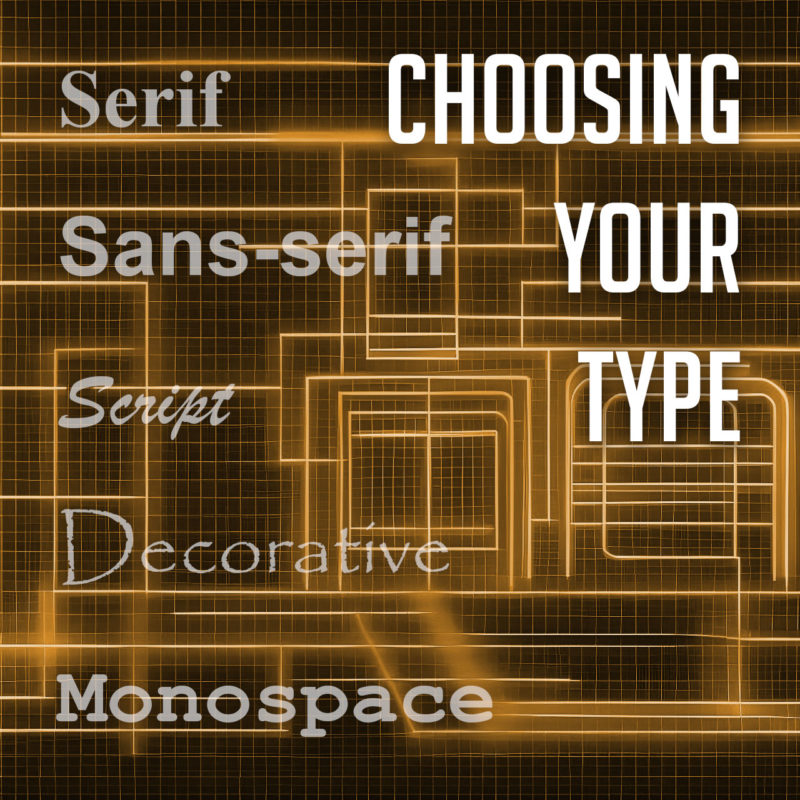
There are many different types of fonts, but they can generally be divided into a few categories:

  • Serif fonts have small projections or flourishes called serifs at the ends of the main strokes of the letters, which can help guide the reader’s eye along the text. Serifs are thought to help with legibility by providing visual cues that help the eye track from one letter to the next. Serif fonts are often used in print publications like newspapers and books, and are often considered to be more traditional and formal than sans-serif fonts. Some popular serif fonts include Times New Roman, Georgia, and Trajan.
  • Sans serif fonts do not have serifs. They are often considered to be more modern and clean-looking than serif fonts. Sans-serif fonts are often used in digital media, such as websites and mobile apps, as they are easier to read on screens. Popular sans serif fonts include Arial, Helvetica, and Tahoma.
  • Script fonts are designed to look like handwriting or calligraphy. They often have a flowing, elegant appearance, and can be used to create a more personal or informal tone. Script fonts are often used for invitations, greeting cards, or other creative projects. Some common script fonts include Brush Script, Lobster, and Zapfino.
  • Display fonts, or decorative fonts, are more stylized to be eye-catching and attention-grabbing. They can be used for headlines, logos, or other special purposes, as they can add personality and visual interest to a design. The sky’s the limit for display fonts, but some of the most popular decorative fonts include Impact, Papyrus, and Curlz.
  • Monospace fonts have a fixed width for each character, and are typically characterized by their blocky appearance. This makes them useful for programming and coding, or other applications where precise alignment is necessary. They often have a simple, utilitarian design, which makes them well-suited for technical applications. Some popular monospace fonts include Courier, Consolas, and Source Code Pro.

Choosing the Right Font

11 out of 10 designers agree: Comic Sans is not your type

The best way to choose the right font for your project is to consider the overall look and feel you’re trying to achieve, and take into account the context and purpose of the text. If you’re designing a formal document, you might want to use a serif font. If you’re designing a modern website or marketing materials, you might want to use a sans serif font. And if you’re designing a logo or other special piece of artwork, you might want to use a script or decorative font. Different fonts can convey different emotions or tones, and choosing the right font can help enhance the message you’re trying to communicate.

It’s also important to consider the readability of your font. Some fonts are easier to read than others, especially at small sizes. If you’re using a font for body copy, it’s important to choose one that is easy to read on screen or in print.

Using Fonts Effectively

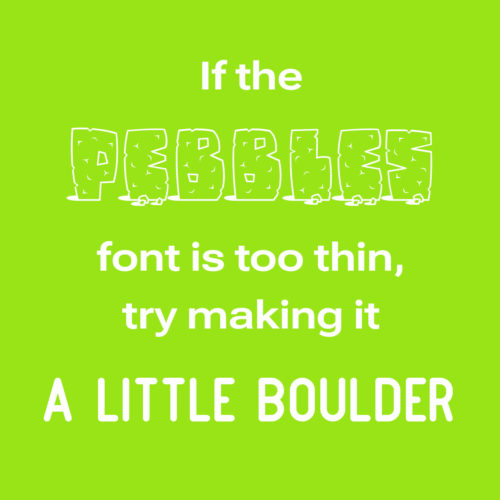
If the Pebbles font is too thin, try making it a little boulder

Once you’ve chosen the right font, it’s important to use it effectively. Here are a few tips:

  • Use only a few different fonts in a single project. Too many fonts can be overwhelming and distracting.
  • Use different fonts for different purposes. For example, you might use a serif font for body copy and a sans serif font for headlines.
  • Consider the size and weight of the font when choosing it. A large, bold font will be more eye-catching than a small, light font.
  • Use leading (the space between lines of text) and kerning (the space between individual letters) to improve the readability of your text.
  • Use a consistent font family throughout a piece of text. This will help to create a cohesive and professional look.
  • Use fonts to create visual interest. For example, you could use a decorative font for a call to action or a unique font for a logo.
  • Proofread your text carefully before using it in your designs.
  • Experiment with different fonts and layouts to find what works best for your project. There are no hard and fast rules in typography, so don’t be afraid to try new things.

When used effectively, fonts can be a powerful tool for creating visually appealing and effective typography. By choosing the right fonts and using them effectively, you can create beautiful and effective designs.