CSS Transitions: Creating Interactive Websites with Smooth Animations

CSS transitions are a valuable tool that adds a touch of magic to the user experience. These subtle effects bring elements to life, creating smooth and captivating animations that delight visitors and convey information in an engaging way.

Capturing and holding a user’s interest isn’t easy. This is where CSS transitions truly come into their own. They empower designers and developers to transform static web elements into dynamic entities that gracefully respond to user interactions. From a subtle fade-in effect on a button hover to a smooth sliding transition between sections, CSS transitions enable us to create immersive and visually appealing experiences that keep users engaged and intrigued.

Beyond their aesthetic appeal, CSS transitions serve a practical purpose. They allow us to convey information in a more digestible manner, drawing attention to important changes or highlighting relevant content. Whether it’s a subtle color change to signify a status update or a dynamic sliding panel to reveal hidden information, CSS transitions enable us to communicate effectively and improve the overall user experience.

What Are CSS Transitions?

At the core, CSS transitions are a powerful CSS3 feature that allows designers and developers to animate changes in CSS property values over a specified duration. They provide a seamless way to create smooth transitions between different states of an element, adding a touch of elegance and sophistication to the user experience.

The mechanics of CSS transitions are rooted in the concept of interpolation. When a CSS property undergoes a transition, it smoothly interpolates between the starting and ending values, creating a visually pleasing animation. This interpolation effect can be applied to a wide range of CSS properties, such as color, size, position, opacity, and more. By selectively animating these properties, we can guide the user’s attention and enhance the overall aesthetic appeal of a website.

CSS transitions can be used to create a variety of effects, such as:

  • Animated elements: You can use transitions to animate the margins, borders, font size, or other properties of elements.
  • Responsive design: You can use transitions to make your web pages more responsive. For example, you can use transitions to change the size of elements when the user changes the browser window size.
  • User experience: You can use transitions to improve the user experience of your web pages. For example, you can use transitions to make elements appear and disappear more smoothly.

CSS transitions are a powerful tool that can be used to add animation and interactivity to your web pages. They are relatively easy to learn and use, and they can be used to create a wide variety of effects.

How Do CSS Transitions Work?

The power of CSS transitions lies not only in the concept but also in the properties that shape their behavior. Here are some of the main transition properties that allow us to wield control over the duration, timing, delay, and properties involved in our captivating animations.

  • Duration: The duration property determines the length of time it takes for a transition to complete its animation. It is specified in seconds (s) or milliseconds (ms). By adjusting the duration, we can create transitions that are swift and snappy or slow and graceful, depending on the desired effect.
  • Timing Function: The timing function property defines the rate of change of the transition over its duration. It allows us to create different acceleration and deceleration effects, adding a sense of realism and naturalness to the animation. There are various timing curves available, such as linear, ease-in, ease-out, and ease-in-out, each imparting a unique feel to the transition.
  • Delay: The delay property introduces a pause before the transition begins. It allows us to control the timing between the triggering event and the start of the animation. With delays, we can orchestrate a sequence of transitions or synchronize them with other elements on the page.
  • Property: The property property (yes, it’s a bit repetitive!) specifies the CSS property(s) to which the transition applies. For example, we can target the color, size, or opacity of an element to seamlessly transform its appearance.

Let’s see these properties in action with an example. Imagine a button that smoothly changes color when hovered over. We can define the transition properties as follows:

.button {
    transition-property: background-color;
    transition-duration: 0.3s;
    transition-timing-function: ease-in-out;
    transition-delay: 0s;
}

.button:hover {
    background-color: #fc0;
}

In this example, when the button is hovered over, the background smoothly transitions to a different color over a duration of 0.3 seconds. The ease-in-out timing function ensures a smooth acceleration and deceleration effect. The delay is set to 0 seconds, resulting in an immediate transition upon hover.

Transition Shorthand

Now it’s time to take our animation skills to the next level by harnessing the magic of the transition shorthand. This handy shorthand notation allows us to define multiple transition properties in a single line, simplifying our code and making our animations more concise and efficient.

To demonstrate the transition shorthand, let’s consider an example where we want to create a subtle animation effect on a navigation menu.

.nav-menu {
    font-size: 16px;
    transition: font-size 0.5s ease-out;
}

.nav-menu:hover {
    font-size: 18px;
}

In this case, we have indicated that we want to animate the font size on hover with a duration of 0.5 seconds, with a smooth ease at the end.

Using the transition shorthand, we can streamline our code and improve readability. It allows us to combine multiple transition properties in a single declaration, reducing redundancy and making our intentions clear.

Advanced Transition Techniques

In the world of CSS transitions, there are advanced techniques that can take your animations to the next level. Let’s explore some of these techniques:

  1. Multiple Transitions: You can animate multiple properties independently by adding multiple transition declarations to an element, separated by commas.
.my-element {
    transition: width 0.3s, opacity 0.5s, color 1s;
}
  1. Simultaneous Transitions: By specifying the same duration for different properties within a single transition declaration, you can create synchronized animations. For example:
.my-element {
    transition: background-color, color;
    transition-duration: 0.5s;
}
  1. Nested Transitions: Apply transitions to child elements within a parent container for cascading or staggered animations. For example:
.parent-element:hover .child-element {
    transform: translateX(50px);
}

With these advanced transition techniques, you can push the boundaries of your animations and create truly captivating user experiences. Experiment with different combinations, durations, and timing functions to achieve the desired effects for your web designs.

Custom Cubic-Bezier Timing Functions

To elevate your transition effects to the next level, we have custom cubic-bezier timing functions. By creating your own timing curves, you can fine-tune the acceleration and deceleration of transitions, adding a touch of elegance and personality to your web design.
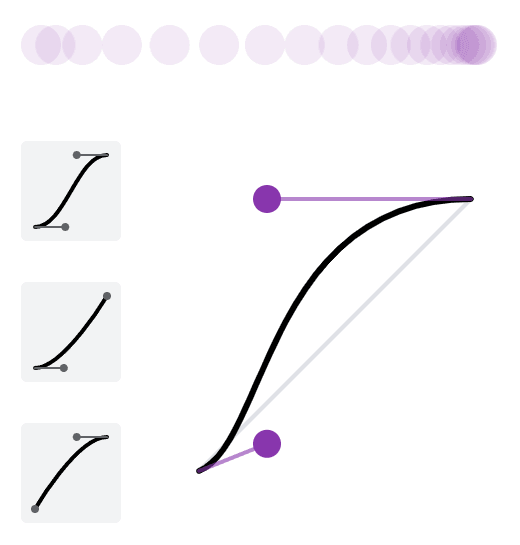
Cubic-bezier timing function curve

A cubic-bezier timing function defines the pace of a transition by specifying control points that create a custom acceleration curve. This allows you to achieve unique and nuanced effects that align with your design vision. The cubic-bezier function takes four parameters: (x1, y1), (x2, y2), representing the control points of the curve. For example:

.my-element {
    transition-timing-function: cubic-bezier(0.25, 0.1, 0.25, 1);
}

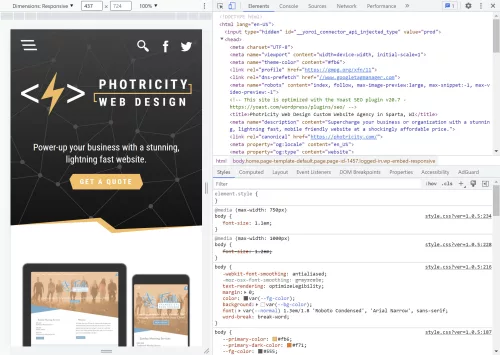
While manually tweaking cubic-bezier values can be a trial-and-error process, there are helpful tools available to simplify the task. One such tool is the inspection panel in Google Chrome. By inspecting an element, accessing the “Styles” panel, and modifying the transition-timing-function property, you can interactively adjust the control points and see the resulting curve in real-time.

Several online tools are specifically designed to assist in creating and visualizing custom cubic-bezier curves. Websites like cubic-bezier.com and easings.net provide intuitive interfaces where you can experiment with control points, preview the curve, and obtain the corresponding cubic-bezier values to use in your CSS code.

Optimizing Performance

With CSS transitions, optimizing performance is crucial to ensure smooth and responsive microinteractions that delight your website visitors. Let’s look at some best practices for optimizing the performance of your transitions:

  1. Utilize Hardware Acceleration: Take advantage of hardware acceleration to offload the rendering process to the device’s GPU (Graphics Processing Unit). By applying the transform or opacity property to the transitioning elements, you can trigger hardware acceleration, resulting in smoother transitions.
  2. Minimize Repaints and Reflows: Avoid unnecessary repaints and layout recalculations during transitions, as they can negatively impact performance. Optimize your CSS code by utilizing transforms instead of animating properties like top, left, or width. Additionally, utilize will-change property to inform the browser in advance about the upcoming changes, enabling it to optimize the rendering process.
  3. Optimize for Mobile Devices: Mobile devices often have limited resources, so it’s crucial to optimize your transitions for smooth performance on these platforms. Consider reducing the number of elements involved in the transition, simplifying complex effects, and utilizing CSS hardware-accelerated properties judiciously.

Optimizing for performance goes hand in hand with delivering an exceptional user experience. By implementing these tips, you can ensure that your transitions are silky-smooth and responsive across a range of devices and browsers.

Cross-Browser Compatibility and Vendor Prefixes

In the world of web development, cross-browser compatibility is paramount to provide a consistent experience for all users, regardless of the browser they use. When it comes to CSS transitions, handling vendor prefixes is an essential aspect of achieving cross-browser compatibility. Here are some key considerations for dealing with cross-browser consistency:

  • Vendor Prefixes: Vendor prefixes are a way for browser vendors to implement experimental or proprietary CSS features before they become standardized. These prefixes are typically added to CSS properties to ensure compatibility with specific browsers. Common examples include -webkit- for Safari and Chrome, -moz- for Firefox, and -o- for Opera.
  • Autoprefixers or CSS Preprocessors: Manually adding vendor prefixes can be tedious and error-prone. Thankfully, there are tools available that can automate this process for you. CSS preprocessors like Sass or Less offer built-in features or mixins to handle vendor prefixes. Additionally, autoprefixer tools can be integrated into your development workflow to automatically add necessary vendor prefixes based on your specified browser support.
  • Progressive Enhancement: When applying vendor prefixes, it’s important to follow a progressive enhancement approach. Start by writing your CSS without any vendor prefixes, utilizing the standard properties. Then, use tools like autoprefixer to add the necessary prefixes based on the targeted browser support. This way, you ensure a graceful degradation for browsers that don’t require prefixes while still accommodating those that do.
  • Test and Validate: After adding vendor prefixes, it’s important to thoroughly test your transitions across multiple browsers and devices. Use browser testing tools or services to check how your transitions behave and ensure consistency. Additionally, stay updated with browser vendor announcements and release notes to adapt your prefixing strategy as browser support for certain features evolves.

Smooth Operation

CSS transitions are a powerful tool in your web design arsenal. By incorporating them into your projects, you can elevate user experiences, add visual interest, and create a sense of interactivity that captivates your audience. Whether you’re aiming for subtle animations or bold effects, CSS transitions offer endless possibilities for enhancing the aesthetics, usability, and accessibility of your website.

Remember, the key to mastering CSS transitions lies in practice, experimentation, and continuous learning. Stay up-to-date with emerging techniques and trends, and don’t hesitate to push the boundaries of what’s possible with CSS transitions.
Converting Web Design Mockups into HTML

As a web designer, you know that a visually stunning mockup is just the tip of the iceberg. To bring your design to life and create a fully functional website, you need to dive into the realm of HTML and CSS and start building. It’s the magic that transforms your static design into an interactive digital experience.

Think of this conversion process as the bridge that connects your artistic vision with real-world functionality. It’s the transformation that turns a static design into a living, breathing website that users can interact with. By mastering this process, you’ll have the power to create seamless user experiences, optimize website performance, and unleash your creativity in ways you never thought possible.

Beginning the Mockup Conversion Process

So, you’ve crafted a jaw-dropping web design mockup that’s bound to leave clients and users in awe. But what’s the next step? How do you transform that stunning visual into a fully functional website that users can actually interact with?

Before we dive into the details, let’s clarify what we mean by a mockup. In simple terms, a mockup or a wireframe is a static representation of a website design. It’s like a blueprint that showcases the visual elements, layout, and overall aesthetics of a web page. Think of it as the design’s first draft, a canvas upon which you’ll breathe life.

Now, here’s where HTML and CSS come into play. HTML is the backbone of any web page. It provides the structure and the building blocks, turning your design into a series of elements that browsers can understand and interpret. CSS, on the other hand, is responsible for the design and presentation aspects. It adds the colors, fonts, spacing, and all those eye-catching styles that make your design pop.

When it comes to the mockup conversion process, the workflow typically involves a series of steps. First, you’ll dissect your mockup into its individual components and identify the different sections and elements that make up the design. Then, armed with your HTML and CSS skills, you’ll start building the structure and styling of each element, ensuring they match the mockup’s visual representation.

Throughout this process, it’s essential to maintain a keen eye for detail and precision. Pixel-perfect accuracy is the name of the game. You want to make sure that your code translates your mockup faithfully, capturing every design element and ensuring a seamless user experience.

Structuring the HTML Markup

Alright, it’s time to bring our mockups to life by structuring the HTML markup. Think of HTML as the skeleton that gives structure and meaning to your web page. With a few well-placed tags, we can create a solid foundation that will support our design and ensure a smooth user experience. So grab your keyboards and let’s dive right in!

First things first, let’s create the basic structure of our HTML file. Every great web page begins with a humble <!DOCTYPE html> declaration, followed by the opening and closing <html> tags. Inside these tags, we’ll find the head and body of our web page, each playing a crucial role in shaping the final result.

In the head section, we can unleash the power of metadata to provide essential information about our web page. From defining the character encoding to setting the viewport for responsive design, these help browsers understand and render our content correctly.

Now let’s venture into the body section, where the real magic happens. This is where we’ll give structure to our content using semantic tags. Instead of relying on plain old divs for everything, let’s embrace the beauty of semantic HTML. Think of it as using the right tool for each job. Need a heading? Use the <h1> to <h6> tags. Paragraphs? Hello, <p> tag! Lists? We’ve got <ul>, <ol>, and <li> tags ready to roll. By using these tags, we not only create a more accessible and well-organized web page but also make it easier for search engines to understand and index our content.

Responsive design is the secret sauce that makes our websites look stunning on any device, from gargantuan desktop screens to pocket-sized smartphones. To achieve this, we need to incorporate responsive design principles into our HTML markup. This means embracing the power of media queries and CSS frameworks that adapt our layout and content based on screen size. With a pinch of CSS magic, we can create a delightful and user-friendly experience for everyone, regardless of the device they use.

Bring in the Style with CSS

CSS is our trusty sidekick in the quest to bring visual harmony and beauty to our designs. With CSS, we can transform the plain HTML structure we built earlier into a captivating work of art.

First we need to translate the visual styles and properties from our mockup into CSS. This is where the true artistry comes into play. We’ll examine every nook and cranny of our mockup, dissecting its colors, fonts, spacing, and everything in between. Armed with this knowledge, we can create CSS rules that breathe life into our design.

To apply styles to specific elements, we’ll harness the power of CSS selectors and classes. Selectors are how we target specific HTML elements, allowing us to style them with precision. Whether it’s targeting all the headings on our page or giving a unique style to a specific paragraph, CSS selectors have got our backs. And by adding classes to our HTML elements, we can give them custom styles and create visual consistency throughout our website.

Handling Images and Media

Images and media elements can breathe life into our websites, captivating visitors with their visual allure and engaging content. But before we go wild with these eye-catching additions, we need to ensure they are optimized for web display and performance. After all, nobody likes a slow-loading website, right?

So let’s start by optimizing those images. Large, uncompressed images can be a drag on our website’s performance, causing frustratingly long load times. But we have some tricks up our sleeves to tackle this issue. First, we need to resize and compress our images without compromising their visual quality. There are fantastic online tools and image editing software that can help us with this mission. By finding the sweet spot between image size and quality, we can strike a balance that keeps our website fast and visually appealing.

Now that we have our optimized images in hand, it’s time to seamlessly integrate them into our HTML and CSS. HTML provides us with the <img> tag, our trusty companion for embedding images into our web pages. We’ll specify the source file, alt text for accessibility purposes, and even add some stylish classes to spice things up. And CSS is how we can fine-tune the appearance of our images—adjusting their size, alignment, and even applying captivating hover effects.

But we can take our web design to the next level by incorporating other media elements like videos and audio players. Videos are a fantastic way to engage our visitors, telling stories, demonstrating products, or simply adding a touch of entertainment. HTML5 has made it super easy to embed videos using the <video> tag, and with some CSS, we can customize the player’s appearance to match our website’s style.

So, let’s optimize our images, embed them seamlessly into our HTML and CSS, and explore the possibilities of videos and audio. Get creative, experiment with different formats and effects, and let your imagination run wild. But remember, always keep an eye on performance to ensure a smooth and enjoyable user experience.

Enhancing Interactivity with JavaScript

JavaScript is like the magic wand of web development. It allows us to sprinkle our websites with interactive features and breathe life into our design. With JavaScript, we can respond to user actions, validate form inputs, create smooth transitions, and so much more. It’s the secret ingredient that turns a basic website into a fully immersive experience.

So, what can we do with JavaScript? Well, the possibilities are virtually endless! We can leverage JavaScript libraries and frameworks like jQuery, React, or Vue.js to supercharge our web design. These powerful tools provide pre-built components and functionalities that can save us time and effort. With just a few lines of code, we can create engaging sliders to showcase our latest products, build dynamic forms that validate user inputs in real-time, and craft navigation menus that seamlessly adapt to different screen sizes.

Forms are another essential part of any website. We want to make sure they’re user-friendly, functional, and error-free. JavaScript allows us to validate form inputs in real-time, providing instant feedback to users and ensuring they submit accurate and complete information. And let’s not forget about navigation menus. We want our visitors to explore our website effortlessly, no matter the device they’re using. JavaScript enables us to create responsive and interactive navigation menus that adapt to different screen sizes. From sticky headers to smooth scrolling, we can enhance the user experience and make navigation a breeze.

Testing and Debugging: Ensuring a Flawless Web Experience

We’ve reached a crucial stage in our web design journey—testing and debugging. We’ve put our heart and soul into crafting a stunning website, but before we unveil it to the world, we need to make sure it shines on every device and browser out there.

First things first, browser testing is non-negotiable. We need to put our website through its paces on various devices, from smartphones to tablets to desktop computers. It’s essential to see how it responds to different screen sizes, orientations, and resolutions.

But testing isn’t just about clicking around and admiring our design. It’s about being meticulous and thorough. We need to scrutinize every element, every feature, and every interaction to ensure they function as intended. We want to create an experience that’s smooth and delightful for every user, no matter their preferred device.

Now, brace yourself for the inevitable—debugging. Even the most seasoned web designers encounter bugs and glitches that can throw a wrench in our plans. But don’t worry, debugging is like solving a puzzle, and with the right mindset and tools, we can crack the code and make everything work like a charm.

When debugging, it’s crucial to approach the task systematically. Start by identifying the issue. Is it a layout problem? Is the functionality behaving unexpectedly? Once you’ve pinpointed the troublemaker, roll up your sleeves and dive into the code. Inspect, analyze, and test different scenarios to uncover the root cause. Remember, persistence and attention to detail are your secret weapons in this battle.

Cross-browser compatibility is another key consideration. With the multitude of browsers available, each with its quirks and idiosyncrasies, we need to ensure our website looks and performs its best everywhere. Test your website on popular browsers like Chrome, Firefox, Safari, and Edge. Pay attention to layout discrepancies, broken features, or any other compatibility issues. By ironing out these wrinkles, we can guarantee a consistent experience for all our visitors, regardless of their browser preferences.

Best Practices and Optimization Techniques

The importance of clean and maintainable code cannot understated. Just like a well-structured masterpiece, our code should be organized, readable, and easy to navigate. By adhering to industry best practices, we ensure that our code remains manageable and future-proof, facilitating collaboration and efficiency. Proper indentation, clear comments, and consistent naming conventions are our allies in this noble quest. Let’s keep our code elegant and our fellow developers eternally grateful.

But it doesn’t end with aesthetics and organization; optimizing website performance is paramount. Our users demand swift, seamless experiences, and we have the power to deliver. Enter CSS and JavaScript, our trusty companions in this endeavor.

When it comes to CSS, two words become our mantra: minification and concatenation. By minimizing the size of our CSS files and combining them into a single, streamlined file, we reduce the number of server requests and expedite loading times. This keeps our visitors engaged and eager for more. And let’s not overlook the advantage of CSS sprites, which merge multiple images into one, reducing server requests and boosting performance.

Now, let’s tap into the prowess of JavaScript. As with any powerful tool, we must wield it judiciously. Minification and compression strip away unnecessary characters and whitespace, optimizing our JavaScript files for efficient execution. And while JavaScript libraries and frameworks can bestow us with accelerated functionality, we should choose them wisely, ensuring they serve our specific needs without bloating our code. Balance is the key to realizing the full potential of JavaScript.

Search engine optimization (SEO) is where our websites become beacons of discovery. By implementing SEO-friendly practices, we elevate our digital presence and attract organic traffic. Begin with comprehensive keyword research, uncovering the terms your target audience seeks. Skillfully incorporate these keywords into your website’s content, headings, meta tags, and URLs, like weaving magic into every strand of code. But remember, search engines value quality content above all. Craft compelling, informative narratives that naturally incorporate your keywords, engaging both users and search engine algorithms.

And don’t forget about meta tags—the bait that entices searchers to click. Craft compelling meta titles and descriptions that act as invitations to explore your website’s wonders. Additionally, optimize your website’s navigation structure and internal linking, enhancing user experience and enabling search engines to traverse your site effortlessly.

From Mockup to Marvelous Website

From structuring HTML markup to styling with CSS, we have witnessed the power of code in shaping the aesthetics and layout of web pages. From interactive forms to dynamic content loaders, the possibilities are boundless, limited only by our imagination and technical expertise.

However, our quest for excellence does not end here. The landscape of web design is ever-evolving, with new technologies, frameworks, and techniques constantly emerging. As aspiring designers and developers, we must stay curious, continuously expand our knowledge, and adapt to the ever-changing demands of the web.

Armed with the ability to transform static designs into fully functional web pages, we possess the tools to bring visions to life and leave lasting impressions on our audience.

Inline SVGs: Scale Up Your Design With Vector Graphics

SVG is a versatile and flexible vector image format that allows for the creation of highly customizable and resolution-independent graphics. Unlike traditional image formats, SVGs can be embedded directly within the HTML markup, offering numerous advantages in terms of scalability, interactivity, and accessibility.

This next-gen image format allows you to create and manipulate graphics using XML code. SVGs are ideal for creating icons, logos, charts, diagrams, and other graphics that need to scale well and look sharp on any device and screen resolution. Whether you’re a web designer, developer, or enthusiast, understanding how to leverage inline SVGs can take your web design skills to the next level.

What Are Inline SVGs?

The SVG image format has emerged as a powerful tool for creating visually captivating and highly customizable graphics. But what exactly are inline SVGs?

SVG, short for Scalable Vector Graphics, is an XML-based image format that allows for the creation and display of vector-based graphics directly within the HTML markup. Unlike traditional image formats such as JPEG or PNG, inline SVGs are not always external files referenced through an <img> tag. Instead, they can be embedded directly into the HTML document, either as standalone elements or as part of a larger structure.

One of the primary benefits of using inline SVGs is their scalability. Being vector-based, SVGs can be scaled up or down without any loss of quality or pixelation. This scalability makes inline SVGs ideal for responsive web design, where images need to adapt to different screen sizes and resolutions. Whether viewed on a small mobile device or a large desktop monitor, inline SVGs retain their sharpness and clarity.

In addition to scalability, inline SVGs offer a range of other advantages. They support transparency, gradients, filters, and animations, allowing for intricate and dynamic visual effects. Inline SVGs are also lightweight in file size, making them faster to load compared to raster-based image formats. Furthermore, since SVG code is human-readable, it allows for easy customization and manipulation, making it a favorite among designers and developers.

How Do You Create Inline SVGs?

Now that we understand the essence of inline SVGs, let’s explore the process of creating them. While you can write SVG code manually, there are several tools and software available that simplify the creation and editing of SVG files, even if you don’t consider yourself an expert in graphic design.

To create an SVG, you have a few options. You can use graphic design software like Adobe Illustrator, Inkscape, or Sketch, which provide intuitive interfaces and a wide range of drawing tools. These tools allow you to design your artwork visually and then export it as an SVG file.

If you prefer a more code-centric approach, you can use online SVG editors like CodePen or SVG-edit. These editors provide a live coding environment where you can write and preview your SVG code in real-time. They offer helpful features like syntax highlighting and error checking to ensure your code is valid.

When creating inline SVGs, it’s important to optimize the SVG code to keep file sizes as small as possible. Reducing unnecessary attributes, simplifying paths, and removing hidden elements are effective ways to optimize SVG code. Additionally, you can use SVG optimization tools like SVGO or online services like SVGOMG to automatically optimize your SVG code without compromising visual quality.

Embedding Inline SVGs in HTML

Embedding inline SVGs is a straightforward process that allows you to seamlessly integrate your SVG graphics into different parts of your web page. To embed an inline SVG in HTML, you can use the <svg> element, which serves as the container for the SVG graphic. Within the <svg> element, you can define various SVG elements and attributes to create shapes, paths, text, and more.

Here’s an example of the basic syntax for embedding an inline SVG:

<svg xmlns="http://www.w3.org/2000/svg" width="100" height="100" viewBox="0 0 100 100">
    <!-- SVG elements and shapes go here -->
</svg>

The xmlns attribute specifies the XML namespace for SVG. The viewBox attribute sets the coordinate system and aspect ratio.

Within the <svg> element, you can include various elements like <circle>, <rect>, <path>, or <text>. These elements define the visual components of your SVG graphic.

By embedding inline SVGs in HTML, you have the flexibility to place them within different elements such as <div>, <span>, or even as backgrounds for elements using CSS. This allows you to seamlessly integrate inline SVGs into your web design, creating visually appealing and interactive experiences for your users.

Styling and Animating Inline SVGs

One of the great advantages of using inline SVGs in web design is the ability to apply CSS styles and animations directly to the SVG elements. This allows you to have complete control over the visual appearance and behavior of your SVG graphics.

To style an inline SVG, you can use CSS selectors and properties just like you would with any other HTML element. You can target specific SVG elements or classes within the SVG markup and apply styles such as colors, gradients, strokes, fills, and more.

Here’s an example of applying CSS styles to an inline SVG:

<style>
svg circle {
    fill: blue;
    stroke: white;
}

.highlight {
    opacity: 0.7;
}
</style>

<svg xmlns="http://www.w3.org/2000/svg" width="100" height="100" viewBox="0 0 100 100">
    <circle cx="50" cy="50" r="40" class="highlight" />
</svg>

In this example, the CSS rules target the <circle> element within the SVG. The fill property sets the color of the circle’s interior, while the stroke property defines the color of the outline. Additionally, the .highlight class applies different styles to the elements with that class.

Furthermore, you can add CSS animations and transitions to create dynamic and interactive effects with your inline SVGs. By utilizing CSS transitions or keyframes, you can animate the properties of SVG elements, such as position, size, color, and opacity.

Here’s an example of animating an inline SVG using CSS:

<style>
@keyframes spin {
    0% {
        transform: rotate(0deg);
    }
    100% {
        transform: rotate(360deg);
    }
}

svg rect {
    animation: spin 2s linear infinite;
    transform-origin: center center;
    fill: orange;
    stroke: black;
}
</style>

<svg xmlns="http://www.w3.org/2000/svg" width="200" height="200" viewBox="0 0 200 100">
    <rect x="50" y="0" width="50" height="50" />
</svg>

In this example, the @keyframes rule defines a spinning animation using the rotate transform. The animation property is then applied to the <rect> element, specifying the animation name (spin), duration (2 seconds), timing function (linear), and repetition (infinite). This creates the following output:

Additionally, you can interact with inline SVGs using JavaScript to dynamically change their attributes, manipulate their structure, or add event listeners for interactivity. This opens up possibilities for creating responsive and interactive SVG-based visualizations or user interfaces.

Optimizing Inline SVGs for Performance

Inline SVGs offer great flexibility and interactivity in web design, but it’s important to optimize them for performance to ensure fast loading times and smooth user experiences. Here are some techniques to optimize your inline SVGs:

  1. Minimize SVG File Size: Review your SVG code and remove any unnecessary elements, attributes, or comments. Simplify complex paths or shapes where possible. Reducing the file size of your SVGs helps decrease the load time of your web pages.
  2. Compress SVG Code: Employ compression techniques to further reduce the file size of your inline SVGs. Tools like SVGOMG can automatically optimize your SVG code by removing redundant or unnecessary information while preserving the visual appearance.
  3. Implement SVG Sprite Sheets: Use SVG sprite sheets to combine multiple SVG icons or graphics into a single file. By using <symbol> elements and referencing them with <use> elements, you can reduce the number of HTTP requests and effectively cache and reuse SVGs across your website.
  4. Lazy Load SVGs: Consider lazy loading techniques for SVGs that are not immediately visible on the page. By deferring the loading of off-screen SVGs until they come into view, you can improve the initial page load time.

These optimization techniques can ensure that your inline SVGs contribute positively to the overall performance of your web pages, delivering engaging visuals without sacrificing loading times.

Remember to test your optimized inline SVGs across different devices, browsers, and screen sizes to ensure consistent rendering and functionality.

Making Inline SVGs Accessible

When incorporating inline SVGs into your web design, it’s essential to prioritize accessibility to ensure an inclusive user experience. Consider the following practices to make your inline SVGs more accessible:

  1. Providing Alt Text and Descriptions: Just like with traditional images, it’s crucial to include alternative text (alt text) for your inline SVGs. The alt text should describe the purpose or content of the SVG for those who cannot see it. Additionally, for more complex SVGs, consider providing detailed descriptions in the surrounding HTML using the aria-describedby attribute.
  2. Considering Screen Readers and Assistive Technologies: Keep in mind that screen readers and other assistive technologies rely on proper markup and semantics to convey information to users with disabilities. Ensure that your inline SVGs are semantically structured and labeled appropriately to be properly interpreted by these tools.
  3. Implementing ARIA Attributes: Accessible Rich Internet Applications (ARIA) attributes can enhance the accessibility of your inline SVGs. Use ARIA roles and attributes, such as role="img" and aria-labelledby, to provide additional context and description for screen readers. This helps users understand the meaning and purpose of the SVG content.

Remember, accessibility is not only a best practice but also a legal requirement in many jurisdictions. By implementing these accessibility considerations, you make your inline SVGs more inclusive and allow individuals with visual impairments or disabilities to engage with your website.

TL;DR

Inline SVGs offer a myriad of benefits and possibilities for your web design projects. They allow you to create scalable and resolution-independent graphics that adapt seamlessly to different screen sizes and devices. And with the power of CSS and JavaScript, you can bring your SVGs to life with stunning animations and interactivity, making your website visually captivating and engaging.

On top of that, inline SVGs provide a more efficient and streamlined approach to delivering graphics on your web pages. By eliminating the need for additional HTTP requests, they contribute to faster loading times and improved performance, especially when combined with optimization techniques like minifying and compressing the SVG code or using SVG sprite sheets.

And that’s inline SVGs in a thumbnail. Remember, as with any web design technique, practice makes perfect. Start small, explore tutorials and resources, and gradually incorporate inline SVGs into your designs. Embrace the flexibility and possibilities they offer, and you’ll be amazed at the visual impact and engaging experiences you can create.

CSS Resets: A Clean Slate for a Solid Foundation

Have you have ever wondered why your web pages look different across different browsers? Don’t worry, you’re are not alone. One of the reasons for this inconsistency is that browsers have their own default styles for various HTML elements, such as margins, paddings, fonts, colors, etc. These default styles can interfere with your own custom styles and create unwanted effects.

To avoid this problem, many web developers use a CSS reset. A reset is a set of rules that normalize the default styles of all HTML elements to a consistent baseline. This way, you can have more control over the appearance of your web pages and ensure that they look the same across different browsers and devices.

Why Do I Need a CSS Reset?

CSS Resets may sound fancy, but at their core, they are simply a set of styles that aim to reset or normalize the default browser styles applied to HTML elements. In other words, they wipe the slate clean, providing you with a consistent starting point for your web designs.

Now, before we delve into the nitty-gritty of CSS resets, let’s take a quick detour to talk about the CSS box model. Understanding the box model is essential because it forms the foundation of how elements are rendered and positioned on a webpage.

In a nutshell, the box model refers to the way elements are structured and sized in CSS. Each element can be thought of as a box, with four main components: content, padding, border, and margin. These components determine the element’s overall size and spacing.

By default, different browsers have their own unique interpretations of the box model, leading to inconsistencies in how elements are displayed. This is where CSS resets come to the rescue. They help establish a consistent box model across browsers, ensuring that your designs look as intended, regardless of the user’s browser. This can simplify your web design workflow and save you from the headaches of cross-browser inconsistencies.

What’s Wrong With Default Browser Styles?

When it comes to default browser styles, it’s a wild west out there. Different browsers have their own default styles for HTML elements, which means that the same element can look drastically different across various browsers. This poses a significant challenge for web designers who strive for consistency and want their designs to look the same regardless of the browser being used.

Default browser styles can vary in terms of font sizes, colors, margins, paddings, and even how elements like headings or lists are rendered. These inconsistencies can lead to a disjointed and unprofessional appearance, making it difficult to create a cohesive and polished website.

CSS resets help neutralize these default browser styles, providing a level playing field for web designers. By applying a reset, you can start with a clean slate, establishing a consistent baseline across browsers. This ensures that your designs are not at the mercy of default styles and gives you greater control over the visual presentation of your website.

What Are the Benefits of Using CSS Resets?

Using CSS resets offers a range of benefits that can greatly enhance your web design process. Let’s explore some of the key advantages:

  1. Consistent Starting Point: By applying a CSS reset, you establish a consistent starting point for styling across different browsers. This means that you no longer have to worry about browser defaults interfering with your design intentions. Instead, you have full control over how elements are rendered, allowing you to create a consistent and harmonious look and feel across all browsers.
  2. Elimination of Inconsistencies: CSS resets help eliminate unexpected layout and styling issues caused by browser defaults. These defaults can vary significantly, leading to inconsistencies in spacing, font sizes, and other visual aspects. With a CSS reset, you can ensure a level playing field and avoid spending hours trying to figure out why your layout is behaving differently across browsers.
  3. Improved Cross-Browser Compatibility: By neutralizing browser defaults, CSS resets promote improved cross-browser compatibility. They provide a solid foundation for your styles, reducing the likelihood of elements appearing drastically different or breaking in specific browsers. This allows you to reach a broader audience and ensure that your website looks great and functions properly regardless of the browser being used.
  4. Time and Effort Savings: CSS resets can save you valuable time and effort by streamlining your design workflow. Instead of manually overriding default styles for each element, you can rely on a CSS reset to do the heavy lifting. This means less code to write and maintain, allowing you to focus on the creative aspects of your design rather than troubleshooting inconsistencies.

Incorporating a CSS reset into your web design toolkit is a wise choice, especially if you’re a beginner looking to establish a solid foundation. It helps you start on the right foot, ensuring a consistent and predictable styling experience across browsers.

What Does a CSS Reset Look Like?

Now that we understand the importance and benefits of CSS resets, let’s take a closer look at what a CSS reset actually looks like. A CSS reset is essentially a set of CSS rules that aim to remove or reset default browser styles, allowing you to start with a clean slate for your own custom styling.

Here’s an example of a minimal CSS reset:

/* CSS Reset by photricity.com */
html, body, div, span,
h1, h2, h3, h4, h5, h6,
form, label, input, button,
p, a, img, ul, ol, li, blockquote,
article, aside, footer, header, section {
    border: 0;
    margin: 0;
    padding: 0;
    font: inherit;
    font-size: 100%;
    vertical-align: baseline;
}

body {
    line-height: 1;
}

ul, ol {
    list-style: none;
}

img {
    max-width: 100%;
    height: auto;
}

button {
    cursor: pointer;
}

In this example, we’re targeting a range of HTML elements and applying reset styles to them. We remove margins, padding, borders, and set font sizes and families to inherit for consistency. We also handle lists, images, buttons, and some basic form elements.

It’s important to note that this is just a minimal CSS reset, and you can customize it further based on your specific project needs. Some CSS resets may include additional rules to reset more elements or handle specific edge cases. However, remember to use resets judiciously and avoid over-resetting, as it can inadvertently remove necessary styling or functionality.

Once you’ve applied the CSS reset, you can proceed to add your custom styles below it. This way, you have a solid foundation to build on, ensuring your styles are consistent across different browsers and devices.

Feel free to experiment with different CSS resets or use and modify this example to fit your requirements. The goal is to establish a clean slate for your styles and create a more consistent and predictable design experience.

What Are Some Popular CSS Resets?

When it comes to CSS resets, there are a few popular options that have gained recognition and widespread usage among web designers. Let’s take a closer look at two of the most well-known CSS resets.

  1. Eric Meyer Reset
    The Eric Meyer reset is one of the earliest and most widely adopted CSS resets. Created by Eric Meyer, a renowned web design expert, this reset aims to neutralize browser defaults and provide a clean slate for styling. It resets many common elements like margins, paddings, font sizes, and lists, ensuring a consistent starting point for your design.
  2. Normalize.css
    Normalize.css is another popular CSS reset option that focuses on preserving useful browser defaults while normalizing styles across different browsers. It aims to fix inconsistencies in rendering, ensuring a consistent and predictable experience. Normalize.css provides a solid foundation by addressing common issues like font variations, element inconsistencies, and handling of HTML5 elements.

Customizing CSS Resets

Now that you’ve got a solid understanding of popular CSS resets, it’s time to put your personal touch on things. Customizing CSS resets allows you to fine-tune the styles and make them align perfectly with your project’s needs. Let’s explore a couple of ways you can make these resets your own:

  1. Modifying Existing Resets
    If you’ve found a CSS reset that closely matches your requirements but needs a few tweaks, don’t hesitate to make adjustments. You can selectively modify certain styles or properties to retain specific browser defaults while resetting others. This approach allows you to maintain a balance between consistency and preserving the unique characteristics of your design.
  2. Creating Your Own Reset
    For those seeking complete control over their styles, creating a custom CSS reset from scratch is the way to go. By starting with a clean slate, you can meticulously define the exact styles and properties you want to reset. This level of customization ensures that every aspect of your project adheres to your design vision, without any unwanted surprises caused by default browser styles.

Now, before you dive headfirst into customization, it’s important to consider the scope of your project. Not every project requires a full-blown reset. If you’re working on a small-scale project or prefer to keep certain default styles intact, a selective reset might be more suitable. This approach allows you to target specific elements or properties that commonly cause compatibility issues, leaving the rest untouched.

Remember, customization is about finding the right balance. You want to ensure consistency while still embracing the unique character of your design.

Best Practices for Using CSS Resets

Now that you’re familiar with CSS resets and their customization options, let’s discuss some best practices for effectively using them in your web design projects. While CSS resets can be incredibly useful, it’s important to approach them with caution and find the right balance. Here are some recommendations to keep in mind:

  • Assess the Project Needs
    Before diving into a CSS reset, consider the specific requirements of your project. Not every project will benefit from a reset. Simple and lightweight websites may not require a full reset, while complex web apps with intricate styling may greatly benefit from starting with a clean slate. Evaluate the scope and complexity of your project to determine if a reset is necessary.
  • Selective Resets
    Remember, you don’t always need to reset every single style. Opt for selective resets by focusing on elements or properties that commonly cause cross-browser inconsistencies. This approach allows you to address the specific pain points while retaining other default styles that work well for your design. Be mindful of the balance between consistency and preserving the unique aspects of your design.
  • Use Resets as a Foundation
    CSS resets are meant to provide a consistent starting point for styling across different browsers. Treat them as a foundation upon which you build your custom styles. Avoid relying solely on a reset to dictate all your design decisions. Instead, leverage the reset as a starting point and gradually add your own styles to create a unique and visually appealing website.
  • Consider the Drawbacks
    While CSS resets can be advantageous, they also have potential drawbacks. Overusing resets or applying them without careful consideration can lead to unintended consequences and additional maintenance. Resetting styles too aggressively may remove valuable default behaviors or accessibility features. Be mindful of the potential drawbacks and assess the impact of resets on your specific project.
  • Test and Refine
    As with any aspect of web design, testing is crucial. Test your website across different browsers and devices to ensure that the reset is working as intended and producing the desired results. Make adjustments as necessary and refine your reset to strike the right balance between consistency and customization.

Remember, CSS resets are a tool to enhance your design workflow and achieve a more consistent cross-browser experience. With thoughtful consideration and selective use, you’ll be able to create stunning and harmonious designs that captivate your users.

Alternatives to CSS Resets

While CSS resets can be a great solution for achieving consistent styling across browsers, they are not the only approach available.

CSS frameworks, such as Bootstrap, Foundation, and Bulma, offer a comprehensive set of pre-designed styles, components, and layout systems. These frameworks often come with their own reset or normalization styles, eliminating the need for a separate CSS reset. By using a framework, you can start your project with a predefined and consistent design foundation, saving you time and effort. However, keep in mind that using a CSS framework may introduce additional overhead and customization limitations. Evaluate the needs of your project and the level of flexibility required before deciding to incorporate a framework.

When considering alternatives to CSS resets, weigh the benefits and trade-offs of CSS frameworks against your project requirements. Each approach has its own advantages and considerations, so choose the option that aligns best with your design goals and development workflow.

By now, you should have a clear understanding of how CSS resets can save you from unexpected styling issues and help you create a more consistent and predictable design experience. However, it’s important to remember that CSS resets are just one tool in your web design arsenal. They are not a one-size-fits-all solution and should be used judiciously. Evaluate the needs of your project, consider the alternatives, and strike a balance between achieving consistent styling and maintaining flexibility.

Now it’s time to put your newfound knowledge into practice. Experiment with different CSS resets, explore customization options, and fine-tune your approach to suit each unique project. Don’t be afraid to push the boundaries, try alternatives like CSS frameworks, and discover what works best for you.

Microinteractions in Web Design: Small Details for a Big Impact

On the web today, where attention spans are fleeting and competition is fierce, it has become imperative for web designers to focus on every detail that can captivate users and elevate their experience. This is where microinteractions come into play. Microinteractions, though seemingly small and subtle, have the power to make a significant impact on user engagement and satisfaction. They are the delightful, interactive moments that occur within a website or web app, providing feedback, guidance, and an overall seamless user experience.

Microinteractions encompass a wide range of actions, from a simple hover effect on a button to a progress indicator during form submission. Each interaction may seem minuscule on its own, but when combined, they contribute to the overall flow and feel of a website. By paying attention to these tiny interactions, web designers can create experiences that are not only visually appealing but also intuitive, engaging, and memorable.

Benefits of Microinteractions

Microinteractions are many small things that play a big role in web design by offering several benefits that contribute to the overall user experience. Let’s explore some of these benefits:

  • Enhancing Usability and Guiding User Interactions
    Microinteractions provide subtle cues and guidance to users, making the website more intuitive and easier to navigate. They can help users understand the purpose and functionality of various elements, leading to a smoother interaction. For example, a microinteraction that visually highlights a selected tab in a navigation menu helps users understand their current location within the website.
  • Providing Feedback and Improving User Engagement
    Feedback is essential for users to feel in control and confident in their actions. Microinteractions can provide instant feedback when users interact with different elements on the website, such as buttons, forms, or checkboxes. Visual cues like animations, color changes, or sound effects can signal successful actions or errors, creating a sense of responsiveness and engagement. For instance, when a user submits a form, a microinteraction can display a loading spinner or a success message, reassuring them that their action was processed.
  • Creating Delightful and Memorable Experiences
    Microinteractions have the power to add personality, surprise, and delight to the user experience. They inject a touch of playfulness and make interactions more enjoyable, leaving a lasting impression on users. For example, a subtle animation when hovering over an element or a playful confirmation message can make the experience more memorable and leave users with a positive perception of the website or brand.

Incorporating well-designed microinteractions into your design can enhance its overall usability, engagement, and memorability. These small but impactful interactions contribute to a more intuitive and delightful user experience, ultimately leading to higher user satisfaction and increased conversions.

Types of Microinteractions

Microinteractions can be categorized into various types, each serving a specific purpose in enhancing user experience and engagement. Let’s explore some common types of microinteractions:

  1. Button microinteractions focus on the interactions and feedback related to buttons or clickable elements. They can include subtle animations, color changes, or hover effects that provide visual cues when users interact with buttons. For example, a button that transforms into a loading spinner when clicked, indicating that an action is in progress, is a type of button microinteraction.
  2. Form microinteractions improve the usability and feedback during form submissions. They can include real-time validation, highlighting input fields with errors or providing instant feedback when a field is successfully completed. These microinteractions make the form-filling process more intuitive and error-proof, ensuring a seamless user experience.
  3. Navigation microinteractions focus on enhancing the interactions and animations related to website navigation. They can include smooth transitions between pages, animated menu interactions, or subtle hover effects on navigation elements. These microinteractions make navigation more engaging and visually appealing, providing users with a clear understanding of the website structure.
  4. Notification microinteractions are used to provide feedback or alerts to users. They can include pop-up notifications, toast messages, or interactive alerts that notify users of important updates or actions. These microinteractions ensure that users are informed about relevant information or events, improving their overall experience on the website.

Implementing Microinteractions in Web Design

Implementing microinteractions in web design requires careful consideration of design principles and the selection of appropriate tools. Here are some best practices to keep in mind:

  • Design Guidelines for Microinteractions
    When designing microinteractions, it’s crucial to adopt a user-centered approach. Understand your target audience and align the microinteractions with their needs and expectations. Keep the interactions simple, intuitive, and seamless to ensure a positive user experience. Consistency in design elements and feedback across the website helps users understand and predict the outcomes of their interactions.
  • Tools and Libraries for Creating Microinteractions
    Various tools and libraries can aid in creating microinteractions efficiently. CSS animation libraries, such as Animate.css and Hover.css, provide a wide range of pre-designed animations that can be easily integrated into your web design. JavaScript libraries like GreenSock Animation Platform (GSAP) offer more advanced animation capabilities for creating custom microinteractions. Additionally, design tools like Adobe XD and Framer allow designers to prototype and animate microinteractions directly within the design workflow.
  • Considerations for Mobile and Responsive Design
    Microinteractions play a crucial role in mobile and responsive design, as they can enhance touch interactions and provide visual feedback on smaller screens. When designing microinteractions for mobile, prioritize simplicity and ease of use. Optimize animations and feedback to ensure smooth performance on mobile devices. Consider the limitations of touch input and design interactions that are easy to tap, swipe, or pinch.

Microinteractions for Conversion and Engagement

Microinteractions play a crucial role in driving conversions and increasing user engagement on websites. Let’s explore how these small but meaningful interactions can have a significant impact on your website’s performance.

  • Leveraging Microinteractions to Drive Conversions
    Microinteractions can be strategically designed to optimize conversion rates and encourage user actions. By adding interactive elements to your call-to-action buttons, such as subtle animations or visual feedback upon interaction, you can create a sense of urgency, draw attention, and increase the likelihood of conversions. For example, an e-commerce website may employ a microinteraction where the “Add to Cart” button changes color or displays a checkmark animation when clicked, providing immediate feedback and reinforcing the action taken.
  • Increasing User Engagement Through Interactive Elements
    Interactive microinteractions can greatly enhance user engagement by providing opportunities for users to actively interact with your website. Incorporating interactive design elements, such as sliders, carousels, or collapsible sections, encourages users to explore and interact with your content, leading to longer session durations and increased user satisfaction. These microinteractions create a sense of playfulness and interactivity, making the user experience more enjoyable and memorable.

Strategically implementing microinteractions throughout your website can not only improve the user experience but also drive conversions and boost user engagement. These small design details can make a significant difference in how users perceive and interact with your website, ultimately contributing to the success of your online presence.

Examples of Effective Microinteractions

To truly understand the power of microinteractions in web design, let’s explore some inspiring hypothetical examples of how websites could implement microinteractions effectively. These examples demonstrate how microinteractions can enhance the user experience and increase user engagement.

  • Example 1: XYZ Clothing’s website features interactive product cards that respond to user interactions. When users hover over a product card, they see a subtle animation that provides feedback and reveals additional details about the product. This microinteraction not only engages users but also helps them make informed decisions by presenting relevant information in a visually appealing manner.
  • Example 2: ABC Bank’s website incorporates microinteractions in its online banking interface. When users successfully complete a transaction, they receive a satisfying confirmation animation. This microinteraction provides instant feedback, reassuring users that their transaction was successful and instilling confidence in the banking platform.
  • Example 3: PQR Travel’s website includes microinteractions in its navigation menu. As users scroll down the page, the menu smoothly transforms into a fixed position, allowing easy access to different sections of the website. This microinteraction simplifies navigation and enhances the overall user experience, especially on long-scrolling pages.

Hopefully these examples can provide some inspiration for how to incorporate helpful and delightful interactions into your real world web designs.

Microinteractions play an enormous role in enhancing user experiences and elevating web design to new heights. Remember, microinteractions are not just decorative elements but essential components of a user-centered design approach. They add a layer of usability, interactivity, and delight to your website, making it more intuitive and engaging for visitors. Whether it’s a subtle hover effect on a button, an animated form validation, or a dynamic menu interaction, every microinteraction contributes to the overall user experience.

As you dive into the world of microinteractions, ensure that you follow best practices, consider mobile and responsive design, and leverage the available tools and libraries to streamline your workflow. Stay updated with emerging trends and technologies, as they offer exciting possibilities for the future of microinteractions.

Implementing Light and Dark Modes on Your Website

Web design is no longer just about aesthetics; it’s about creating an experience that resonates with your audience. One way to do this is by implementing light and dark modes into your website. By offering users a choice between these two themes, you can improve their overall experience while also making your site more accessible.

By the end of this piece, you’ll be empowered to create a visually stunning website that caters to all visitors’ preferences – whether they want their screen bathed in sunlight or prefer moonlit vibes. So let’s dive in!

What Are Light and Dark Modes?

Light and dark modes are themes that alter the color scheme of your website to create either a light or dark background. This feature allows users to switch between two contrasting themes based on their preference or environmental conditions.

Implementing both light and dark modes can be an easy way to enhance user experience while also improving accessibility for individuals with visual impairments or sensitivity to bright screens. For example, if someone is browsing your site in bed at night, they may prefer a darker theme that won’t strain their eyes. Or, if they are out in the sunlight, a bright theme might be easier to see.

Offering dual-modes enables you to cater to your audience’s preferences while providing them with more control over how they view content on your site – ultimately leading to better engagement rates!

Advantages of Having Both Light & Dark Mode

Having both light and dark themes can offer several advantages that benefit both users and website owners. Here are some reasons why it’s essential to include them in your web design:

  • Convenience
    By offering dual-modes, you allow users to switch between themes based on their preference or environmental conditions (e.g., time of day). Users can select which mode they prefer or even set the system preferences for automatic switching.
  • Easier on Eyes
    Light backgrounds with high contrast text can cause eye strain, especially when viewed for long periods. In contrast, darker backgrounds reduce glare and eye strain by reducing the amount of blue light emitted from screens. This effect also enhances readability as it provides better contrast between foreground elements like text and background colors.
  • Improved Accessibility
    Not all individuals have perfect vision; therefore, having two contrasting color schemes increases accessibility for those who suffer from visual impairments such as photophobia (light sensitivity) or color blindness. With more accessible websites comes an increase in engagement rates across various demographics.

Overall these benefits contribute to creating a positive user experience leading to higher dwell times along with reduced bounce rates – making dual-mode one of the most effective ways to boost overall site performance!

How to Incorporate Light & Dark Themes into Your Website

There are several ways to implement light and dark modes into your website. Here are some popular methods that you can use:

Using CSS Variables

One way is by using CSS variables. This method involves defining color schemes for both themes and then setting up elements to change color based on user preference or system preferences.

For example, you could create a button that toggles between light and dark mode when clicked. When the user selects their preferred theme, it would update the relevant CSS variables responsible for colors across all applicable elements of your site.

CSS custom properties allow developers more control over styling as they can modify properties in real-time with minimal code changes resulting in faster development times.

Using JavaScript

Another option is to use JavaScript. With this approach, you have more flexibility in creating automatic switching between themes based on different criteria such as device type or time of day. For instance, if someone visits your site at night, their computer might automatically switch from “light” mode (default) to an alternative darker theme instead!

This feature allows users to experience seamless transitions without having to click buttons manually while adding additional value by providing personalized experiences tailored specifically towards individual needs/preferences.

Overall whichever approach you choose will depend upon factors like project requirements along with developer’s skill level & familiarity with various libraries/frameworks available today!

Using CSS and JavaScript Together

JavaScript and CSS, of course, don’t have to be exclusive. Perhaps the best implementation is to use both in tandem to achieve the best result. Here’s an example, defining light and dark themes in CSS:

/* Define the color scheme for both themes using CSS Variables */
:root {
    --primary-color: #333;
    --secondary-color: #f5f5f5;
}

/* Light mode styles */
body.light-mode {
    background-color: var(--secondary-color);
    color: var(--primary-color);
}

/* Dark mode styles */
body.dark-mode {
    background-color: var(--primary-color);
    color: var(--secondary-color);
}

And a button to toggle between light and dark modes:

<!-- HTML -->
<button id="theme-toggle">Toggle Theme</button>

<script>
const toggleButton = document.getElementById('theme-toggle');
toggleButton.addEventListener('click', function() {
    const bodyElement = document.body;
    if (bodyElement.classList.contains("light-mode")) { // Switch to dark mode
        bodyElement.classList.remove("light-mode");
        bodyElement.classList.add("dark-mode");
    } else { // Switch to light mode 
        bodyElement.classList.remove("dark-mode");
        bodyElement.classList.add("light-mode");        
    }
});
</script>

Finally, here’s an example of how you could use JavaScript to automatically switch between themes based on system preferences:

if(window.matchMedia && window.matchMedia('(prefers-color-scheme: dark)').matches) {
    document.body.classList.add('dark-theme'); // add class "dark-theme" when user prefers the darker theme.
} else {  
    document.body.classList.remove('dark-theme'); // remove class "dark-theme" when user prefers lighter theme.   
}

Consistency Across Both Themes

When designing websites with multiple themes, it’s essential to ensure consistency across both modes. This means that elements like typography, layout structure and color schemes should remain consistent regardless of which theme is selected.

Consistency across both light and dark modes ensures that users don’t experience jarring transitions between different pages or sections. It also makes your website look more professional and polished overall as it creates a strong sense of branding throughout all aspects of design.

To achieve this level of consistency, consider using the same font sizes/styles along with similar layouts while swapping out colors accordingly depending upon user preference or system settings.

Turn to the Light/Dark Side

Creating websites that cater to individual needs and preferences is more important today than ever. By incorporating light and dark modes into your website design, you can provide users with an immersive experience that improves accessibility while enhancing overall engagement rates.

So if you’re looking to create a visually stunning website that caters towards individual preferences, start exploring ways of implementing dual-mode functionality in your designs! With careful consideration toward user preferences , you’ll be sure to deliver an exceptional experience for all visitors no matter their preference when it comes to brightness levels on screens.

Front-end Frameworks and Libraries: Level-up Your Web Design Game

Web designers and developers are constantly seeking ways to streamline their workflow and create stunning websites more efficiently. This is where front-end frameworks and libraries come into play, offering a plethora of tools and resources to level up your web design game. By harnessing the power of these versatile tools, you can enhance your productivity, unleash your creativity, and build exceptional websites with ease.

Front-end frameworks and libraries provide a solid foundation for web design projects, allowing you to leverage pre-built components, responsive layouts, and cross-browser compatibility. They offer a wide range of ready-to-use styles, templates, and functionalities, enabling you to rapidly prototype and develop robust websites. Whether you are a seasoned web designer or just starting out, these tools can significantly boost your efficiency and elevate the quality of your work.

By using front-end frameworks and libraries, you no longer need to reinvent the wheel with each project. Instead, you can focus on crafting unique and engaging user experiences, without getting bogged down by repetitive tasks. These tools abstract away the complexities of web development, providing intuitive APIs and comprehensive documentation, making it easier for designers of all levels to create modern, responsive, and visually appealing websites.

Understanding Front-End Frameworks and Libraries

Front-end frameworks are comprehensive, pre-designed libraries of HTML, CSS, and JavaScript components that facilitate rapid web development. They provide a structured and standardized approach to building websites, streamlining the design and coding process. By incorporating a set of reusable UI components, such as buttons, forms, navigation menus, and grids, frameworks offer a solid foundation that promotes consistency and saves valuable development time.

Frameworks and libraries bring numerous advantages to the table. One of the primary benefits is accelerated development speed. By leveraging pre-built components and templates, designers can quickly prototype and assemble interfaces, significantly reducing the time and effort required to create a polished website. Additionally, these tools promote consistency in design and code, ensuring a cohesive user experience across different pages and devices.

Many libraries and frameworks also support responsive web design out of the box. They offer responsive grids, media queries, and CSS classes that automatically adapt the layout and appearance of websites to fit various screen sizes and resolutions. This flexibility is crucial in today’s mobile-dominated landscape, where users access websites from a wide range of devices, from smartphones and tablets to desktop computers.

Additionally, these tools help address cross-browser compatibility issues. Frameworks and libraries implement CSS resets, normalization techniques, and browser-specific workarounds, ensuring consistent rendering across different web browsers. This saves developers from the arduous task of manually fine-tuning their code to work seamlessly across various browser environments.

Exploring Popular Front-End Frameworks and Libraries

When it comes to front-end frameworks, several options have gained significant popularity in the web design community. Let’s dive into some of the most widely used frameworks and explore their features, capabilities, and real-world applications.

  • Bootstrap, developed by Twitter, is arguably the most popular front-end framework to date. It provides a comprehensive set of CSS and JavaScript components, making it easy to build responsive and mobile-first websites. Bootstrap offers a grid system, pre-styled UI components, responsive utilities, and a wealth of customization options. It is suitable for a wide range of projects, from simple landing pages to complex web applications.
  • jQuery is a JavaScript library whose widespread adoption and versatility make it a valuable asset for web designers. jQuery simplifies tasks like DOM manipulation, event handling, and AJAX requests, allowing developers to write concise and efficient code. Its extensive plugin ecosystem further extends its capabilities, offering solutions for various UI components, animations, and interactive features. With its intuitive syntax and wide-ranging support, jQuery remains a valuable tool for web designers seeking to enhance their projects with interactive and dynamic elements.
  • Angular, developed by Google, is a full-featured front-end framework that enables the development of robust and scalable applications. It provides a comprehensive set of tools and features for building complex web projects. Angular follows the component-based architecture and uses TypeScript as its programming language. It offers features like two-way data binding, dependency injection, and powerful routing capabilities.
  • React, developed by Facebook, is a JavaScript library widely known for its component-based architecture. It allows you to build reusable UI components and efficiently manage their state. React’s virtual DOM (Document Object Model) enables faster rendering and efficient updates, making it ideal for building complex and interactive user interfaces.
  • Materialize CSS is inspired by Google’s Material Design principles. It provides a rich set of components, animations, and styles that enable developers to create modern and visually appealing interfaces. Materialize CSS is known for its ease of use and offers a comprehensive documentation.

These are just a few of the front-end frameworks available, but they come equipped with a rich set of features and capabilities, enabling designers to expedite the web development process while maintaining a professional and polished outcome. By leveraging these frameworks, you gain access to a ready-made toolkit of UI components, responsive grids, and CSS styling options, allowing you to focus on crafting engaging user experiences rather than reinventing the wheel.

Front-end libraries such as these offer a wide range of use cases, from building simple interactive elements on a webpage to developing complex single-page applications. They provide the building blocks necessary to create engaging user experiences, streamline development processes, and improve overall productivity.

Streamlining Web Design Workflow with Frameworks and Libraries

Front-end frameworks and libraries are not only powerful tools for creating visually appealing and interactive web designs, but they also offer numerous benefits when it comes to streamlining your web design workflow. In this section, we will explore how these tools can enhance your productivity and make the development process more efficient.

  • Enhancing Productivity
    Front-end frameworks and libraries provide a foundation of pre-built components, styles, and functionality that can significantly reduce development time. Instead of starting from scratch, you can leverage these tools to kickstart your projects and focus more on customizing and fine-tuning the design to meet your specific requirements. By using established patterns and best practices offered by frameworks and libraries, you can avoid reinventing the wheel and speed up the development process.
  • Templating Systems and Component Libraries
    Many front-end frameworks and libraries come with their own templating systems and component libraries. These allow you to create reusable and modular code components, enabling efficient development and easier maintenance. Templating systems provide a structured approach to designing layouts and organizing content, ensuring consistency across your website. Component libraries offer a collection of pre-designed UI elements that can be easily integrated and customized, saving you time and effort in designing and styling common interface elements.
  • Integration with Build Tools and Task Runners
    Front-end frameworks and libraries can seamlessly integrate with popular build tools and task runners such as webpack, Gulp, or Grunt. These tools automate repetitive tasks, such as bundling and minifying CSS and JavaScript files, optimizing image assets, and live-reloading the browser during development. By incorporating frameworks and libraries into your build process, you can harness the power of automation and streamline your workflow, allowing you to focus more on design and functionality.

By utilizing front-end frameworks and libraries, you can simplify your web design workflow, increase productivity, and deliver projects more efficiently. These tools provide a solid foundation and offer a wide range of resources, documentation, and community support, which can further enhance your development experience.

Best Practices for Using Front-End Frameworks and Libraries

To make the most of these powerful tools in your web design projects, it’s important to follow some best practices. These practices will help you choose the right framework or library, balance customization with maintenance and updates, and stay up-to-date with the latest releases and best practices.

  • Choosing the Right Framework or Library
    When selecting a front-end framework or library, consider the specific requirements of your project. Evaluate factors such as the project’s complexity, scalability, and desired functionality. Research and compare different options based on their features, documentation, community support, and compatibility with your existing tech stack. Consider the learning curve associated with each option and the availability of resources and tutorials.
  • Balancing Customization with Maintenance and Updates
    Front-end frameworks and libraries offer a wide range of customization options, allowing you to tailor your design to your specific needs. However, it’s important to strike a balance between customization and the long-term maintenance and updates of your project. Avoid excessive customization that could lead to difficulties in upgrading to newer versions or maintaining compatibility with future releases. Follow best practices and adhere to the established conventions of the framework or library to ensure easier maintenance and smoother updates.
  • Staying Up-to-Date with New Releases and Best Practices
    Frameworks and libraries are continuously evolving, with new features, enhancements, and bug fixes being released regularly. It’s crucial to stay up-to-date with these releases and the best practices associated with them. Subscribe to newsletters, follow relevant blogs and social media accounts, and actively participate in developer communities to stay informed about the latest updates and developments. Regularly update your chosen framework or library to benefit from improved performance, security patches, and new features.

Potential Challenges and Considerations

While front-end libraries offer numerous advantages, there are some challenges and considerations to keep in mind. By addressing these challenges and following best practices, you can optimize performance, minimize code bloat, and ensure accessibility in your web design projects.

When working with frameworks and libraries, some common challenges may arise. These include a steep initial learning curve, potential limitations in customization, and increased file sizes due to the inclusion of framework-specific code. It’s important to allocate time for learning and familiarizing yourself with the chosen tool to maximize its potential.

Strategies for Optimizing Performance and Minimizing Code Bloat
To optimize performance when using front-end frameworks and libraries, consider the following strategies:

  • Evaluate and remove unnecessary dependencies or features to reduce the overall file size and improve loading times.
  • Minify and compress your CSS and JavaScript files to minimize their size.
  • Utilize code splitting and lazy loading techniques to load only the required components and resources.
  • Optimize images and assets by compressing them without compromising quality.
  • Implement caching mechanisms and utilize Content Delivery Networks (CDNs) to improve response times.

Accessibility Considerations when Working with Frameworks and Libraries
Accessibility is a crucial aspect of web design. When using front-end frameworks and libraries, it’s essential to ensure that your designs are accessible to all users. Consider the following:

  • Use semantic HTML elements appropriately and apply proper labeling to make your content accessible to screen readers and assistive technologies.
  • Ensure that interactive elements and components are keyboard accessible and have appropriate focus states.
  • Test your designs for color contrast and provide alternative text for images to accommodate users with visual impairments.
  • Follow accessibility guidelines and best practices provided by the framework or library you’re using.

If you take the time to address these challenges and considerations upfront, you can mitigate potential issues and create web designs that are performant, lightweight, and accessible to all users.

Start Building

As you’ve seen, front-end frameworks and libraries play a vital role in modern web design, offering numerous benefits that can enhance your development process and improve the overall user experience. Using these libraries, you gain access to pre-built components, responsive grids, and powerful JavaScript libraries that expedite development and ensure consistency across projects. These tools empower you to build visually stunning and feature-rich websites while maintaining code organization and scalability.

Now it’s time to explore, experiment, and embrace the vast landscape of front-end frameworks and libraries. By immersing yourself in their features and functionalities, you can elevate your web design projects to new heights. So, dive in, stay curious, and let these tools empower you to create exceptional web experiences.

Responsive Images: Optimizing Web Design With Adaptive Visuals

Have you ever visited a website on your smartphone and found that the images were either too small, too large, or cropped in a weird way? If so, you have encountered a website that does not use responsive images. Responsive images are images that adjust to different screen sizes, resolutions, positions, and other factors. They are essential for creating websites that work well on devices with widely differing screen sizes, resolutions, and other such features.

In this dynamic world where devices come in various sizes and resolutions, incorporating responsive images has become essential. Ensuring that images adapt seamlessly to different screens is not only crucial for a visually appealing website but also for optimal user experience. In this article, we will explore the concept of responsive images and delve into the techniques and best practices for effectively using them in web design. Whether you’re a seasoned developer or just starting with responsive web design, this guide will equip you with the knowledge to create visually stunning and high-performing websites.

Understanding Responsive Images

Responsive images refer to the practice of optimizing and delivering images that adapt fluidly to different viewport sizes, ensuring they look visually appealing and load efficiently across devices.

To comprehend the significance of responsive images, it’s essential to understand the challenges they address. When a non-responsive image is displayed on a smaller screen, it often appears oversized and can cause layout issues or disrupt the overall user experience. Additionally, non-optimized images can significantly impact page load speed, leading to frustrated users and potential loss of visitors.

The impact of images on page load speed cannot be underestimated. Large, unoptimized images can drastically slow down a website’s performance, leading to increased bounce rates and diminished user engagement. Therefore, optimizing images for responsive design involves not only selecting the appropriate format but also minimizing file sizes through compression techniques and employing responsive image solutions.

However, creating responsive images is not as simple as it sounds. There are several challenges that web designers and developers need to overcome, such as:

  • The art direction problem: This is the problem of displaying different cropped images for different layouts, depending on what part of the image is relevant for each device. For example, a header image that shows a group of people may need to be cropped differently for a mobile device than for a desktop device, so that the faces of the people are still visible.
  • The bandwidth problem: This is the problem of serving different image sizes for different devices, depending on their screen resolution and network speed. For example, a high-resolution image that looks sharp on a 2x display may be too large and slow to load on a 1x display or on a slow network.

Fortunately, there are some tools and techniques that can help us create responsive images using HTML and CSS. In this article, we will explore how to use features like srcset and the picture element to implement responsive image solutions on websites. We will also look at how to use vector graphics as an alternative to raster graphics for responsive images that can scale without losing quality.

Implementing Responsive Images in HTML and CSS

To bring responsive images to life in your web design, you’ll need to understand the HTML and CSS techniques that enable their seamless integration. By using the appropriate HTML markup and CSS rules, you can ensure that your images adapt flawlessly to various screen sizes and resolutions.

CSS media queries play a significant role in adjusting image size and resolution based on the viewport dimensions. By defining specific CSS rules within different media query breakpoints, images can be resized proportionally to fit the available space. For example, you can use the “max-width” property to set a maximum image width and ensure that it scales down proportionally as the viewport size decreases. By combining media queries with CSS properties like “max-width,” “width,” and “height,” web designers can create fluid and adaptive image layouts.

The “srcset” attribute is another valuable tool for delivering responsive images. It allows you to provide multiple image sources and resolutions, enabling the browser to select the most appropriate version based on the device’s capabilities. With the “srcset” attribute, you can include different image files with varying resolutions, sizes, and formats. The browser then selects the most suitable image to display, optimizing both the image quality and page load speed. This attribute is particularly beneficial for devices with high-resolution screens like Retina displays, where crisp and clear images are essential.

Additionally, the “sizes” attribute complements the “srcset” attribute by specifying image sizes based on viewport breakpoints. By using the “sizes” attribute, you can indicate the image’s display size relative to the viewport width. This information helps the browser determine the appropriate image source from the “srcset” based on the available space. The “sizes” attribute uses a syntax that includes media queries and descriptors, allowing you to define different image sizes for specific viewport ranges. This flexibility ensures that images adapt precisely to different screen sizes and resolutions.

To put this into practice, we can use the “srcset” attribute directly on the “img” element to provide multiple image sources with their respective resolutions. Additionally, you can use the “sizes” attribute to specify the image’s display size relative to the viewport width. This combination allows the browser to select the most appropriate image based on the available space.

Here’s an example of how the “img” element can be used with the “srcset” and “sizes” attributes:

<img src="image-default.jpg" srcset="image-small.jpg 480w, image-medium.jpg 768w, image-large.jpg 1200w" sizes="(max-width: 768px) 100vw, 1200px" alt="Image Illustration">

In the example above, we have defined different image sources and specified that the image should occupy 100% of the viewport width for screens up to 768 pixels wide and use a fixed width of 1200 pixels for larger screens.

A more modern option for implementing responsive images is the “picture” element. It provides a flexible and powerful way to define multiple sources for an image based on different conditions. Within the “picture” element, you can specify different “source” elements, each with its own “srcset” and “media” attributes. The “srcset” attribute lists the image sources with their respective resolutions and formats, while the “media” attribute defines the media query conditions for each source. This allows the browser to choose the most suitable image based on the viewport size and other specified criteria. To ensure compatibility with older browsers, it’s important to include a fallback “img” element within the “picture” element that specifies a default image source using the “src” attribute.

Here’s an example of how the “picture” element can be used to implement responsive images:

<picture>
    <source srcset="image-small.jpg" media="(max-width: 480px)">
    <source srcset="image-medium.jpg" media="(max-width: 768px)">
    <source srcset="image-large.jpg" media="(min-width: 769px)">
    <img src="image-default.jpg" alt="Image Illustration">
</picture>

In the example above, we define three different image sources with their respective “srcset” attributes and associated media queries. The browser will choose the appropriate image source based on the viewport width. If none of the media queries match, the “img” element’s source specified by the “src” attribute will be used as a fallback.

To complement the HTML markup, CSS plays a crucial role in setting up breakpoints and media queries for different screen sizes. By using CSS media queries, you can define specific styles for various viewport ranges, ensuring that your images adapt elegantly to each scenario. For example, you might adjust the image size, alignment, or visibility based on the viewport width.

@media (max-width: 480px) {
    /* CSS rules for small screens */
}

@media (max-width: 768px) {
    /* CSS rules for medium screens */
}

@media (min-width: 769px) {
    /* CSS rules for large screens */
}

Here we have defined CSS rules for different screen sizes using media queries. Within each media query block, you can apply specific styles to your images or other elements as needed. By combining HTML markup with the appropriate CSS rules, you can create responsive images that adapt beautifully to various devices and screen sizes.

Image Optimization for Responsiveness

Achieving optimal image performance is a critical aspect of creating responsive web designs. As images play a significant role in both visual appeal and page load speed, it’s essential to implement effective image optimization techniques. By reducing file sizes without compromising quality, web designers can ensure that responsive images load swiftly across devices while maintaining their visual integrity.

One of the primary techniques for optimizing image file sizes is compression. Image compression reduces the file size by eliminating unnecessary data while preserving the image’s visual quality. There are two types of compression: lossy and lossless. Lossy compression selectively discards data, resulting in a smaller file size but a slight reduction in image quality. Lossless compression, on the other hand, reduces the file size without sacrificing quality, making it ideal for images where visual fidelity is crucial.

To enhance image optimization further, leveraging modern image formats can significantly impact file sizes and performance. Formats like WebP and AVIF offer superior compression capabilities compared to traditional formats like JPEG and PNG. WebP, developed by Google, provides impressive compression ratios while maintaining high image quality. AVIF (AV1 Image File Format), based on the AV1 video codec, delivers even better compression efficiency. By adopting these modern formats, web designers can reduce file sizes significantly without sacrificing image clarity.

Fortunately, there are numerous tools and plugins available that streamline the image optimization process. These tools automate compression and conversion tasks, making it easier to optimize images for responsiveness. Popular tools like ImageOptim, Kraken.io, and TinyPNG offer user-friendly interfaces and batch processing capabilities, allowing you to optimize multiple images simultaneously. Content delivery networks (CDNs) and caching plugins also play a vital role in optimizing image delivery, ensuring that responsive images are served efficiently to users.

Best Practices for Responsive Images

To ensure an optimal user experience and efficient performance, it’s important to follow best practices when designing responsive images. By considering image resolutions, loading optimizations, and the specific needs of different devices, you can create responsive designs that deliver fast-loading, visually appealing content across various screen sizes.

  • Selecting Appropriate Image Resolutions and Sizes
    When choosing images for your responsive design, consider the resolution and pixel density needed for each device. Provide different image versions for different breakpoints to ensure sharp and clear visuals on all devices. Use high-resolution images for high-density displays and optimize file sizes to balance quality and performance.
  • Optimizing Image Loading
    Load times play a crucial role in user experience, particularly on mobile devices with limited bandwidth. Implement techniques such as lazy loading, which delays the loading of off-screen images until they are about to be viewed. This approach reduces initial page load times and improves performance. Additionally, leverage modern image formats like WebP or AVIF, which provide better compression and smaller file sizes compared to traditional formats like JPEG or PNG. Use responsive image optimization tools or plugins to automatically generate and serve appropriate image formats based on the user’s device capabilities.
  • Considering Needs of Different Devices
    Each device has unique characteristics and display capabilities that should be considered when designing responsive images. For mobile devices, focus on optimizing image sizes to ensure fast loading and minimize data consumption. Consider the impact of network conditions and prioritize essential visual content for smaller screens. For desktop and larger screens, provide higher-resolution images to take advantage of the available screen real estate. Use CSS media queries to define breakpoints and adjust image sizes and resolutions accordingly. Tailor the visual experience to each device category while maintaining consistency in branding and design.

These best practices can help you create responsive image designs that enhance user experience, improve performance, and adapt seamlessly to different devices. Remember to test your designs across various devices and network conditions to ensure optimal results.

Give It A Try

Responsive images are a crucial component of modern web design, allowing websites to adapt seamlessly to different devices and screen sizes. By implementing responsive image techniques, you can deliver an enhanced user experience, improve page load times, and optimize your website for search engine visibility.

By incorporating these techniques and adhering to best practices, you can ensure a visually appealing and seamless browsing experience for your users across a variety of devices. Responsive images not only enhance user satisfaction but also contribute to improved search engine rankings, as search engines prioritize websites that provide a responsive and mobile-friendly experience.

Embracing responsive image design is essential for staying ahead in the ever-evolving digital landscape. By optimizing image display, loading times, and accessibility, you can create engaging websites that captivate users and drive meaningful interactions. Start implementing responsive image techniques today to unlock the full potential of your web design and provide a superior user experience.

CSS Media Queries: The Powerhouse of Responsive Web Design

Responsive web design has become essential for providing optimal user experiences across a multitude of devices. With the increasing variety of screen sizes and resolutions, it’s crucial to ensure that your website adapts seamlessly to different devices, from desktop computers to smartphones and tablets. This is where CSS media queries come into play. By using media queries, we can apply specific styles and layout adjustments based on the characteristics of the device accessing the website. In this article, we will explore the world of CSS media queries and delve into their functionality, implementation, and best practices. Let’s dive in and discover the power of CSS media queries.

Understanding CSS Media Queries

CSS media queries serve as the backbone of responsive web design, allowing us to adapt our styles and layouts based on the characteristics of the device being used. In simple terms, media queries enable us to apply different styles to different devices, ensuring that our website looks and functions seamlessly across various screen sizes.

At its core, a media query consists of a media type and one or more expressions that evaluate to true or false. The media type specifies the category of the device, such as “screen” for a computer or “print” for printing purposes. The expressions, enclosed in parentheses, define the conditions under which the styles within the media query will be applied.

The syntax of a media query is as follows:

@media media-type and (expressions) {
    /* Styles for this specific condition */
}

With these queries can target various aspects of the device, such as its width, height, orientation, resolution, and more. For example, we can use the “max-width” feature to apply styles when the device’s width is below a certain value.

Here are some commonly used device characteristics:

  • Width and Height: Allows us to target specific device dimensions, ensuring optimal layout adjustments.
  • Orientation: Enables us to differentiate between portrait and landscape orientations, adapting our styles accordingly.
  • Resolution: Helps us apply high-resolution images and styles to devices with high DPI displays.
  • Device Aspect Ratio: Allows us to target specific aspect ratios, accommodating different screen proportions.

We can even combine these values with logical operators like “and,” “or,” and “not,” to create powerful media queries that precisely control the appearance and behavior of our web pages.

Creating Responsive Designs with Media Queries

Designing for different screen sizes and devices is a crucial aspect of modern web development. With media queries, we can tailor our styles and layouts to provide the best user experience across a wide range of devices, from small mobile phones to large desktop monitors. Let’s explore how media queries enable us to create responsive designs.

One approach is to target specific devices or device types using media queries. For example, we can apply different styles to smartphones, tablets, and desktops, ensuring that each device receives an optimized layout. By specifying media features like width or device aspect ratio, we can fine-tune our design to match the characteristics of the targeted devices.

To create responsive designs, we can adapt various aspects of our web page using media queries. This includes adjusting the layout, typography, and images. For instance, we can change the layout from a single column on mobile devices to a multi-column layout on larger screens. We can modify font sizes to ensure legibility across different screen sizes. Additionally, media queries allow us to serve appropriately sized images, reducing page load times and improving page load performance.

Media Query Breakpoints and Best Practices

Chrome developer tools
Google Chrome’s developer tools are enormously helpful for testing your CSS media queries

When it comes to implementing media queries, choosing appropriate breakpoints is essential for achieving seamless responsiveness. Breakpoints determine at which screen sizes or device widths the styles defined in the media queries will be applied. By strategically selecting breakpoints, we can ensure that our designs adapt smoothly across different devices.

The choice of breakpoints depends on factors such as your design layout, content structure, and user experience goals. It’s important to analyze the design and identify natural breakpoints where the content or layout needs to shift to accommodate different screen sizes. For example, breakpoints can be set when transitioning from a mobile layout to a tablet layout, or from a tablet layout to a desktop layout.

While there are no fixed rules for choosing breakpoints, some commonly used breakpoints have emerged based on industry standards and device popularity. For instance, popular mobile-first breakpoints include 320px, 480px, and 768px, which correspond to the widths of smaller smartphones, larger smartphones, and small tablets, respectively. Common desktop breakpoints may include 1024px, 1280px, and 1440px, catering to larger screens.

In addition to choosing breakpoints, it’s important to follow best practices for setting up media queries. Here are a few guidelines to ensure optimal responsiveness:

  • Use a mobile-first approach: Start with the styles for mobile devices and then progressively enhance the design for larger screens by adding media queries.
  • Minimize the number of breakpoints: Too many breakpoints can complicate the design process and make maintenance challenging. Focus on key breakpoints that have a significant impact on the design.
  • Test on real devices: Use actual devices or device simulators to test your responsive design across different screen sizes and orientations. This helps ensure that your media queries are working as intended.
  • Consider fluid and flexible layouts: Instead of relying solely on fixed breakpoints, embrace fluid and flexible layouts that can adapt to various screen sizes without the need for explicit breakpoints.

Advanced Techniques with Media Queries

In addition to the standard usage of media queries based on screen sizes, CSS media queries offer advanced capabilities that allow us to target specific device features, orientations, resolutions, and even user preferences. These advanced techniques enable us to create highly customized and tailored experiences for different devices and user contexts.

One advanced technique involves using media queries to target specific device orientations. By applying different styles based on the screen orientation, we can optimize the layout and presentation of our content when the user switches between landscape and portrait modes. For example, we might want to adjust the positioning of elements or modify the typography to ensure readability in both orientations.

Media queries can also be used to target devices with specific resolutions or pixel densities. By specifying ranges for resolution or pixel density, we can provide higher-quality images or adjust the layout to accommodate devices with high DPI screens, such as Retina displays. This ensures that our designs look crisp and sharp on high-resolution screens while optimizing the file sizes of images for devices with lower resolutions.

Furthermore, media queries allow us to target devices with specific features, such as touch screens. By using feature-specific media queries, we can customize our designs to provide touch-friendly interactions or adjust the styles to enhance the touch experience. This helps create a more intuitive and engaging user interface for touch-enabled devices.

In addition, media queries also support complex conditions using logical operators. By combining multiple media features and using logical operators like AND, OR, and NOT, we can create highly precise and specific targeting. For example, we can apply styles only to devices that have a high resolution, are in portrait mode, and support touch interactions.

Implementing advanced techniques with media queries requires a deeper understanding of the available media features and their syntax. It is important to refer to the CSS specifications and documentation to explore the full range of possibilities. Additionally, testing and experimentation on various devices and user scenarios will help fine-tune and optimize the application of these advanced media queries.

Digging Deeper Into Media Queries

While media queries are enormously useful for creating responsive designs, there are many things to take into consideration, such as performance optimization, search engine optimization (SEO), and accessibility. Understanding these aspects will help us create better experiences for our users across different devices and improve the overall quality of our websites.

One consideration when using media queries is performance optimization. By applying different styles based on screen sizes, we can optimize the delivery of resources, such as images, scripts, and stylesheets. For example, we can load smaller image files or defer the loading of certain scripts for mobile devices with limited bandwidth. This helps to improve the loading speed and overall performance of our website, providing a smoother user experience.

Media queries can also have a negative impact the performance of your website if not used judiciously. Including unnecessary or overly specific media queries can lead to increased CSS file sizes and unnecessary rendering on devices that don’t require those styles. It is crucial to strike a balance between flexibility and performance by optimizing and organizing your media queries.

Media queries also play a role in SEO. As search engines increasingly prioritize mobile-friendly websites, having responsive designs becomes crucial. By using media queries to create responsive layouts, we ensure that our website adapts and displays properly on various devices. This can positively impact our search engine rankings and improve our website’s visibility in search results.

In terms of accessibility, media queries enable us to provide tailored experiences for users with different accessibility needs. By using media queries to adjust font sizes, contrast ratios, and other design elements, we can enhance readability and usability for individuals with visual impairments or other accessibility requirements. It is important to consider accessibility guidelines and best practices when implementing media queries to ensure inclusivity and equal access for all users.

Now Make It Happen

Media queries are powerful tools in the realm of responsive web design. By leveraging media queries, you can create websites that adapt and provide optimal experiences across various devices and screen sizes.

As technology evolves and the range of devices continues to expand, media queries will remain a critical aspect of web development. Embracing the potential of media queries and staying up to date with best practices will enable you to deliver exceptional user experiences and keep your website ahead of the curve.

So, go ahead and experiment with media queries, fine-tune your responsive designs, and create websites that seamlessly adapt to the diverse digital landscape. With media queries as your ally, you can unlock the full potential of responsive web design.

Converting an HTML Page to a WordPress Theme

Are you looking to take your website development skills to the next level and build your own WordPress theme? If you’ve already created an HTML prototype page, you’re halfway there! In this guide, we will walk you through the process of converting your static HTML prototype into a fully functional and customizable WordPress theme. By harnessing the flexibility and extensibility of WordPress, you’ll be able to create stunning and dynamic websites with ease. Whether you’re a seasoned developer or just starting out, this article will provide you with the knowledge and tools to craft your very own WordPress theme. Get ready to embark on an exciting journey where your HTML prototype evolves into a powerful and engaging website powered by WordPress.

Understanding the Structure of a WordPress Theme

To successfully transform your HTML prototype into a WordPress theme, it’s essential to grasp the structure and components of a WordPress theme to be able to organize your code effectively and leverage the full potential of WordPress.

Basic Components of a WordPress Theme:
At its core, a WordPress theme is build with PHP and consists of various files and directories that define the layout, design, and functionality of your website. The key components include:

  • style.css: This file holds the essential information about your theme, such as its name, author, version, as well as visual styling.
  • index.php: Serving as the main template file, it controls the overall structure of your theme.
  • header.php and footer.php: These files contain the header and footer sections of your theme, providing consistency across multiple pages.
  • functions.php: This file allows you to add custom functions and modify the default behavior of your theme.

File Structure and Hierarchy:
WordPress follows a hierarchical structure for loading template files. Understanding this hierarchy is crucial to ensure that the correct templates are used for different types of content. The primary template file, index.php, serves as the fallback when more specific templates are not available, such as page.php, which would be used to display individual pages instead of the index.php file. Some other commonly used template files include:

  • single.php: Used for displaying individual posts.
  • archive.php: Used for displaying date-based archive pages.
  • category.php: Used for displaying category archive pages.
  • tag.php: Used for displaying tag archive pages.
  • search.php: Used for displaying search results.
  • 404.php: Used for displaying the “Page Not Found” error page.

Take some time to study the default themes included with WordPress to see how a theme can be structured and organized. By comprehending the structure and hierarchy of a WordPress theme, you’ll be able to organize your files efficiently and leverage the flexibility offered by the platform. Now it’s time to dive deeper into the process of converting your HTML prototype into a WordPress theme, taking advantage of this structure and hierarchy.

Analyzing and Preparing the HTML Prototype

Part of the process of creating a WordPress theme is analyzing your existing HTML prototype to ensure its compatibility with the WordPress structure. This step will save you time and effort in the long run. Here are a few key considerations:

  • Review your HTML prototype and identify any WordPress-incompatible elements or features. For example, check if the prototype relies on static file paths or includes hardcoded content that should be dynamic in a WordPress theme. Assessing these factors early on will help you plan the necessary adjustments and modifications.
  • Look for components or sections within your HTML prototype that can be reused across multiple pages or posts. These could include headers, footers, navigation menus, sidebars, and more. Identifying these reusable elements will allow you to create separate template files, making your theme more modular and easier to manage.
  • Take note of any design patterns or recurring elements in your HTML prototype. These could include typography styles, color schemes, button designs, or other visual elements. By documenting these common elements, you can create consistent stylesheets and reusable CSS classes, ensuring a cohesive look and feel throughout your WordPress theme.

Analyzing and preparing your HTML prototype for WordPress compatibility sets the stage for a smoother transition into theme development.

Enqueuing Stylesheets and Scripts

To ensure proper loading and management of stylesheets and scripts in your WordPress theme, it’s a best practice to enqueue them using WordPress functions. Enqueuing allows you to add external stylesheets, custom styles, and JavaScript files in a way that is compatible with WordPress and avoids conflicts with other themes or plugins. Let’s explore the process:

Enqueuing Stylesheets:
If your HTML prototype includes custom CSS styles, you can create a new stylesheet specifically for your WordPress theme. Name it style.css and place it in the root directory of your theme.

Open the functions.php file of your theme and locate the appropriate section for enqueuing stylesheets. Utilize the wp_enqueue_style() function to enqueue your stylesheets. This function takes parameters such as a handle (a unique ID for your stylesheet), the path to the stylesheet file, and any dependencies if needed. For example:

   function enqueue_theme_stylesheets() {
       wp_enqueue_style( 'theme-style', get_stylesheet_uri() );
   }
   add_action( 'wp_enqueue_scripts', 'enqueue_theme_stylesheets' );

This enqueues a stylesheet using the get_stylesheet_uri() function, which automatically retrieves the path to the current theme’s default stylesheet.

Enqueuing Scripts:
If your HTML prototype includes JavaScript functionality, you can enqueue scripts as well.

Similar to enqueuing stylesheets, open the functions.php file and locate the appropriate section for enqueuing scripts. Use the wp_enqueue_script() function to enqueue your scripts. Enter parameters for the handle, the path to the script file, and any dependencies if necessary. For example:

   function enqueue_theme_scripts() {
       wp_enqueue_script( 'theme-script', get_template_directory_uri() . '/js/scripts.js', array( 'jquery' ), '1.0', true );
   }
   add_action( 'wp_enqueue_scripts', 'enqueue_theme_scripts' );

Now we’ve enqueued a script using the get_template_directory_uri() function to retrieve the path to the theme’s directory and concatenating it with “/js/custom.js”, which specifies the path to the custom JavaScript file. It also specifies “jquery” as a dependency, ensuring that the jQuery JavaScript library is loaded before the custom script. The 1.0 value represents the version number of the script, and the “true” parameter indicates that the script should be placed in the footer for optimal performance.

Properly enqueuing stylesheets and scripts in your WordPress theme ensures that they are loaded efficiently and in the correct order. This practice enhances the performance and compatibility of your theme with various browsers and devices.

Converting HTML Markup into Dynamic WordPress Code

One of the key advantages of WordPress is its ability to dynamically generate and display content. To convert your static HTML prototype into a fully functional WordPress theme, you’ll need to incorporate the WordPress loop and replace static elements with dynamic WordPress functions. Let’s explore the process:

  • Understanding the WordPress Loop:
    The WordPress loop is a fundamental concept that retrieves and displays posts or other content from your WordPress database. It iterates through each post, allowing you to customize the display of individual items. Using the loop, you can easily generate dynamic content for your theme.
  • Replacing Static Elements:
    Identify the static HTML elements in your prototype that should display dynamic content, such as blog posts, comments, or custom post types. Replace these elements with appropriate WordPress functions that utilize the loop to fetch and display the content.
  • Displaying Post Content:
    To display the content of a post, you can use the_content() function within the loop. This function retrieves the main content of the current post and outputs it onto the page. You can place this function within the appropriate location in your theme’s template files to display the post content dynamically.
  • Listing Posts:
    If you want to display a list of posts, such as on a blog page or archive page, you can use the have_posts() and the_post() functions in combination with other template tags. The have_posts() function checks if there are any posts to display, while the_post() function sets up the current post for iteration within the loop. You can then use template tags like the_title() or the_excerpt() to output the relevant information for each post.
  • Customizing Output:
    WordPress offers a wide range of template tags and functions to customize the output of dynamic content. For example, you can use functions like the_permalink() to generate the URL for a post, the_author() to display the post author’s name, or the_time() to show the publication date.

Here’s an example of a simple WordPress loop that you can use as a starting point:

<?php
if ( have_posts() ) { // If posts are found
    while ( have_posts() ) {
        the_post();
        ?>
        <!-- The template for generating each post -->
        <article <?php post_class(); ?>>
            <h2><a href="<?php the_permalink(); ?>"><?php the_title(); ?></a></h2>
            <div class="entry-content">
                <?php the_content(); ?>
            </div>
        </article>
        <?php
    }
} else { // If no posts are found
    echo 'No posts found.';
}
?>

In this example, we first check if there are any posts available using the have_posts() function. If there are posts, we enter the loop and use the the_post() function to set up the current post. Inside the loop, we can access various template tags to display dynamic content.

This example provides a basic foundation for understanding and implementing the WordPress loop. Feel free to customize it further based on your specific requirements and desired design.

Integrating Custom Fields and Theme Options

The WordPress Theme Customizer

On top of the core functionality of WordPress, you can further enhance the flexibility and customization of your theme by integrating custom fields and theme options. These powerful features allow you to add editable content sections and provide additional control over various aspects of your theme. Two key methods for achieving this are the WordPress Customizer and custom fields.

Using the WordPress Customizer for Theme Options
The WordPress Customizer provides a user-friendly interface for managing theme options. It allows users to customize various aspects of the theme, such as site title, logo, colors, and more. By leveraging the Customizer, you can provide users with the ability to personalize their website without touching any code.

To add theme options via the Customizer, you need to register a new section and add controls for each option. The registered options can then be accessed and applied to your theme’s templates. For example, you can create options for selecting a font style, choosing a layout, or even adding custom text.

Implementing Custom Fields for Editable Content
Custom fields offer a powerful way to add editable content sections to your theme. With custom fields, you can define specific areas within your theme where users can input dynamic content, such as a featured image, a banner text, or a call-to-action button. These fields provide a seamless way to update and manage content without modifying the theme’s core files.

To easily implement custom fields, you can use WordPress plugins like Advanced Custom Fields or Custom Field Suite. These plugins provide an intuitive interface for creating and managing custom fields. Once defined, you can retrieve the values of these fields within your theme’s templates and display them dynamically. This level of customization goes a long way in creating a unique and tailored experience for your website visitors.

Implementing Navigation Menus and Widgets

To provide seamless navigation and enhance the user experience, it’s essential to implement navigation menus and widget areas in your WordPress theme. Navigation menus allow users to navigate through different sections of your website, while widget areas provide dynamic content placement options. Let’s explore how to incorporate these elements into your theme.

Adding Custom Navigation Menus
WordPress provides a built-in functionality for creating custom navigation menus. With custom menus, you can define specific menu locations and assign menu items to them. This gives you full control over the structure and arrangement of your theme’s navigation.

To add a custom navigation menu, you need to register a menu location in your theme’s code and assign it to a specific menu location within the WordPress dashboard. You can then style and customize the menu appearance using CSS to match your theme’s design.

Incorporating Widget Areas
Widget areas, or sidebars, are regions within your theme where users can add and arrange various widgets. Widgets are pre-built elements that can display different types of content, such as recent posts, categories, tags, search forms, social media icons, and more.

To incorporate widget areas into your theme, you’ll need to register one or more widget areas in your theme’s functions.php file. Once registered, users can add and customize widgets in these designated areas using the WordPress Widgets settings. Widget areas are often placed in sidebars, footers, or any other section of your theme where you want to provide dynamic content placement options.

Implementing navigation menus and widget areas gives users the ability to navigate your website easily and customize its content placement. This flexibility allows them to personalize their browsing experience and access relevant information efficiently.

Testing and Debugging the WordPress Theme

Browser testing with Chrome’s developer tools

Throughout the development of your WordPress theme, it’s crucial to conduct thorough testing to ensure a seamless user experience across various devices, browsers, and operating systems. Additionally, identifying and resolving any potential issues or bugs will contribute to the overall stability and performance of your theme.

Cross-Device and Cross-Browser Testing
To reach a wide audience, your WordPress theme should be responsive and compatible with different devices, including desktops, laptops, tablets, and smartphones. Test your theme on various screen sizes and resolutions to ensure proper rendering and functionality. Pay attention to navigation menus, content layout, and media responsiveness.

Similarly, testing your theme on different browsers (such as Chrome, Firefox, Safari, and Edge) will help identify any browser-specific issues. Ensure that your theme appears consistent and functions correctly across these browsers, considering differences in rendering and CSS support.

Functionality Testing
Thoroughly test the functionality of your theme by interacting with all its features, including menus, navigation links, search functionality, forms, and any custom functionality or plugins integrated into the theme. Verify that everything works as expected and that user interactions produce the desired results.

Test different scenarios, such as submitting forms, navigating between pages, and accessing various content types (such as blog posts, archives, and custom post types). Validate that all dynamic elements, such as post excerpts, featured images, and custom fields, display correctly and reflect the intended content.

There are some helpful plugins available that can scan your theme to identify issues, and help you to follow coding best practices. “Theme Check” and “Theme Sniffer” are two that I’ve found enormously helpful.

Error Handling and Debugging
During testing, closely monitor for any error messages, warnings, or unexpected behavior. WordPress provides useful debugging tools that can assist in identifying and resolving issues. Enabling WP_DEBUG in your WordPress configuration file (wp-config.php) helps to display error messages and warnings, facilitating the debugging process.

Inspect the browser console for any JavaScript errors and review the PHP error logs to capture any server-side issues. Addressing these errors promptly will ensure a smooth user experience and prevent potential security vulnerabilities.

Launch

Congratulations! You have journeyed through the process of transforming an HTML prototype into a fully functional WordPress theme. Creating your own WordPress theme allows you to unleash your creativity, tailor your website’s appearance and functionality to your specific needs, and provide a unique experience for your visitors. By combining the flexibility of HTML with the power of WordPress, you have the ability to build dynamic, interactive, and personalized websites.

Remember, the key to a successful WordPress theme lies in continuous improvement and refinement. Regularly update and enhance your theme to meet the evolving needs of your website and its users. Stay informed about the latest trends and best practices in WordPress development, and leverage the vast resources and supportive community to expand your knowledge and skills.

Now it’s time to take your newly created WordPress theme and launch your website. Embrace the boundless opportunities that WordPress offers, express your creativity, and make your mark on the world.