Using em and rem Relative Units in Web Design

Typography plays a vital role in web design, shaping the visual appeal and readability of content. As websites continue to evolve and adapt to various devices and screen sizes, the need for flexible and scalable typography becomes increasingly crucial. This is where em and rem relative units come into play.

Em and rem units are relative units of measurement that offer a powerful way to size elements, margins, and typography in a flexible and scalable manner. While both units have their unique characteristics, they share a common goal: to provide a more adaptable and user-friendly experience across different devices.

What Are em and rem Units?

Typography and layout elements on a webpage often require flexible sizing to adapt to different screen sizes and user preferences. Em and rem units offer a dynamic approach to achieve this flexibility, allowing designers to create responsive and accessible designs.

Defining em and rem Units

Em and rem units are relative units of measurement in CSS that enable designers to specify sizes and dimensions relative to other elements. While they share similarities, they have distinct characteristics.

Em units (short for “emphatic”) are relative to their parent element. When you assign a font size or any other property using em units, the value is calculated based on the font size of the element’s parent. For example, if an element has a font size of 1em and its parent has a font size of 16 pixels, the element’s font size will be 16 pixels.

Rem units (short for “root emphatic”) differ from em units in that they are relative to the root element of the HTML document, typically the <html> tag. This means that when you assign a font size or any other property using rem units, the value is calculated based on the root element’s font size. This allows for more consistent sizing across the entire document, regardless of nesting levels.

What’s the Difference Between em and rem?

The key distinction between em and rem units lies in their relative reference points. Em units are influenced by the font size of the parent element, which can lead to compounding effects when nesting elements with different font sizes. On the other hand, rem units provide a more straightforward and predictable approach as they are based on the root element’s font size.

Advantages of Using em and rem Units

  • Scalability: Em and rem units excel in creating scalable designs. Defining sizes in relation to parent or root elements allows you to easily adjust the size of entire sections or even the entire website by modifying a single value. This scalability is particularly valuable for responsive designs that need to adapt across various devices and screen sizes.
  • Accessibility: Em and rem units contribute to improved accessibility by allowing users to adjust font sizes according to their preferences. Users with visual impairments or those who prefer larger or smaller text sizes can rely on browser settings or custom stylesheets to scale the content appropriately.
  • Consistency: Rem units, in particular, promote consistency throughout a website. Since they are based on the root element’s font size, changes to the root font size will uniformly affect all elements that use rem units, ensuring a harmonious typographic hierarchy.

Practical Applications of em and rem Units

Responsive Typography
  • Flexible Typography with em Units
    Em units shine when it comes to creating flexible and adaptable typography. Setting font sizes using em units establishes a typography system that scales seamlessly with its parent element. This enables text to adjust proportionally across different screen sizes, making it more readable and user-friendly. Whether it’s the body text, headings, or any other text elements, utilizing em units allows for more fluid and responsive typography.
  • Consistent Spacing with rem Units
    Rem units offer a straightforward and consistent approach to managing spacing within a design system. By setting margins, padding, and other spacing-related properties using rem units, you can establish a consistent rhythm and spacing hierarchy throughout your website. Changes made to the root font size will cascade down and proportionally adjust all rem-based measurements. This ensures a cohesive and harmonious visual experience, irrespective of the device or screen size.
  • Sizing Elements, Margins, and Padding
    Em and rem units can be applied to various aspects of web design, such as sizing elements, defining margins, and setting padding. When it comes to sizing elements, using em units allows for relative sizing based on the parent element, making it easier to create responsive and scalable designs. Similarly, applying em or rem units to margins and padding ensures consistent spacing around elements, even as the layout adjusts to different viewport sizes.

Best Practices for Using em and rem Units

To make the most of em and rem units in your web design projects, it’s essential to follow some best practices. These guidelines will help you leverage the power of these relative units effectively and ensure a consistent and accessible user experience across different devices and browsers.

Establishing a Baseline Font Size and Using Units Appropriately

Before diving into using em and rem units, it’s crucial to establish a baseline font size for your design. This baseline font size serves as a reference point for all other font sizes defined using em and rem units. Setting the baseline font size using an absolute unit like pixels (px) or points (pt) provides a fallback option and maintains control over the overall visual hierarchy of your design. From there, you can use em and rem units to scale the typography and other elements proportionally.

Handling Nested Elements and Compounding Effects

Nested elements pose a challenge when using em units. To prevent compounding effects and maintain a predictable sizing behavior, it’s recommended to establish a clear structure and limit the use of em units within nested elements. Instead, consider using rem units within nested components to maintain a consistent size relative to the root element.

For example, suppose you have a card component with nested elements like headings and paragraphs. To avoid unintended resizing, set the font sizes of the nested elements using rem units based on the root font size. This ensures that the text within the card maintains a consistent size, regardless of its nesting level.

Considerations for Accessibility and User Experience

When using em and rem units in web design, it’s crucial to consider accessibility and prioritize the user experience. Let’s explore some key considerations to ensure that your designs are accessible and provide an optimal experience for all users:

Impact on Readability and Accessibility

One of the advantages of using em and rem units is their ability to create flexible and scalable designs. However, it’s important to strike a balance between flexibility and readability. Font sizes that are too small or too large can negatively impact the readability of your content, especially for users with visual impairments or those viewing your website on small screens.

Ensure that the font sizes defined using em and rem units are accessible and meet the WCAG (Web Content Accessibility Guidelines) requirements for contrast and legibility. Aim for a minimum font size that allows users to comfortably read the text without straining their eyes. Conduct user testing and gather feedback to validate the readability of your designs across different devices and user scenarios.

Relationship with Responsive Design

Em and rem units play a significant role in creating responsive designs that adapt seamlessly to different devices and screen sizes. By using these relative units, your design elements can scale proportionally, providing a consistent user experience across various devices, from mobile phones to large desktop screens.

When implementing responsive design with em and rem units, consider the breakpoints and media queries that define the layout changes at different screen sizes. Ensure that the font sizes and other elements adapt appropriately to maintain readability and usability on all devices. Testing your designs on various devices and screen sizes can identify any issues and make necessary adjustments to optimize the user experience.

Using em and rem units in web design offers numerous benefits, including flexibility, scalability, and improved user experience. By understanding the differences between em and rem units and applying best practices, you can create designs that adapt seamlessly to different devices and screen sizes while maintaining readability and accessibility. Remember to prioritize the needs of all users, test your designs for keyboard accessibility, and follow established guidelines to ensure an inclusive and engaging experience. Embrace the power of relative units to create visually appealing and responsive designs that captivate and cater to your audience.

Keyboard Accessibility: Navigating Beyond the Mouse

Imagine navigating a website without a mouse or touch screen. For individuals with disabilities or those who rely solely on keyboard input, this is their reality. Keyboard accessibility plays a vital role in ensuring equal access to web content and creating a seamless user experience for all.

Keyboard accessibility refers to designing and developing websites in a way that allows users to navigate, interact, and access content using only their keyboard. This accessibility feature is particularly important for individuals with motor impairments, visual impairments, or those who prefer keyboard-based interactions.

What is Keyboard Accessibility?

Keyboard accessibility is the design and implementation of web content that allows users to navigate, interact, and access all functionalities using only their keyboard. It ensures that individuals with disabilities, motor impairments, or those who rely on keyboard-based interactions can fully engage with and enjoy the digital experience.

Keyboard navigation is particularly crucial for individuals who are unable to use a mouse or other pointing devices, as well as those who prefer using keyboard-only interactions for efficiency or personal preference. Providing robust keyboard support makes websites become more inclusive, enabling a diverse range of users to access and interact with the content.

Various guidelines and standards have been established to ensure keyboard accessibility in web design. One prominent standard is the Web Content Accessibility Guidelines (WCAG) 2.1, which sets forth criteria and techniques to ensure accessibility for individuals with disabilities. WCAG 2.1 places specific emphasis on keyboard accessibility as a fundamental aspect of inclusive design. Adhering to these guidelines helps web designers meet legal requirements and create websites that are accessible to all users, regardless of their input method.

Keyboard Navigation Techniques

Keyboard navigation forms the foundation of a user’s ability to interact with web content using only their keyboard. Understanding the basic keyboard navigation techniques is essential for creating an accessible and user-friendly experience. The primary keys involved in keyboard navigation include the tab key, enter key, and arrow keys. The tab key allows users to navigate between interactive elements, such as links, buttons, and form fields. The enter key is used to activate or submit a selected element. The arrow keys enable users to navigate within menus, dropdowns, and other navigational elements.

In addition to proper key functionality, providing clear visual indications of focused elements is crucial for users who rely on keyboard navigation. Highlighting or outlining the focused element helps users understand their current location and aids in orientation within the web page. This visual focus indicator should be distinct enough to be easily identifiable, ensuring that users can navigate through the website confidently.

Proper keyboard navigation order is essential to maintain a logical and intuitive flow for keyboard users. Elements should be structured in a sequence that makes sense and follows the natural reading order of the content. Using skip links allows users to jump directly to specific sections or areas of the page, bypassing repetitive navigation links. Skip links are particularly useful for users who navigate using screen readers, as they provide shortcuts to essential sections of the page.

Access keys are keyboard shortcuts that provide quick access to specific elements on a webpage. While access keys can enhance keyboard accessibility, their implementation requires careful consideration. It is crucial to avoid conflicts with browser or assistive technology shortcuts, as they can interfere with the user’s ability to navigate effectively. Providing clear instructions and documentation on how to use access keys is also important for users to utilize this functionality efficiently.

Designing for Keyboard Accessibility

Inclusive design is at the core of creating an accessible and user-friendly web experience for all individuals. When it comes to keyboard accessibility, inclusive design principles emphasize the need to consider diverse user needs from the beginning of the design process. Focusing on keyboard accessibility ensures that everyone, regardless of their input method, can navigate and interact with the website effectively.

Visible focus state
Visible focus state

Providing visible focus states is crucial for keyboard users. When an element receives keyboard focus, it should be visually distinguishable from surrounding elements. Clear and prominent focus indicators, such as highlighting or outlining, help users understand which element they are currently interacting with. Proper focus management is equally important, ensuring that focus is transferred in a logical and predictable manner as users navigate through the site.

Semantic HTML and ARIA (Accessible Rich Internet Applications) attributes play a significant role in enhancing keyboard accessibility. Semantic HTML tags, such as <nav>, <main>, and <button>, provide built-in keyboard accessibility features and convey meaning to assistive technologies. ARIA attributes allow for additional customization and refinement of the accessibility properties of elements. Using ARIA attributes, such as aria-label and aria-expanded, provides additional context and information to assistive technologies, making the website more accessible to keyboard users.

Responsive design, which ensures that websites adapt and respond to different screen sizes and devices, also impacts keyboard accessibility. With the increasing use of mobile devices and touchscreens, it’s crucial to consider the needs of users who rely on keyboard navigation. Responsive design should prioritize touch-friendly targets and maintain a consistent and intuitive navigation structure across different screen sizes. Considering the limitations and requirements of keyboard users creates a seamless and accessible experience regardless of the device being used.

Common Challenges and Best Practices

Designing for keyboard accessibility can present challenges, particularly when dealing with complex interactions and custom user interface (UI) components. These elements often require special attention to ensure that keyboard users can navigate and interact with them effectively.

One common challenge is handling complex interactions that rely heavily on mouse-based actions, such as drag-and-drop or hover effects. In these cases, it is crucial to provide alternative keyboard-based methods for performing the same actions. For example, allowing users to move through items and activate them using the keyboard’s arrow keys and enter or spacebar.

Custom UI components, such as sliders, carousels, and dropdown menus, can also pose challenges for keyboard accessibility. It is important to ensure that these components are fully operable using the keyboard alone. This involves providing proper keyboard focus management, allowing users to navigate and interact with individual elements within the components, and providing clear instructions or cues for keyboard interactions.

Accessibility and Usability

To overcome these challenges and ensure keyboard accessibility, several best practices can be followed:

  • Proper Focus Management: Ensure that interactive elements receive keyboard focus and provide clear visual indications of focus states. This helps keyboard users understand their current location within the page and enhances their overall navigation experience.
  • Handling Dynamic Content: When content is dynamically loaded or updated without page refresh, ensure that keyboard focus is appropriately managed and users are notified of the changes. This allows keyboard users to stay aware of content updates and navigate through them seamlessly.
  • Clear and Consistent Keyboard Navigation: Maintain a logical and consistent keyboard navigation order throughout the website. Ensure that keyboard users can navigate through interactive elements, such as links and form controls, in a predictable and intuitive manner.
  • Design for Keyboard Accessibility from the Start: Incorporate keyboard accessibility considerations into the initial design phase of a website or application. Planning and implementing keyboard accessibility early on makes it easier to address potential challenges and ensure a smoother user experience.

Keyboard accessibility is an ongoing effort that requires regular maintenance and audits. As websites evolve and new features are added, it is essential to conduct regular accessibility checks to ensure continued compliance with keyboard accessibility standards. Regular audits help identify any new accessibility issues that may arise and provide an opportunity to make necessary improvements.

Furthermore, staying up to date with evolving web standards and accessibility guidelines is crucial. Web Content Accessibility Guidelines (WCAG) and other relevant accessibility standards continue to evolve, and it is important to incorporate any updates or changes into the design and development process.

Optimizing Website Crawlability with XML Sitemaps

Imagine having a beautifully designed website with valuable content, but struggling to attract organic traffic from search engines. For many of us, it doesn’t take much of an imagination. In the ever-evolving world of web design and search engine optimization, it’s crucial to equip your website with the right tools to enhance its visibility and ensure it gets noticed by search engines. One such essential tool is the XML sitemap.

XML sitemaps are like the roadmaps of your website, guiding search engines through its intricate web of pages and content. By providing search engines with a structured and comprehensive overview of your website, XML sitemaps enable them to understand and index your content more effectively. They act as a bridge between your website and search engine crawlers, helping to boost your website’s discoverability and visibility in search results.

What Are XML Sitemaps?

XML sitemaps serve as a map that guides search engines through your website’s content. They act as a structured blueprint, presenting information about your website’s pages, their relationships, and their importance. XML sitemaps provide a concise and organized representation of your website’s architecture, ensuring that search engines can easily navigate and comprehend your content.

Sitemaps adhere to a specific structure and format. They are written in XML (Extensible Markup Language), a language that allows for the structured representation of data. XML sitemaps consist of various elements and tags that convey crucial information to search engines. These include the URL of each page, the date it was last modified, the frequency of changes, and the priority of each page relative to other pages on your website. While some tags are required, such as the <url> and <loc> tags, others are optional, allowing for additional details to be included, such as images, video content, or alternate language versions.

The benefits of using XML sitemaps are numerous. First, they facilitate the discovery and crawling of your website by search engine bots. By providing a comprehensive list of URLs, XML sitemaps ensure that no valuable pages are missed during the crawling process. This is particularly beneficial for large websites with complex structures, as it helps search engines efficiently navigate through the content hierarchy. Additionally, XML sitemaps enable search engines to understand the freshness of your content by indicating the last modification date, thus improving the indexing of your updated pages. And with priority information, you can also guide search engines to prioritize specific pages, emphasizing their importance within your website’s context. Overall, XML sitemaps serve as a powerful tool in enhancing the visibility and accessibility of your website’s content in search engine results.

Here’s an example of what an XML sitemap looks like:

<?xml version="1.0" encoding="UTF-8"?>
<urlset xmlns="http://www.sitemaps.org/schemas/sitemap/0.9">
  <url>
    <loc>https://www.example.com/</loc>
    <lastmod>2023-06-01</lastmod>
    <changefreq>weekly</changefreq>
    <priority>1.0</priority>
  </url>
  <url>
    <loc>https://www.example.com/about</loc>
    <lastmod>2023-06-02</lastmod>
    <changefreq>monthly</changefreq>
    <priority>0.8</priority>
  </url>
  <url>
    <loc>https://www.example.com/products</loc>
    <lastmod>2023-06-03</lastmod>
    <changefreq>daily</changefreq>
    <priority>0.6</priority>
  </url>
  <url>
    <loc>https://www.example.com/contact</loc>
    <lastmod>2023-06-04</lastmod>
    <changefreq>yearly</changefreq>
    <priority>0.4</priority>
  </url>
</urlset>

In this example, we have a basic XML sitemap that includes four URLs. Each URL is enclosed within <url> tags, and within each <url>, we have the following elements:

  • <loc>: This element specifies the URL of the page.
  • <lastmod>: This element indicates the last modification date of the page in YYYY-MM-DD format.
  • <changefreq>: This element defines how frequently the page is expected to change. Possible values include “always”, “hourly”, “daily”, “weekly”, “monthly”, “yearly”, and “never”.
  • <priority>: This element represents the priority of the URL relative to other URLs on the website. The value ranges from 0.0 to 1.0, with 1.0 being the highest priority.

Creating an XML Sitemap

Generating XML sitemaps can be done through various methods, depending on your website’s complexity and your preferred approach. One option is manual creation, where you construct the XML sitemap file from scratch using a text editor or XML editor. This method allows for complete control and customization, but it can be time-consuming and prone to errors, especially for larger websites.

Another approach is to utilize content management system plugins or extensions that automatically generate XML sitemaps for you. Many popular CMS platforms, such as WordPress, Joomla, and Drupal, offer plugins specifically designed for XML sitemap generation. These plugins simplify the process by dynamically generating and updating the XML sitemap based on your website’s content and structure.

For those who prefer an online tool, there are several XML sitemap generators available. These tools typically require you to provide your website’s URL or XML feed, and they will crawl your site to generate the XML sitemap file. Online sitemap generators are especially useful for websites with dynamic content that changes frequently or for large websites that have numerous pages and complex structures. They can handle the task efficiently, ensuring that all relevant pages are included in the XML sitemap.

Considerations for large websites and dynamically generated content should not be overlooked. If your website has a large number of pages, it may be necessary to split the XML sitemap into multiple files to accommodate the search engine’s limitations on file size. Additionally, if your website generates content dynamically or includes pages that are not easily discoverable through regular crawling, such as JavaScript-generated content or paginated pages, you should ensure that these pages are included in your XML sitemap.

XML Sitemap Best Practices

Google Search Console

Keeping your XML sitemaps up to date with the latest website content is crucial for maintaining their effectiveness. As you add or remove pages from your website, it’s important to update your XML sitemap accordingly to ensure that search engines have the most accurate and comprehensive view of your website’s structure and content.

Prioritizing and including relevant web pages in your sitemap is another best practice. Focus on including your most important and valuable pages, such as your homepage, key landing pages, and pages with unique or high-quality content.

Including metadata in your XML sitemap, such as last modification dates and change frequencies, provides valuable information to search engines. Specifying when a page was last modified helps search engines understand when to revisit and reindex that page. Similarly, indicating the change frequency (e.g., daily, weekly, monthly) helps search engines understand how often a particular page’s content is likely to change. While these metadata elements are not directly used for ranking purposes, they contribute to search engines’ crawl and indexing strategies.

Submitting your XML sitemaps to search engines is an essential step in ensuring their visibility and accessibility. Most search engines, such as Google and Bing, provide webmaster dashboards where you can submit your sitemap. Submitting your sitemap through these tools notifies search engines of its existence and encourages them to crawl and index your web pages more quickly and effectively.

Remember to update your XML sitemaps whenever significant changes occur on your website, such as the addition of new pages, removal of outdated content, or modifications to existing pages. Regularly reviewing and optimizing your XML sitemap contributes to better search engine visibility, indexing efficiency, and overall website performance.

Advanced XML Sitemap Techniques

Enhancing XML sitemaps with additional features and techniques can further optimize their effectiveness. Consider adding alternate language versions to your XML sitemap to help search engines understand and index your content for different language audiences. Including image and video annotations within your XML sitemap can also improve the visibility of multimedia content in search results, providing an opportunity to attract more targeted traffic.

For large and multi-section websites, XML sitemap index files can be employed to manage the complexity. An XML sitemap index file acts as a directory that references multiple XML sitemaps, each representing a section or category of your website. This technique allows for better organization and scalability, making it easier for search engines to crawl and index your website’s extensive content.

Handling different types of web pages requires careful consideration. When dealing with paginated content, such as articles or product listings spread across multiple pages, it’s important to use pagination markup to indicate the relationship between the pages. This helps search engines understand the structure and order of the paginated content.

Canonical URLs, which are used to address duplicate content issues, should be handled appropriately in XML sitemaps. Ensure that the canonical URLs included in the XML sitemap point to the preferred version of the duplicated pages, consolidating their visibility and avoiding content dilution.

Dynamically generated URLs, often seen in websites with user-generated content or personalized experiences, require special attention. You can use techniques such as parameter handling, URL rewriting, or custom scripts to generate dynamic URLs for inclusion in your XML sitemap. It’s essential to ensure that these dynamic URLs are search engine-friendly and provide accurate and relevant content.

TL;DR

XML sitemaps play a vital role in web design and search engine optimization. They serve as a valuable tool for organizing and presenting website content to search engines, improving visibility, indexation, and crawling. With these best practices, you can create effective XML sitemaps that enhance your website’s performance in search results.

However, it’s crucial to remember that XML sitemaps require regular testing and validation. Ensuring the accuracy and completeness of your sitemaps is essential to maximize their effectiveness. Use online tools and search engine console features to verify the integrity of your XML sitemaps and address any issues that arise.

XML sitemaps should be considered as part of a broader SEO strategy. They work in conjunction with canonical tags, helping consolidate duplicate content and direct search engines to the preferred versions of your web pages. Integrating structured data markup into your XML sitemaps further enhances the understanding and visibility of your content in search results.

Remember to keep your XML sitemaps up to date, monitor search engine console reports for any errors or warnings, and stay informed about the latest developments in XML sitemap best practices. With this knowledge, you can harness the full potential of XML sitemaps to improve your website’s search engine performance, user experience, and overall online visibility.

Building a Lightweight and Versatile CSS Grid System

Are you tired of struggling with rigid and inflexible layouts in your web design projects? Do you wish there was an easier way to create visually stunning and adaptable grids that seamlessly respond to different screen sizes? Look no further! In the dynamic world of web design, the use of a minimal and versatile grid system can be a game-changer.

CSS grid, the cutting-edge layout module in CSS, empowers web designers to craft flexible and responsive grid-based layouts with ease. Gone are the days of relying on cumbersome frameworks or convoluted workarounds. With CSS grid, you have the power to create sophisticated grid structures that adapt flawlessly to various devices and screen resolutions.

What is CSS Grid?

CSS grid is a powerful layout module in CSS that allows designers to create grid-based layouts with precision and flexibility. Unlike older layout methods, such as floats and positioning, CSS grid offers a more intuitive and declarative approach to building grids. It consists of two essential components: the grid container and grid items.

The grid container serves as the parent element that holds the grid items. By applying the display: grid property to the container, we establish a grid context. This allows us to define the structure and behavior of our grid system. We can specify the number of rows and columns, set their dimensions, and create space between them using the grid-template-rows, grid-template-columns, and grid-gap properties, respectively.

CSS grid works by dividing the grid container into a grid of intersecting horizontal and vertical lines, forming a series of cells. Each grid item is placed within these cells, and designers have granular control over their positioning and sizing. Using properties like grid-row, grid-column, and grid-area, we can precisely determine where each item should appear in the grid.

CSS grid also provides powerful alignment and distribution capabilities. We can align items vertically and horizontally using properties like justify-items, align-items, justify-content, and align-content. These properties enable us to control the placement and spacing of items within the grid.

The advantages of using CSS grid for building versatile and adaptable grids are numerous. Firstly, CSS grid offers a high degree of flexibility, allowing us to create complex layouts with ease. Its ability to handle both rows and columns independently gives us the freedom to design grids that adjust dynamically to different screen sizes and orientations.

Moreover, CSS grid simplifies the process of creating responsive designs. With features like media queries, we can modify the grid structure, rearrange items, or change their sizing based on specific breakpoints. This flexibility ensures that our layouts remain visually appealing and functional across a wide range of devices.

Additionally, CSS grid promotes clean and maintainable code. It eliminates the need for excessive markup or reliance on external libraries, as we can achieve complex grid layouts with minimal code. This results in improved performance and easier maintenance, enhancing the overall development process.

Designing a Minimal Grid Structure

To create a minimal grid structure, we start by defining the grid container and setting up the necessary CSS properties, then define the rows and columns of our grid. These properties accept values that determine the size and behavior of the rows and columns. We can specify fixed lengths, percentages, or even use the fr unit to distribute available space proportionally.

Two Column Grid

For example, we can set up a basic two-column grid with equally sized columns like this:

.grid-container {
  display: grid;
  grid-template-columns: 1fr 1fr;
}

Once we have defined the grid structure, we can specify the size and alignment of our grid items within the grid. We achieve this using the grid-row and grid-column properties. By assigning values to these properties, we can position items in specific cells of the grid.

For instance, to place an item in the first row and the second column, we can use the following code:

.grid-item {
  grid-row: 1;
  grid-column: 2;
}
Row Span

We can also span items across multiple rows or columns by specifying the desired range. For example, to make an item span three rows, we can use:

.grid-item {
  grid-row: 1 / 4;
}

Designing a versatile grid structure provides us with immense flexibility in creating various layouts. By adjusting the number of rows and columns and manipulating the placement of items, we can achieve different grid structures with unique impacts on layout flexibility.

For instance, a grid with a single row and multiple columns allows for a horizontally oriented layout where items flow sequentially. On the other hand, a grid with multiple rows and a single column enables a vertically oriented layout with items stacking on top of each other.

Responsive Grid Design

Creating a responsive grid is essential for ensuring that our grid system adapts seamlessly to different screen sizes and devices. CSS grid provides powerful tools to achieve responsiveness, such as the auto-fit and minmax functions.

The auto-fit function allows the grid items to automatically adjust and fit into the available space while maintaining their specified dimensions. By combining auto-fit with the minmax function, we can set a minimum and maximum size for grid items, creating a flexible and responsive grid.

For example, we can create a responsive grid with a minimum width of 200 pixels and a maximum width of 1fr (i.e., filling the available space) using the following CSS:

.grid-container {
  display: grid;
  grid-template-columns: repeat(auto-fit, minmax(200px, 1fr));
}

Media queries play a crucial role in adapting the grid layout for different screen sizes. With media queries, we can define specific rules that apply only when certain conditions are met, such as the width of the viewport.

For instance, we can modify the grid structure for smaller screens by adjusting the number of columns or changing the layout altogether. By targeting specific breakpoints with media queries, we can create a more optimized and tailored grid design for different devices.

@media (max-width: 768px) {
  .grid-container {
    grid-template-columns: repeat(2, 1fr);
  }
}

When designing a responsive grid system, it’s crucial to follow best practices to ensure a seamless user experience across various devices. Here are some key tips to consider:

  • Keep the grid structure simple and flexible, allowing for easy rearrangement of items on smaller screens.
  • Use relative units like percentages or fr to ensure the grid adapts proportionally to the available space.
  • Test and iterate your grid design across different devices and screen sizes to ensure optimal responsiveness.
  • Consider the content hierarchy and prioritize important elements for smaller screens to maintain readability and usability.

Adding Flexibility and Versatility

To enhance the flexibility and control of our grid layout, we can utilize grid areas and named grid lines. Grid areas allow us to designate specific regions within the grid to place our content. By assigning names to these areas, we can easily position and rearrange items across the grid.

Named Grid Areas

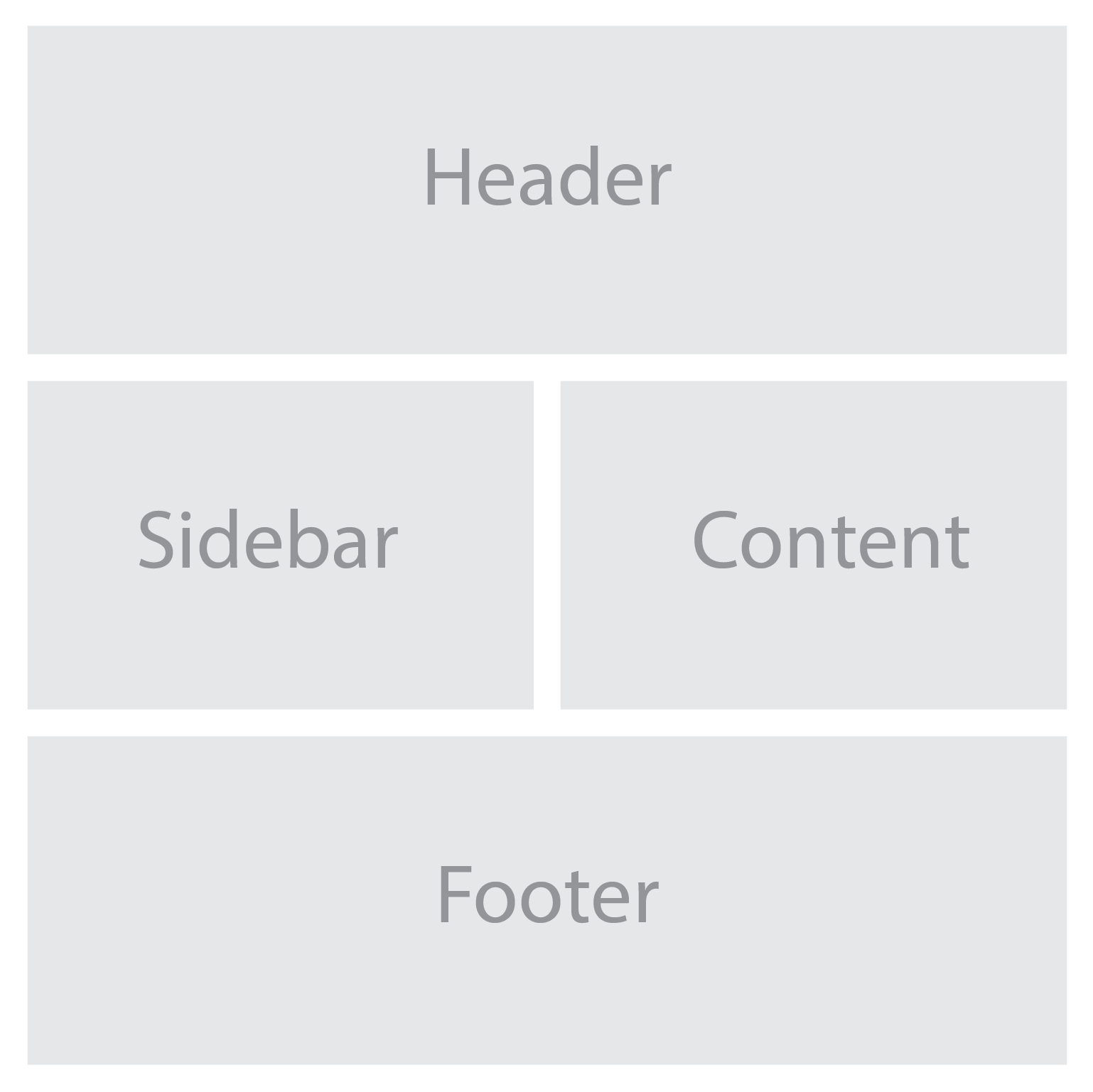
For example, we can define named grid areas for the different sections of a website using the grid-template-areas property:

.grid-container {
  display: grid;
  grid-template-areas:
    "header header"
    "sidebar content"
    "footer footer";
  grid-gap: 20px;
}

.header {
  grid-area: header;
}

.sidebar {
  grid-area: sidebar;
}

.content {
  grid-area: content;
}

.footer {
  grid-area: footer;
}

With these techniques, we can create highly adaptable and versatile grid layouts. Grid areas and named grid lines give us precise control over the positioning of our content, while the grid-gap property adds visual breathing space between items.

When customizing your grid system to meet specific design requirements, consider the following tips:

  • Experiment with different grid configurations to find the most suitable layout for your content.
  • Use the grid-template-areas property to create complex grid structures by assigning multiple areas to a single grid cell.
  • Combine CSS grid with other layout techniques, such as flexbox, to achieve even more versatile and dynamic designs.
  • Consider using CSS variables to define reusable values, such as grid gap sizes or color schemes, making it easier to adjust and maintain your grid system.

With CSS grid, you have full control over the structure and layout of your web pages, allowing you to achieve the desired visual hierarchy and user experience. By harnessing that power, you can unleash your creativity and design beautiful, functional, and responsive websites. Whether you’re building a portfolio, blog, e-commerce site, or any other type of web application, incorporating a minimal and versatile grid system using CSS grid will undoubtedly enhance the visual appeal and user experience.

Cache Handling: Browser Caching for Optimal Website Performance

Have you ever visited a website that took ages to load? Frustrating, isn’t it? As web designers and developers, one of our primary goals is to create websites that deliver exceptional user experiences. And when it comes to optimizing website performance, browser caching plays a crucial role.

When instant gratification is the norm, every second counts. Browser caching, a technique that allows web browsers to store and retrieve website assets, can significantly impact the speed, efficiency, and overall user experience of your website.

What is Browser Caching?

Put simply, browser caching is the mechanism that allows web browsers to store certain website assets locally on a user’s device. When a visitor accesses a website, the browser saves various files, such as HTML, CSS, JavaScript, images, and other resources. These files are stored in a “cache” (pronounced like cash), a temporary storage space on the user’s device.

The browser cache plays a vital role in improving website performance. When a user revisits a website they’ve previously accessed, the browser can retrieve the stored assets from the cache instead of fetching them from the server again. This results in significantly faster load times, as the browser doesn’t need to make round trips to the server for every file.

There are several benefits to implementing browser caching. First and most obviously, quicker page load times lead to enhanced user experiences, reducing the risk of visitor frustration and increasing engagement. Users are more likely to stay on a website that loads quickly and smoothly. Secondly, browser caching reduces server load by minimizing the number of requests made to the server for assets that are already stored locally. This can result in improved server response times and more efficient resource utilization. Lastly, browser caching helps conserve bandwidth, particularly for repeat visitors, as fewer resources need to be downloaded from the server, resulting in cost savings and improved performance for both the user and the website.

How Browser Caching Works

Speed Matters

At its core, browser caching relies on HTTP headers, which are response messages sent by the web server to the user’s browser. These headers contain caching directives that instruct the browser on how to handle and store the website assets.

Caching directives, such as “Cache-Control” and “Expires,” play a crucial role in controlling the caching behavior. The “Cache-Control” header allows the server to specify directives like “public” or “private” to determine whether the resource can be cached by intermediate proxies or only by the user’s browser. Meanwhile, the “Expires” header provides an expiration date or a time duration after which the cached resource is considered stale and needs to be revalidated.

It’s important to distinguish between server-side caching and client-side caching. Server-side caching occurs at the web server level, where the server stores pre-generated copies of web pages or dynamic content to serve them quickly to multiple users. On the other hand, client-side caching takes place within the user’s browser, where the browser saves and retrieves specific resources for faster subsequent visits.

Various caching mechanisms are employed by popular web browsers to optimize the caching process. For instance, browsers utilize a caching algorithm that determines whether to fetch a resource from the cache or make a new request to the server. This algorithm typically considers factors such as the expiration date of the cached resource, the freshness of the resource, and whether the user has disabled caching.

Best Practices for Implementing Browser Caching

Setting Cache-Control Headers:
When it comes to implementing browser caching, one of the key best practices is setting appropriate cache-control headers. Cache-control headers allow you to control how caching is handled for specific resources on your website. By specifying the right directives in these headers, you can determine whether a resource should be cached by the browser, intermediate proxies, or not at all.

Leveraging Expiration and Validation:
Expiration is the process of specifying an expiration date or time duration after which the cached resource is considered old and needs to be refreshed. Setting appropriate expiration times can ensure that the browser fetches updated versions of resources when necessary, avoiding the display of outdated content to users.

Validation involves using conditional requests to check if a cached resource is still valid or if it has been modified since it was last cached. This process helps to minimize unnecessary data transfer by fetching the resource only if it has been modified. With validation techniques such as ETags or Last-Modified headers, you can strike a balance between freshness and bandwidth savings.

Handling Dynamic Content:
Caching dynamic content can be more challenging than caching static content. However, it is still possible to cache dynamic content effectively while maintaining its freshness. One approach is to employ a caching strategy that combines server-side and client-side caching. By caching the dynamic content on the server and implementing appropriate cache-control headers, you can balance the need for up-to-date information with the benefits of caching.

Dealing with Cache Invalidation:
Cache invalidation is a common challenge when implementing browser caching. It involves managing cache updates and ensuring that users receive the latest versions of resources when changes occur. Several techniques can help address cache invalidation, such as versioning URLs, using cache-busting techniques like query strings or file hashes, or employing CDNs with built-in cache invalidation mechanisms.

Tools and Techniques for Browser Caching

Content Delivery Networks (CDN)

Content Delivery Networks:
Content Delivery Networks (CDNs) are powerful tools that can significantly enhance browser caching. CDNs distribute your website’s assets, such as images, CSS files, and JavaScript, across a network of geographically diverse servers. When a user requests your website, these assets are delivered from the server closest to their location, reducing latency and improving load times.

CDNs have built-in caching mechanisms that store your website’s resources on their servers. This means that when a user visits your site, the CDN can serve cached content directly from its edge servers, bypassing the need to retrieve the resources from your origin server. Taking advantage of the caching capabilities of CDNs can further optimize the delivery of your website assets, resulting in faster load times and improved performance.

Cache Plugins and Modules:
For popular web platforms and content management systems, there are various caching plugins and modules available. These tools help streamline the implementation of browser caching by providing automated caching configurations and settings. Installing a cache plugin or module specific to your platform can help you easily enable caching and take advantage of its benefits without the need for complex manual configurations.

Browser Cache Testing and Analysis:
To ensure the effectiveness of your browser caching implementation, it’s important to test and analyze its behavior on different devices and browsers. There are several tools and techniques available for this purpose. One commonly used tool is the browser developer console, which provides insights into network requests, caching headers, and the caching behavior of your website.

Additionally, there are online tools and browser extensions that specifically focus on cache analysis. These tools allow you to simulate cache scenarios, test different caching configurations, and analyze the caching performance of your website.

Common Mistakes to Avoid

  • Oversized or Expired Cache-Control Headers: Misconfigured cache-control headers can hinder caching efficiency and increase response times. Keep headers concise and up to date for optimal performance.
  • Neglecting to Cache Static Assets: Failure to cache static assets like images and CSS files can result in missed opportunities for performance improvement. Cache static resources to reduce server load and enhance page load times.
  • Ignoring Cache Validation: Neglecting cache validation techniques can lead to serving outdated content. Implement validation mechanisms to ensure fresh and accurate content delivery.
  • Setting Expiration Too Far into the Future: Setting cache lifetime too far into the future can prevent timely updates to website content and may result in visitors seeing outdated information.

Rake in the Cache

Web developers are encouraged to implement browser caching as an integral part of any web design strategy. By doing so, you can significantly enhance user experience, reduce server load, and improve overall website performance.

Remember, the internet is evolving, and keeping up with the latest techniques and tools for browser caching is essential. Stay informed, continue to explore new advancements, and adapt your caching strategies accordingly. If you can effectively harness the power of browser caching, you can create websites that are not only visually appealing but also lightning-fast and user-friendly.

How to Use Google Search Console to Level-up Your Website’s SEO

In the vast world wide web, where countless websites compete for attention, search engine optimization (SEO) is the not-so-secret for achieving online success. It’s the key to unlocking higher visibility, attracting organic traffic, and ultimately standing out amidst the virtual noise. As a web designer or developer, you understand the importance of optimizing your website to appease search engines and captivate your target audience.

But how can you refine your SEO strategies and stay ahead of the curve? Enter Google Search Console, a powerful tool that empowers webmasters and SEO professionals to uncover valuable insights, address technical issues, and fine-tune their websites for optimal performance in search engine rankings.

This article will give you an overview of Google Search Console and show you how to leverage its features to supercharge your website’s SEO potential. From analyzing performance metrics to addressing technical SEO issues, we’ll cover it all, helping you transform your website into an SEO powerhouse.

What is Google Search Console?

Google Search Console serves as an indispensable tool in the arsenal of webmasters and SEO professionals. As a free web service provided by Google, it offers a wealth of features and insights to refine your website’s SEO performance.

Purpose and Functionality:
Google Search Console is designed to provide webmasters and SEO professionals with a comprehensive understanding of how their websites are perceived by search engines. It allows you to monitor and manage various aspects of your site’s presence in search results. From indexing status to keyword performance, Google Search Console offers a holistic view of your website’s SEO health.

Key Features and Benefits:
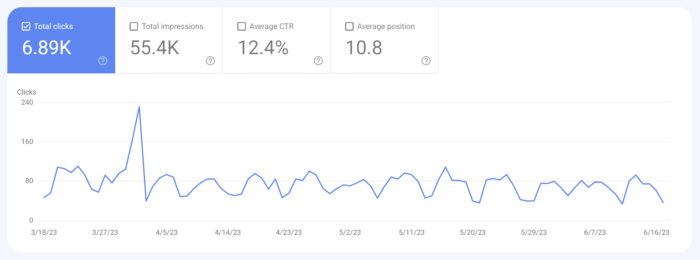
One of the primary benefits of Google Search Console is the ability to monitor and analyze website performance in search results. It enables you to track key metrics such as impressions, clicks, and average position for specific search queries. This valuable data helps you assess the effectiveness of your SEO strategies and identify areas for improvement.

Another invaluable feature of Google Search Console is its capability to identify and fix issues that may hinder your website’s visibility. It provides alerts and notifications regarding 404 errors, sitemap issues, and mobile usability concerns. Addressing these issues promptly ensures that search engines can access and understand your website’s content effectively.

Additionally, Google Search Console offers insights into user behavior, allowing you to understand how visitors interact with your website. It provides data on CTR, user queries, and the appearance of your site’s pages in search results. Armed with this information, you can optimize meta tags, titles, and descriptions to entice users to click through to your website.

Top Features of Google Search Console

Performance report

Performance Report:
This report provides a comprehensive view of how your website is performing in search results. You’ll gain insights into search queries, impressions, clicks, and average position. Dive into these metrics to uncover hidden opportunities and fine-tune your SEO strategy for maximum impact.

Keyword Optimization and Click-Through Rate:
Within the Performance Report, you can identify keyword opportunities and optimize meta tags, titles, and descriptions to improve your website’s organic CTR. With compelling and relevant meta information, you increase the likelihood of enticing users to click through to your website. This optimization not only improves your CTR but also enhances your website’s visibility in search results.

Index Coverage and Crawl Errors:
Monitoring your website’s index coverage and identifying crawl errors are crucial for ensuring that search engines properly index your web pages. Search Console provides alerts for any issues that may prevent certain pages from being indexed. By addressing crawl errors promptly, you can ensure that search engines can access and understand your website’s content effectively.

Enhancing Website Usability and Mobile-Friendliness:
User experience plays a vital role in SEO. Google Search Console offers the Mobile Usability and Core Web Vitals reports, helping you optimize your website’s usability and mobile experience. These reports provide valuable insights into mobile-friendly issues, loading performance, and interactivity.

Schema Markup and Structured Data:
Implementing schema markup and leveraging structured data can greatly enhance your website’s appearance and understanding by search engines. Google Search Console allows you to validate and test your structured data, ensuring that it follows the recommended guidelines. With structured information about your content, you increase the chances of rich snippets, knowledge panels, and other enhanced search result features, boosting your website’s visibility and click-through rates.

Backlink Analysis and Link Building:
Backlinks remain a vital aspect of SEO. Google Search Console offers a Link Report that allows you to identify and analyze the backlinks pointing to your website. Understanding the quality and quantity of your backlinks helps you assess your website’s authority and identify potential areas for improvement. Implementing effective link-building strategies, such as reaching out to relevant websites or creating valuable content, can help you acquire high-quality backlinks that strengthen your website’s SEO performance.

Addressing Technical SEO Issues

Exploring the Coverage Report:
One of the key aspects of technical SEO is addressing coverage issues within your website. Google Search Console’s Coverage report provides insights into crawl errors, URL submission, and canonicalization. It’s essential to address these issues to ensure that search engines can crawl and index your web pages effectively.

Site Speed and Performance Optimization:
Website loading speed is a critical factor in user experience and SEO. With Google Search Console’s Speed report, you can analyze your website’s performance and identify areas for improvement. Slow-loading pages can lead to higher bounce rates and lower search engine rankings. By optimizing your website’s speed, leveraging techniques such as image compression, caching, and minifying code, you create a smoother and faster browsing experience for your users, leading to improved SEO performance.

XML Sitemap Submission and Monitoring:
Submitting an XML sitemap to Google Search Console is vital for ensuring that search engines can discover and index your web pages efficiently. Google Search Console provides a convenient way to submit your XML sitemap and monitor its status. Regularly check the sitemap report to ensure that all relevant pages are included, detect any potential issues, and track the indexing status of your website. This helps you ensure that your web pages are appropriately indexed and accessible to search engine users.

Utilizing Google Search Console for SEO Insights and Reporting

Analytics

Query and Page Reports:
Extracting valuable SEO insights is crucial for refining your optimization strategies. With Google Search Console’s Query and Page reports, you can dive deep into keyword performance, impressions, and click-through rates. Analyze this data to gain valuable insights into how users discover and engage with your website in search results. Understanding which keywords are driving traffic and optimizing your content accordingly empowers you to enhance your website’s relevance and visibility.

Analyzing User Behavior with Google Analytics Integration:
Integrating Google Search Console with Google Analytics provides a powerful combination of SEO and user behavior data. This integration enables you to gain deeper insights into user behavior, conversions, and engagement metrics. With the combined information from both platforms, you can identify which pages attract the most organic traffic, understand user journeys, and uncover opportunities for improving conversion rates. This integration offers a comprehensive understanding of how your SEO efforts impact user engagement and website performance.

Generating SEO Performance Reports:
Tracking the progress and impact of your SEO efforts is crucial for measuring success and making informed decisions. Google Search Console allows you to create custom SEO performance reports using its data. These reports help you track key metrics, identify trends, and evaluate the effectiveness of your optimization strategies. Regularly generate and review these reports to fine-tune your SEO approach and identify areas for improvement.

It is important to emphasize the significance of Google Search Console in refining your SEO approach. By implementing this tool, you gain valuable insights, enhance your website’s visibility, improve search engine rankings, and drive organic traffic. However, it’s crucial to remember that SEO is an ongoing process that requires continuous monitoring and adaptation. The dynamic nature of search engine algorithms necessitates staying ahead of the game. Regularly leveraging Google Search Console allows you to stay informed, identify trends, and make necessary adjustments to maintain and enhance your website’s SEO performance.

Debugging: Error Resolution and Bug Fixing in Web Design

Have you ever found yourself in a web design rabbit hole, desperately trying to track down that elusive bug that’s wreaking havoc on your beautifully crafted website? It’s a frustrating experience that can make even the most patient designer want to throw their keyboard out the window. But fear not, for within the world of digital extermination are some valuable tools and techniques to make your bug squashing easier.

Debugging is not just a necessary evil; it is a fundamental skill that separates the novices from the masters in the world of web design. It’s the process of identifying, isolating, and resolving errors that can plague websites, ensuring they function flawlessly and provide a seamless user experience. In fact, mastering the art of debugging can save you countless hours of hair-pulling frustration, improve the functionality of your designs, and elevate your reputation as a skilled designer.

Let’s take a look at the knowledge and tools needed to unravel the tangled web of errors that often lie beneath the surface. From syntax glitches to browser compatibility issues, we’ll explore common errors and their solutions, empowering you to conquer even the trickiest bugs.

Understanding the Debugging Process

What Is Debugging?

When it comes to web design, debugging serves as the crucial process of identifying and resolving errors that can impede the functionality and performance of your website. It involves the systematic exploration and troubleshooting of issues, allowing you to uncover the root causes of problems and implement effective solutions. Debugging is an indispensable skill that empowers web designers to create robust and error-free digital experiences.

The Mindset of a Debugger

Successful bug fixing requires more than technical proficiency—it demands a specific mindset. As a debugger, cultivating a patient, persistent, and curious approach is essential. Patience allows you to persevere through complex issues, knowing that every bug has a solution. Persistence drives you to dig deeper, even when faced with seemingly insurmountable challenges. Curiosity fuels your desire to understand the inner workings of your code, enabling you to uncover hidden bugs and optimize your design.

Developing an Effective Debugging Workflow

  1. Reproduction: Begin by reproducing the error. Identify the specific conditions or actions that trigger the issue, ensuring you can consistently recreate it. This step lays the foundation for understanding the problem’s scope.
  2. Isolation: Isolate the problem by narrowing down its potential causes. Break down your code and test individual components or sections to identify the specific area where the error originates. Isolation helps in pinpointing the source of the problem and prevents unnecessary modifications to unaffected parts of your design.
  3. Hypothesize: Based on the isolated section, formulate hypotheses about what might be causing the error. This step involves analyzing the code, inspecting data structures, and exploring potential logic flaws. Develop multiple hypotheses to consider different scenarios and avenues for investigation.
  4. Testing: Test each hypothesis systematically by implementing changes and observing the effects. Use tools like logging, console output, or debugging frameworks to gather insights into code execution, variable values, and control flow. Iterate through the hypotheses, adapting your testing approach as you gather new information.
  5. Verification and resolution: Once you have identified the root cause of the error, verify the fix by thoroughly testing your modifications. Ensure that the issue is fully resolved and that your changes do not introduce new bugs. Document the steps taken to resolve the problem, creating a record that can aid in future debugging and knowledge sharing.

Understanding the debugging process is the foundation upon which successful bug hunting is built. With a clear definition of bug fixing, a debugger’s mindset, and an effective workflow in place, you are ready to tackle the diverse and often intricate errors that arise in web design.

Common Web Design Errors and Their Solutions

Syntax Errors

Syntax errors, the bane of every developer’s existence, have the power to bring your code execution to a screeching halt. These errors occur when your code violates the rules and structure of the programming language. Fortunately, identifying and fixing syntax errors is relatively straightforward.

To detect syntax errors, pay close attention to error messages provided by your code editor or development environment. These messages often indicate the line number and specific issue causing the error. Reviewing your code line by line and comparing it against the language’s syntax rules can help uncover and rectify these errors.

Logic Errors

Unlike syntax errors, logic errors don’t manifest as glaring mistakes, but rather as faulty program behavior. These bugs can be elusive and challenging to track down, requiring a detective’s mindset to identify and eliminate them. Techniques such as code review, data inspection, and stepping through code are invaluable when tackling logic errors.

Code review involves systematically examining your code for logic flaws. Another pair of eyes may spot a subtle error that you might have missed. Data inspection entails inspecting variables, inputs, and outputs to identify discrepancies or unexpected behavior. Printing or logging variable values at strategic points in your code can shed light on the problem’s source. Stepping through code with a debugger allows you to execute code line by line, observing variable values and the flow of execution, enabling you to pinpoint the exact location of the logic error.

Browser Compatibility Issues

Rendering inconsistencies aren’t as bad as they used to be in the Internet Explorer days, but ensuring cross-browser compatibility is still important to provide a consistent experience for all users. Browser compatibility issues can arise due to differences in rendering engines, CSS support, or JavaScript behavior. To address these challenges, adopt a proactive approach centered around cross-browser testing.

Perform comprehensive testing across different browsers and versions, both on desktop and mobile devices. Utilize browser developer tools to inspect elements, identify rendering inconsistencies, and debug JavaScript errors specific to a particular browser. Additionally, employ tools like BrowserStack or Sauce Labs, which allow you to test your website on a wide range of browsers and operating systems.

Performance-related Issues

Performance issues can significantly impact user experience, leading to slow load times, unresponsive interfaces, and dissatisfied visitors. To diagnose and resolve performance-related problems, employ performance profiling tools and optimization strategies.

Performance profiling tools like Lighthouse, PageSpeed Insights, or WebPageTest can analyze your website’s performance, highlighting potential bottlenecks. These tools measure metrics such as page load times, resource utilization, and network requests, providing insights into areas that require optimization. Optimize your code and assets by compressing images, minifying CSS and JavaScript files, and leveraging browser caching. Implement lazy loading for images and use asynchronous loading for scripts to optimize resource loading. Additionally, consider utilizing content delivery networks (CDNs) to distribute content closer to the user, reducing latency.

Debugging Tools and Techniques

Browser Developer Tools

When it comes to debugging in web design, browser developer tools are your trusted companions. These powerful built-in tools, such as Chrome Developer Tools, offer a range of features to aid in debugging HTML, CSS, and JavaScript issues. They provide a real-time view of your web page’s structure, styles, and functionality, enabling you to inspect and modify elements on the fly.

With browser developer tools, you can diagnose layout issues, debug JavaScript errors, analyze network traffic, and monitor performance metrics. The ability to modify code and see immediate results facilitates rapid experimentation and debugging. Take advantage of features like element inspection, JavaScript console, network analysis, and performance profiling to uncover and resolve issues efficiently.

Logging and Console Output

Logging is a tried and true method for tracking code execution and diagnosing JavaScript bugs. By strategically placing log statements in your code, you can output relevant information to the console during runtime. Console logging allows you to observe variable values, control flow, and error messages, providing valuable insights into the behavior of your code.

To maximize the effectiveness of logging, follow best practices such as using clear and descriptive log messages, organizing logs based on severity or module, and utilizing different log levels (e.g., debug, info, error). Leverage conditional logging to output specific information only when certain conditions are met. Be mindful of performance implications and ensure that logs are properly managed and removed in production environments.

Strategies for Efficient Debugging

Documentation and Organization

In the world of debugging, documentation and organization are paramount. When encountering a bug, it is crucial to document the details of the issue and organize them effectively. This practice not only facilitates efficient debugging for yourself but also aids in collaboration with teammates and ensures long-term maintainability of your web design.

Utilize bug tracking systems like GitHub to log and track bugs. Include essential information such as the bug’s description, steps to reproduce, expected and observed behavior, and relevant screenshots or error messages. By documenting bugs systematically, you create a knowledge base that can be referenced in the future, accelerating the debugging process.

Collaborative Debugging

Debugging doesn’t have to be a solitary endeavor. Collaborative debugging brings a fresh perspective, fosters knowledge sharing, and can lead to more efficient bug resolution. Embrace collaboration through code reviews and seeking help from peers or online communities.

Code reviews involve having a second set of eyes examine your code for potential issues, providing valuable feedback and catching bugs that may have slipped through. Engage in discussions with colleagues or participate in online forums and communities to seek guidance and insights from experienced developers who may have encountered similar issues.

Learning From Previous Debugging Experiences

Reflecting on past debugging experiences is a powerful way to grow as a developer. Every bug encountered provides an opportunity to learn, improve, and refine your debugging and coding skills. Adopt a growth mindset and embrace the lessons learned from previous bug fixing endeavors to become a more proficient debugger.

Review past bugs and consider the steps taken to identify and resolve them. Reflect on the strategies that proved successful and the ones that fell short. Identify patterns or recurring issues that can inform your future debugging efforts. Did you miss any red flags during code reviews? Were there any blind spots in your testing approach? This can help you identify areas for improvement and develop more effective debugging techniques.

Exterminate Those Bugs

Please don’t hurt the good Bugs!

Mastering the art of debugging is not just about fixing errors; it is about honing a valuable skill that saves time, improves functionality, and enhances the user experience. As web designers, we have the opportunity to create digital experiences that delight and inspire. Embracing debugging as an essential part of our toolkit enables us to deliver exceptional results.

So, I encourage you to embrace the world of debugging. Practice diligently, explore new techniques and tools, and seek collaboration and guidance from your peers. Debugging is not just a means to an end; it is a journey of growth, learning, and mastery. With each bug you conquer, you become a more skilled and resilient web designer.

Remember, the challenges you face during debugging are not obstacles, but stepping stones towards excellence. Embrace the bug fixing process with patience, curiosity, and determination. Your dedication to mastering this craft will set you apart and empower you to create remarkable web designs.

How to Build a Working Browser-based Game With JavaScript

Browser-based games have gained immense popularity, captivating players of all ages and providing hours of entertainment. These games, accessible directly through web browsers, offer a convenient and engaging experience without the need for additional software installations. One of the key technologies behind the creation of these games is JavaScript, a versatile programming language that powers interactive and dynamic web content. With JavaScript, developers can craft captivating and immersive gaming experiences right within the browser.

Building browser-based games with JavaScript opens up a world of possibilities. It allows developers to leverage the ubiquity of web browsers and reach a wide audience across different devices and platforms. From simple puzzle games to complex multiplayer adventures, the flexibility of JavaScript empowers developers to bring their creative visions to life.

This guide will walk you through the process of building a working browser-based game with JavaScript, from starting with the fundamentals, to implementing game logic. You will even find helpful code examples and a complete working game demo with source code. Whether you’re a seasoned developer looking to venture into the world of browser-based game development or a beginner with a passion for coding, this article will provide you with the essential knowledge and practical techniques to start creating a compelling browser-based game.

Advantages of Browser-based Games

JavaScript

Browser-based games, as the name suggests, are games that can be played directly within a web browser without the need for downloading or installing additional software. They leverage the power of web technologies, such as HTML, CSS, and JavaScript, to deliver interactive and engaging gaming experiences.

One of the key advantages of using JavaScript for browser-based game development is its widespread adoption and compatibility. JavaScript is supported by all major web browsers, making it accessible to a vast number of users across different devices and platforms. This means that your game can reach a wide audience without the need for users to install specific software or plugins.

Moreover, JavaScript offers a rich set of features and functionalities that are well-suited for game development. Its versatility allows developers to handle game logic, user input, animations, and more, all within the browser environment. With the advent of modern web technologies, JavaScript-powered games can achieve impressive visuals, smooth animations, and immersive gameplay.

The popularity of browser-based games continues to soar, thanks to their accessibility and the ease of sharing and playing games directly from a web browser. They provide instant entertainment without the barriers of installation or compatibility issues. Additionally, browser-based games can be seamlessly integrated into websites, making them an effective tool for engaging users and driving traffic to your online platforms.

Setting Up Your Development Environment

Before we dive into browser-based game development with JavaScript, it’s important to set up the right development environment. This will ensure a smooth and efficient workflow as you bring your game ideas to life.

Choose a Code Editor:
To write and manage your JavaScript code, you’ll need a reliable code editor. There are several options available, each with its own set of features and benefits. Popular choices among developers include Visual Studio, Sublime Text, and Atom. These editors provide syntax highlighting, code suggestions, and other helpful features that enhance your coding experience. Choose the code editor that suits your preferences and install it on your machine.

Configure JavaScript Libraries and Frameworks:
JavaScript libraries and frameworks can greatly simplify the development process and enhance the functionality of your game. Depending on the complexity of your game, you may choose to utilize libraries such as jQuery for DOM manipulation or Phaser for game-specific functionalities. Additionally, frameworks like React or Vue.js can be employed for building more complex game interfaces and managing state.

Designing the Game Concept

Now it’s time to get into the creative process of designing your game concept. This is where you define the genre, mechanics, and rules that will shape the gameplay experience. With careful planning and outlining, you can ensure an engaging and immersive game for your players.

Select a Game Genre and Concept:
Consider the type of game you want to create and the interests of your target audience. Are you envisioning a fast-paced action game, a strategic puzzle game, or perhaps an adventurous role-playing game? Think about what excites you as a developer and what will resonate with your players. Once you have a genre in mind, brainstorm unique and captivating concepts that will make your game stand out. Be creative and explore various ideas before settling on one that sparks your passion.

Outline Game Mechanics and Rules:
Game mechanics are the rules, actions, and interactions that define how your game works. Determine the core mechanics that will drive your gameplay, such as jumping, shooting, solving puzzles, or managing resources. Consider how these mechanics will challenge and engage players, ensuring a balance between difficulty and enjoyment. Outline the rules of your game, including win and lose conditions, scoring systems, and any special features or power-ups that will enhance the gameplay experience.

Creating the Game Structure

Now that you have a clear game concept in mind, it’s time to start building the foundation of your browser-based game. This is where we create the game structure, including setting up the game canvas and defining game states and screens.

Build the Game Canvas:
The game canvas is the area where all the game elements will be rendered and displayed. It acts as a visual container for your game graphics and provides the space where players will interact with your game. To create the game canvas, you can use HTML5’s <canvas> element, which provides a drawing surface that you can manipulate using JavaScript. Set the canvas dimensions and position it appropriately within your webpage to ensure optimal visibility and responsiveness.

Set Up Game States and Screens:
Game states represent different stages or screens of your game, such as the main menu, level selection, gameplay, and game over screen. Each state has its own set of functionalities and visual elements. By structuring your game into states, you can easily manage the flow and transitions between different parts of the game. Determine the states your game will have and define the necessary functions and assets for each state. This will allow you to control the logic and visual representation of your game as players progress through different screens.

To create a basic game canvas using HTML5 and JavaScript, follow these steps:

  1. HTML Markup:
<canvas id="gameCanvas" width="400" height="400"></canvas>
  1. JavaScript Code:
const canvas = document.getElementById("gameCanvas");
const ctx = canvas.getContext("2d");

// Draw a background color
ctx.fillStyle = "black";
ctx.fillRect(0, 0, canvas.width, canvas.height);

In this example, we obtain the 2D rendering context (ctx) of the canvas, which allows us to draw on the canvas. We then use the fillRect method to draw a black background color on the entire canvas.

With the game canvas set up, you now have a visual space to bring your game to life.

Implementing Game Logic

With the game structure in place, it’s time to implement some game logic. This is where we set up user input and controls, code game interactions and actions.

Handling User Input and Controls:
User input and controls are crucial for player interaction and gameplay. You can capture user input, such as keyboard or mouse events, and use them to control the game elements. Map key presses or mouse movements to specific actions within your game, such as moving the player character or triggering game events.

Coding Game Interactions and Actions:
Game interactions and actions refer to the various behaviors and functionalities that occur during gameplay. This includes player movement, enemy AI, object interactions, scoring systems, and more. Use JavaScript to define the necessary functions and logic to control these interactions. Implement game rules, physics, animations, and any other game-specific mechanics to make your game dynamic and enjoyable.

To add player movement to your game, we can do something like this:

// Set up the initial player position
let playerX = canvas.width / 2;
let playerY = canvas.height / 2;

// Function to update the game state
function updateGame() {
  // Clear the frame and color the canvas
  context.fillStyle = "black";
  context.fillRect(0, 0, canvas.width, canvas.height);

  // Move the player based on arrow keys
  const arrowKeySpeed = 5;
  if (arrowKeys.left && playerX > 0) playerX -= arrowKeySpeed;
  if (arrowKeys.up && playerY > 0) playerY -= arrowKeySpeed;
  if (arrowKeys.right && playerX < canvas.width - 50) playerX += arrowKeySpeed;
  if (arrowKeys.down && playerY < canvas.height - 50) playerY += arrowKeySpeed;

  // Draw the player
  context.fillStyle = "#fb6";
  context.fillRect(playerX, playerY, 50, 50);

  // Request the next animation frame
  requestAnimationFrame(updateGame);
}

// Function to handle arrow key events
const arrowKeys = {
  left: false,
  up: false,
  right: false,
  down: false,
};

function handleKeyDown(event) {
  event.preventDefault();
  if (event.key === "ArrowLeft") arrowKeys.left = true;
  if (event.key === "ArrowUp") arrowKeys.up = true;
  if (event.key === "ArrowRight") arrowKeys.right = true;
  if (event.key === "ArrowDown") arrowKeys.down = true;
}

function handleKeyUp(event) {
  event.preventDefault();
  if (event.key === "ArrowLeft") arrowKeys.left = false;
  if (event.key === "ArrowUp") arrowKeys.up = false;
  if (event.key === "ArrowRight") arrowKeys.right = false;
  if (event.key === "ArrowDown") arrowKeys.down = false;
}

// Add event listeners for arrow key controls
document.addEventListener("keydown", handleKeyDown);
document.addEventListener("keyup", handleKeyUp);

// Start the game loop
updateGame();

Here we have defined a player object with properties for position, speed, and dimensions. We created a function that checks for specific keyboard input and tracks the state of pressed keys. Depending on the key pressed, the player’s position is updated accordingly. You can modify the movement speed and controls based on your game requirements.

Adding Visuals and Audio

Now we will explore how to enhance your browser-based game by adding visual and audio elements. Integrating graphics, animations, sound effects, and music can help create an immersive and captivating gaming experience for your players.

Integrating Graphics and Animations:
Graphics and animations play a vital role in bringing your game to life. You can use various techniques to incorporate visuals into your game, such as sprite sheets, image rendering, and canvas drawing. Sprite sheets allow you to efficiently manage and animate multiple game elements, including characters, objects, and backgrounds. Utilize JavaScript and CSS to control sprite animation sequences, position them within the game canvas, and handle rendering updates. Experiment with different visual styles and effects to create a visually appealing game environment.

Incorporating Sound Effects and Music:
Sound adds depth and atmosphere to your game. It can evoke emotions, enhance gameplay moments, and provide audio cues for important events. HTML5 offers built-in audio capabilities that enable you to play sound effects and background music. With JavaScript, you can control when and how these audio elements are triggered. Experiment with different sound effects to match specific game actions and transitions. Consider adding background music that complements the game’s theme and setting, immersing players further into the gaming experience.

Let’s take a look at a code example that demonstrates how to display sprites and play sound effects using JavaScript:

// Load sprite image
const spriteImage = new Image();
spriteImage.src = "path/to/sprite.png";

// Draw sprite on the canvas
function drawSprite(sprite, x, y) {
  context.drawImage(
    spriteImage,
    sprite.x,
    sprite.y,
    sprite.width,
    sprite.height,
    x,
    y,
    sprite.width,
    sprite.height
  );
}

// Play sound effect
function playSoundEffect(jump_sound) {
  const audio = new Audio("path/to/sound.wav");
  audio.play();
}

// Usage
const playerSprite = {
  x: 0,
  y: 0,
  width: 32,
  height: 32,
};

// Inside the game loop
drawSprite(playerSprite, player.x, player.y);
playSoundEffect("jump_sound");

In this example, we load a sprite image and define a drawSprite function that draws the sprite on the game canvas at the specified position. You can customize the drawSprite function to handle different animation frames and sprite sequences. Additionally, we implement a playSoundEffect function that plays a sound effect when called. You can associate different sound effects with specific game events or actions.

Testing and Debugging

Once you have implemented the core features of your browser-based game, it’s crucial to thoroughly test and debug it to ensure a smooth and enjoyable gaming experience for your players.

Strategies for Testing Game Functionality

  • Functional Testing: Conduct comprehensive testing of different game scenarios, interactions, and user inputs. Verify that the game mechanics and logic work as intended. Test various game states, transitions, and edge cases to uncover any potential bugs or glitches.
  • Cross-Browser Testing: Test your game on multiple web browsers and versions to ensure compatibility and consistent behavior. Different browsers may interpret JavaScript and HTML5 features differently, so it’s essential to verify that your game functions correctly across a range of popular browsers.
  • Device Testing: Test your game on different devices, including desktops, laptops, tablets, and mobile phones. Ensure that the game’s responsiveness, controls, and visuals adapt well to various screen sizes and orientations.
  • User Testing: Gather feedback from a group of users or beta testers who can play your game and provide valuable insights. Observe their interactions, note any usability issues, and consider their suggestions for improvements.

Utilizing Browser Development Tools for Debugging

Modern web browsers offer powerful developer tools that can assist you in debugging your game. These tools provide features like console logging, breakpoints, network monitoring, and performance profiling. Here are a few commonly used browser development tools for debugging JavaScript games:

  • Chrome DevTools: The DevTools console allows you to log messages, inspect variables, and track runtime errors. You can set breakpoints to pause the execution of your game and examine the state of variables and the call stack. The network panel helps you monitor resource loading and performance.
  • Firefox Developer Tools: Similar to Chrome DevTools, Firefox Developer Tools offer debugging capabilities, including console logging, breakpoints, and network monitoring. The Performance panel provides insights into your game’s performance, highlighting potential bottlenecks.
  • Safari Web Inspector: Safari’s Web Inspector features console logging, JavaScript debugging, and network monitoring. It also includes a timeline tool for performance analysis and resource utilization.
  • Microsoft Edge DevTools: Microsoft Edge DevTools offer similar debugging features, including console logging, breakpoints, and network monitoring. The Performance tool allows you to profile your game’s performance and identify areas for optimization.

Optimizing Performance

To provide players with a seamless and enjoyable gaming experience, it’s important to optimize the performance of your browser-based game.

Techniques for Optimizing Game Speed and Responsiveness

  • Efficient Rendering: Optimize the rendering process by reducing unnecessary redraws and minimizing the number of DOM manipulations. Use techniques like requestAnimationFrame to synchronize animations with the browser’s rendering loop, ensuring smooth visuals.
  • Code Optimization: Review and optimize your game’s JavaScript code to eliminate bottlenecks and improve execution speed. Avoid redundant calculations, minimize the use of expensive operations, and consider using algorithms or data structures that offer better performance for specific tasks.
  • Caching and Preloading: Implement caching techniques to store and reuse frequently accessed game assets, such as images, sounds, and scripts. Preload essential assets during the game’s initialization phase to reduce loading times during gameplay.
  • Minification and Compression: Minify your JavaScript, CSS, and HTML files by removing unnecessary spaces, comments, and line breaks. Compress your assets, such as images and audio files, to reduce their file size without significant quality loss. Smaller file sizes result in faster loading times for your game.
  • Asynchronous Loading: Load game assets asynchronously to prevent blocking the main thread and improve perceived performance. Use techniques like lazy loading or dynamic loading to fetch assets on-demand, reducing the initial loading time.

Managing Memory Usage and Resource Consumption

  • Resource Pooling: Implement resource pooling techniques to reuse and manage resources efficiently. Objects like bullets, enemies, or particles can be pooled and recycled instead of creating and destroying them repeatedly, reducing memory allocation and garbage collection overhead.
  • Memory Management: Be mindful of memory usage throughout your game. Dispose of unused objects, remove event listeners, and release references to allow the garbage collector to reclaim memory. Avoid memory leaks by properly managing object lifecycles.
  • Asset Optimization: Optimize your game’s assets, such as images and sounds, to reduce their memory footprint. Use appropriate image formats and compression techniques to balance file size and visual quality. Consider using audio formats with efficient compression to minimize memory usage.

Finish Your Game

Using these techniques and some more JavaScript magic, we’ve built a simple working browser-based game prototype! We have a player object (orange square) with the objective of hitting a target (grey square). Feel free to use the arrow keys to play around with it:

And if you’re interested, here is the full source code:

// Get the canvas element
const canvas = document.getElementById("gameCanvas");
const context = canvas.getContext("2d");

// Set up the initial player position
let playerX = canvas.width / 2 - 25;
let playerY = canvas.height / 2 - 25;

// Set up the initial target position
let targetX = getRandomPosition(canvas.width - 30);
let targetY = getRandomPosition(canvas.height - 30);

// Keep track of the touch position
let touchX = null;
let touchY = null;

// Function to update the game state
function updateGame() {
  // Clear the frame and color the canvas
  context.fillStyle = "black";
  context.fillRect(0, 0, canvas.width, canvas.height);

  // Move the player based on arrow keys
  const arrowKeySpeed = 5;
  if (arrowKeys.left && playerX > 0) playerX -= arrowKeySpeed;
  if (arrowKeys.up && playerY > 0) playerY -= arrowKeySpeed;
  if (arrowKeys.right && playerX < canvas.width - 50) playerX += arrowKeySpeed;
  if (arrowKeys.down && playerY < canvas.height - 50) playerY += arrowKeySpeed;

  // Move the player based on touch position
  if (touchX !== null && touchY !== null) {
    const touchSpeed = 5;
    if (touchY < playerY) playerY -= touchSpeed;
    if (touchY > playerY) playerY += touchSpeed;
    if (touchX < playerX) playerX -= touchSpeed;
    if (touchX > playerX) playerX += touchSpeed;
  }

  // Draw the player
  context.fillStyle = "#fb6";
  context.fillRect(playerX, playerY, 50, 50);

  // Draw the target
  context.fillStyle = "#ccc";
  context.fillRect(targetX, targetY, 30, 30);

  // Check for collision between player and target
  if (checkCollision(playerX, playerY, 50, 50, targetX, targetY, 30, 30)) {
    // Generate new target position
    targetX = getRandomPosition(canvas.width - 30);
    targetY = getRandomPosition(canvas.height - 30);

    // Play sound effect

    playSoundEffect("pop");
  }

  // Request the next animation frame
  requestAnimationFrame(updateGame);
}

// Function to handle arrow key events
const arrowKeys = {
  left: false,
  up: false,
  right: false,
  down: false,
};

function handleKeyDown(event) {
  event.preventDefault();
  if (event.key === "ArrowLeft") arrowKeys.left = true;
  if (event.key === "ArrowUp") arrowKeys.up = true;
  if (event.key === "ArrowRight") arrowKeys.right = true;
  if (event.key === "ArrowDown") arrowKeys.down = true;
}

function handleKeyUp(event) {
  event.preventDefault();
  if (event.key === "ArrowLeft") arrowKeys.left = false;
  if (event.key === "ArrowUp") arrowKeys.up = false;
  if (event.key === "ArrowRight") arrowKeys.right = false;
  if (event.key === "ArrowDown") arrowKeys.down = false;
}

// Function to handle touch events
function handleTouch(event) {
  event.preventDefault();

  const rect = canvas.getBoundingClientRect();
  touchX = event.touches[0].clientX - rect.left;
  touchY = event.touches[0].clientY - rect.top;
}

function handleTouchEnd() {
  touchX = null;
  touchY = null;
}

// Check for collision between two rectangles
function checkCollision(rect1X, rect1Y, rect1Width, rect1Height, rect2X, rect2Y, rect2Width, rect2Height) {
  return (
    rect1X < rect2X + rect2Width &&
    rect1X + rect1Width > rect2X &&
    rect1Y < rect2Y + rect2Height &&
    rect1Y + rect1Height > rect2Y
  );
}

// Generate a random position within a given range
function getRandomPosition(max) {
  return Math.floor(Math.random() * max);
}

// Add event listeners for arrow key controls
document.addEventListener("keydown", handleKeyDown);
document.addEventListener("keyup", handleKeyUp);

// Add event listeners for touch controls
canvas.addEventListener("touchstart", handleTouch);
canvas.addEventListener("touchmove", handleTouch);
canvas.addEventListener("touchend", handleTouchEnd);

// Play sound effect
function playSoundEffect(pop) {
  const audio = new Audio("https://photricity.com/wp-content/uploads/pop-sound-effect.mp3");
  audio.play();
}

// Start the game loop
updateGame();


A/B Testing for Data-Driven Improvements in Web Design

In the fast-paced world of web design, staying ahead of the competition and delivering an exceptional user experience is crucial. This is where A/B testing comes into play. A/B testing, also known as split testing, is a methodical approach to website optimization that allows designers and developers to make data-driven decisions. By comparing two or more versions of a webpage, A/B testing provides valuable insight into which design elements, content variations, or functionalities resonate best with users. It’s like a digital experiment that helps uncover what truly works and what doesn’t.

The concept of A/B testing is simple yet powerful. You take your existing webpage (the control or variant A) and create a modified version (variant B) with specific changes you want to test. These changes could be anything from the color of a call-to-action button to the layout of a product page or the wording of a headline. By randomly splitting your website’s traffic between variant A and variant B, you can collect quantitative data and analyze user behavior to determine which variant performs better.

A/B testing allows you to make informed decisions based on evidence rather than assumptions or guesswork. Understanding how users interact with different elements of your website shows you how you can optimize for higher conversion rates, increased engagement, and improved user satisfaction. A/B testing also provides insight into user preferences, helping you align your design choices with their expectations. Ultimately, the goal is to create a website that not only looks visually appealing but also performs at its best, delivering a seamless user experience that keeps visitors coming back for more.

What is A/B Testing?

A/B testing is a methodology used in website optimization to compare two or more variations of a webpage and determine which one performs better in achieving specific goals. It is a data-driven approach that enables designers and developers to make informed decisions and continuously improve the effectiveness of their websites.

The purpose of split testing is to measure the impact of changes made to a webpage and understand how those changes influence user behavior. By systematically comparing different variants, you can identify the elements that have the greatest impact on user engagement, conversion rates, click-through rates, or any other key performance indicators that align with your business objectives.

How Do I Begin A/B Testing?

Higher conversion rates

The A/B testing process typically involves several key steps. First, you start by formulating a hypothesis based on your goals and insights. This involves identifying the specific element or feature you want to test and defining your expectations regarding its impact on user behavior. For example, you may hypothesize that changing the color of a call-to-action button from red to green will result in a higher conversion rate.

Next, you create the variants for your test. Variant A, also known as the control, represents the original version of your webpage, while variant B is the modified version with the specific change you want to test. It’s important to ensure that only one element is changed between the variants, allowing you to isolate the impact of that specific change.

Once your variants are ready, you launch the test and direct a portion of your website’s traffic to each variant. It’s important to randomly assign users to the different variants to eliminate bias. This ensures that any differences in user behavior between the variants can be attributed to the changes being tested rather than external factors.

As users interact with the variants, data is collected and analyzed to evaluate their performance. This includes metrics such as click-through rates, conversion rates, bounce rates, or any other KPIs relevant to your objectives. Statistical analysis is then applied to determine if there is a significant difference in performance between the variants. This analysis can shed light on which variant performs better and helps validate or reject your initial hypothesis.

A/B Testing Tools

There are several powerful tools available in the market to assist you in the testing process. These tools offer various features and functionalities that can simplify and streamline your A/B testing efforts.

One popular option is Google Optimize, which integrates seamlessly with Google Analytics and offers a user-friendly interface. It provides a wide range of testing capabilities, including split testing, multivariate testing, and redirect testing. With Google Optimize, you can easily create and manage experiments, track metrics, and gain valuable insights into user behavior.

Some other widely used tools include:

  • Optimizely: Robust experimentation platform, visual editor for easy variation creation, real-time results monitoring, advanced targeting options, and integrations with popular analytics tools.
  • VWO (Visual Website Optimizer): User-friendly interface, comprehensive testing capabilities, advanced targeting options, heatmaps, and session recordings for deeper insights.
  • Adobe Target: Enterprise-level solution, comprehensive suite of optimization tools, integration with Adobe Analytics, advanced targeting and segmentation capabilities, and personalized experiences based on user behavior.

When choosing an A/B testing tool for your web design needs, there are several factors to consider. Ease of use is essential, as you want a tool that allows you to create and manage experiments efficiently. Integration capabilities with your existing systems, such as your content management system or customer relationship management platform, are also important to ensure a seamless workflow.

Additionally, consider the level of statistical significance provided by the tool. You want a tool that helps you determine the validity and reliability of your test results, ensuring that you make data-driven decisions. Advanced targeting and segmentation options can further enhance the precision and effectiveness of your experiments.

Setting Up A/B Tests

To set up effective A/B tests, follow these steps:

  1. Identify Goals: Determine the metrics that align with your website’s objectives. Whether it’s increasing click-through rates, improving conversion rates, or enhancing user engagement, clearly define the KPIs you want to measure during the A/B testing process.
  2. Create Variations: Choose the specific elements on your website that you want to test. This could include headlines, call-to-action buttons, color schemes, layouts, or any other element that you believe can impact user behavior. Create different variations of these elements to test against each other.
  3. Determine Sample Size and Test Duration: Calculate the sample size required to achieve statistically significant results. This ensures that your test results are reliable and representative of the broader user population. Additionally, consider the test duration to account for any time-based factors that could influence user behavior, such as seasonality or promotional periods.

Remember, A/B testing is an iterative process, and it may take multiple rounds of testing to uncover the most effective variations. Continuously monitor and analyze the test results to refine your website’s design, enhance user experience, and drive better outcomes.

A/B Testing Ideas and Examples

When it comes to A/B testing, there are numerous elements on your website that you can experiment with to improve performance and user experience. Here are some A/B testing ideas to consider:

  • Headlines and Call-to-Action Text: Test different variations of headlines and CTA copy to determine which ones resonate best with your audience and lead to higher conversion rates.
  • Button Placement and Design: Experiment with the placement, size, color, and design of buttons to optimize user engagement and click-through rates.
  • Forms and Checkout Process: Test different form layouts, number of form fields, and the steps involved in the checkout process to simplify and streamline the user journey.
  • Page Layout and Design: Explore variations in page layouts, content placement, and visual elements to determine the most effective design for driving user engagement and achieving your website goals.
  • Images and Videos: Evaluate different visuals, such as images, videos, or graphics, to assess their impact on user engagement, conversion rates, and overall UX.
  • Pricing and Discounts: Test different pricing structures, discount offers, or pricing display formats to determine the most effective strategy for maximizing sales and conversions.
  • Navigation and Menu Structure: Experiment with different navigation styles, menu structures, and labeling to improve ease of navigation and user satisfaction.
  • Testimonials and Social Proof: Assess the impact of different testimonials, reviews, and social proof elements on user trust and conversion rates.
  • Mobile Optimization: Test variations in mobile optimization strategies, such as mobile-friendly layouts, touch-friendly buttons, and simplified navigation, to enhance the mobile user experience.
  • Personalization: Explore the effectiveness of personalized content, recommendations, or targeted messaging to deliver a more tailored and engaging user experience.

Common Challenges and Pitfalls

While A/B testing can be a powerful tool for optimizing your website, it’s important to be aware of common challenges and pitfalls that can arise during the process. Here are some common challenges to watch out for:

  • Insufficient Sample Size: One of the challenges in A/B testing is ensuring that you have a large enough sample size to obtain statistically significant results. If your sample size is too small, the results may not accurately represent your entire user base.
  • Test Duration: It’s essential to run your A/B tests for an adequate duration to capture variations in user behavior over time. Running tests for too short a duration can lead to unreliable or inconclusive results.
  • Multiple Test Interference: When running multiple A/B tests simultaneously, there’s a risk of test interference, where the results of one test may be influenced by another test running concurrently.
  • Biased Results: Biases can affect the outcomes of your A/B tests, leading to inaccurate conclusions. Common biases include selection bias, where specific user segments are overrepresented, and novelty effect, where users may exhibit different behavior due to the novelty of the variations.
  • Misinterpretation of Results: Interpreting A/B test results requires statistical analysis and a clear understanding of the data. Avoid the temptation to draw conclusions based on surface-level observations or small differences in conversion rates.

Conclusion

A/B testing is a vital tool in web design and optimization, enabling data-driven decisions and continual website improvement. But it’s also an ongoing journey, requiring consistent testing, monitoring, and optimization. Embrace experimentation, iterate on findings, and unlock your website’s full potential.

So, bring A/B testing into your workflow, make informed changes, and create an exceptional user experience. Start small, analyze, and iterate. Your efforts will pay off as you achieve measurable results.

Character Encoding: Decoding the Basics of Encoding Standards

Character encoding is the backbone of how computers understand and represent text. It is the process of mapping characters, such as letters, numbers, and symbols, to numeric codes that computers can interpret. Without proper character encoding, the beautiful typography, the carefully crafted words, and the essence of communication can be lost in a sea of gibberish.

What is Character Encoding?

At its core, character encoding is the process of representing characters in computer systems. It provides a standardized way to map characters to binary code, enabling computers to interpret and display text accurately.

Computers don’t understand the concept of letters, numbers, or symbols as we humans do. Instead, they work with binary code, a series of 0s and 1s that form the building blocks of all digital information. Character encoding acts as a translator between these binary codes and the characters we recognize.

Each character in a computer system is assigned a unique numeric value, known as a code point. These code points can range from basic Latin characters, like ‘A’ and ‘B’, to complex characters from various scripts, such as Chinese, Arabic, or Devanagari. However, simply assigning numeric values to characters is not enough; a set of rules is needed to ensure consistency and compatibility across different systems.

To achieve this, various encoding standards have been developed. One of the most widely used encoding standards is the ASCII (American Standard Code for Information Interchange), which originally used a 7-bit code to represent characters in the English language. However, as the need for internationalization grew, ASCII proved insufficient to handle the multitude of characters across different languages and scripts.

This led to the development of more comprehensive encoding schemes like UTF-8 (Unicode Transformation Format 8-bit). UTF-8 is a variable-length encoding that can represent characters from virtually all scripts and languages in the world. It has become the de facto standard for character encoding on the web, as it allows for efficient representation of both common and less frequently used characters.

Understanding character encoding is essential for web designers and developers because it ensures that the intended characters are correctly rendered on websites. It enables browsers, servers, and other software to interpret the encoded text and display it accurately to users. Without proper character encoding, text can appear garbled or completely unintelligible, making it difficult for users to read and comprehend.

Common Character Encoding Standards

When it comes to character encoding, several widely used standards have emerged to cater to the diverse range of characters and languages used across the web. Understanding these encoding standards is important for web designers and developers to ensure proper handling and display of text.

  • UTF-8 (Unicode Transformation Format 8-bit)
    UTF-8 is a variable-length encoding that can represent almost all characters in the Unicode standard. It has gained popularity due to its compatibility with ASCII, making it backward-compatible with existing ASCII-encoded content. UTF-8 is the recommended encoding for web pages and has become the de facto standard, supporting multiple scripts and languages seamlessly.
  • UTF-16 (Unicode Transformation Format 16-bit)
    UTF-16 is another Unicode encoding that uses 16 bits to represent characters. It provides a fixed-length encoding, making it suitable for characters beyond the Basic Multilingual Plane (BMP) in Unicode. UTF-16 is commonly used in software applications and supports a vast range of characters, including less frequently used ones.
  • ISO-8859-1 (Latin-1)
    ISO-8859-1 is a character encoding standard that primarily covers the Latin alphabet used by Western European languages. It supports characters for most European languages, including English, French, German, Spanish, and others. However, it has limited support for characters from non-European languages, making it less versatile for multilingual websites.
  • Other Encoding Standards
    Besides these, there are numerous other encoding standards available, such as ISO-8859-2 for Central European languages, ISO-8859-5 for Cyrillic scripts, and Shift_JIS for Japanese. The choice of encoding standard depends on the specific requirements of the project and the languages/scripts it needs to support.

When selecting a character encoding standard, it is essential to consider factors such as the languages used, the characters required, and the target audience. UTF-8 is widely recommended for its versatility and compatibility, allowing for seamless representation of characters from various languages. However, specific cases may require the use of other encoding standards based on regional or language-specific requirements.

It is crucial to declare the chosen character encoding in the web page’s HTML or HTTP headers to ensure proper interpretation by browsers and other software. This declaration helps browsers determine how to render and display the characters correctly.

Understanding Unicode

Unicode is not just a character encoding standard; it is the universal character encoding standard. It revolutionized the way characters are represented, allowing for seamless integration of diverse languages and scripts on the web.

At its core, Unicode aims to provide a unique code point for every character used in human communication, irrespective of the writing system or language. This ambitious undertaking ensures that characters from virtually all writing systems, including Latin, Cyrillic, Arabic, Chinese, and countless others, can be accurately represented and processed by computers.

Unicode solves the limitations of earlier character encoding standards by unifying character representation globally. It assigns a unique numeric value to each character, known as a code point. With over 137,000 code points available, Unicode can accommodate a vast range of characters, including not only letters but also symbols, punctuation marks, mathematical symbols, and even emojis.

To implement Unicode in web design, it is crucial to select an appropriate Unicode-based character encoding, such as UTF-8 or UTF-16. These encodings ensure that the vast repertoire of Unicode characters can be accurately encoded and decoded by web browsers and other software.

How Do I Declare a Character Encoding Standard?

To specify the character encoding in HTML documents, the charset meta tag is placed within the head section of an HTML file and provides essential information about the document, including the character encoding. To declare the character encoding in HTML, you can use a tag similar to this:

<meta charset="UTF-8">

It’s important to place the meta tag near the top of your HTML file, to ensure that the browser reads it early in the rendering process. This allows the browser to interpret the text correctly from the start, minimizing any potential issues with character rendering.

In addition to the meta tag, it’s essential to save your HTML files with the correct character encoding. Most text editors and integrated development environments (IDEs) allow you to specify the encoding when saving the file. Ensure that you choose the same encoding declared in the meta tag to maintain consistency.

What Happens if I Declare the Wrong Character Encoding Standard?

“Mojibake,” the result of improperly declaring character encoding.

One of the key consequences of using an incorrect character encoding is the misinterpretation of characters. Different encodings interpret characters differently, and if your website’s encoding does not match the actual encoding of the text, it can result in the display of unintended characters or the infamous “mojibake” phenomenon, where text appears as gibberish.

Imagine a scenario where your website caters to multiple languages and relies on Unicode for character representation. However, if you mistakenly choose an encoding that does not support the full Unicode range, you may encounter issues where certain characters are not displayed correctly or are completely missing. This can be a major setback, as it hampers the readability and accessibility of your content, frustrating users and potentially driving them away.

To ensure you select the appropriate character encoding for your website, consider the following tips:

  1. Understand the language requirements: Determine the languages or scripts your website will support. Research and identify the encodings that are best suited for those languages.
  2. Prioritize Unicode-based encodings: Given the expansive coverage of Unicode, it is recommended to use Unicode-based encodings like UTF-8 or UTF-16. These encodings support a wide range of characters and ensure compatibility across different platforms and systems.
  3. Consult language-specific guidelines: Some languages have specific recommendations for character encodings. Consulting language-specific guidelines, standards, or best practices can provide valuable insights and ensure accurate representation of characters.

Handling Character Encoding in CSS and JavaScript

While we have discussed how to specify character encoding in HTML documents, it is equally important to consider character encoding when working with CSS files and JavaScript code. Let’s explore some key considerations and techniques for handling character encoding in these web technologies.

CSS and Character Encoding

CSS files control the presentation and styling of HTML elements on your website. When it comes to character encoding in CSS, the general rule is to match the encoding used in your HTML documents. This ensures consistency and avoids conflicts or display issues.

When writing CSS code, it is recommended to use ASCII-compatible characters for selectors, properties, and values. If you need to include non-ASCII characters, such as special symbols or characters from different languages, you can use escape sequences or Unicode representations. For example, to represent the copyright symbol (©) in CSS, you can use the Unicode escape sequence "\00A9".

JavaScript and Character Encoding

JavaScript allows you to add interactivity and dynamic functionality to your website. When working with character encoding in JavaScript, it is crucial to ensure consistency with the encoding used in your HTML and CSS files.

In JavaScript code, you can use Unicode escape sequences or hexadecimal representations to include non-ASCII characters. For instance, to represent the euro symbol (€) in JavaScript, you can use the Unicode escape sequence "\u20AC".

Be aware of any third-party libraries or plugins you use in your project and ensure they are compatible with the chosen character encoding. In some cases, you may need to configure or specify the encoding within these external resources to ensure seamless integration with your website.

TL;DR

Understanding and implementing correct character encoding is a fundamental aspect of web design and development. Ensuring that characters are accurately encoded and displayed allows you to create a seamless user experience and enhance the accessibility of your website’s content. However, it’s important to remember that character encoding is not a one-size-fits-all solution. Each project may have unique language requirements, and selecting the appropriate encoding standard is crucial to support diverse character sets and internationalization.

Additionally, rigorous testing and proactive troubleshooting are vital in the process. Regularly checking the rendering of text, using validation tools, and performing thorough cross-browser and cross-platform testing can help identify and address encoding issues early on. Dedicating time and effort to comprehensive testing can prevent potential display problems, ensure compatibility across different devices and browsers, and optimize your website’s performance.

Staying up-to-date with evolving standards and best practices can keep you ahead of potential challenges related to character encoding. Ultimately, prioritizing correct character encoding contributes to a positive user experience, improved accessibility, and wider reach for your website’s content.