Creating Effective Calls-to-Action in Web Design

Creating effective calls-to-action is a critical part of web design. A call-to-action (CTA) is a marketing message that encourages website visitors to take a specific action, such as subscribing to a newsletter, downloading a white paper, or making a purchase. A well-designed CTA can help increase conversions, drive sales, and improve user engagement. Here is a quick guide for creating effective CTAs in web design.

The first step to creating an enticing CTA is to make it clear what you want visitors to do. What is the specific action you want them to take? Do you want them to sign up for your newsletter, download a white paper, or make a purchase? Once you know what you want visitors to do, make sure your CTA clearly and concisely states that action. Use action-oriented language that tells users exactly what they will get by clicking on the CTA. For example, instead of “Submit,” use something like “Download My Free Guide.” Be sure to use clear and concise language that is easy to understand.

Your call-to-action should use strong, persuasive language that encourages visitors to take action. Avoid using weak or tentative language, such as “maybe” or “consider.” Instead, use language that is clear, direct, and confident. For example, instead of saying “Subscribe to our newsletter,” you could say “Get our latest news and updates delivered straight to your inbox.”

Make it easy for your visitors to take action. Ensure that the button or link is large enough to be easily clicked, and that it stands out from the rest of the page. You may also want to consider using a contrasting color for your CTA button or link to make sure it stands out. Choose colors that complement your website’s color scheme but are different enough to catch the user’s attention. Use bold or larger fonts to make the CTA more prominent.

Your CTA should be placed in a prominent location on your website where visitors are likely to see it. It should be easy to find and should appear on multiple pages if possible. Users should not have to search for your CTAs. Consider placing your CTA above the fold whenever possible, which means that it is visible without visitors having to scroll down the page.

Use urgency to create a sense of immediacy. Encourage users to act now by using phrases like “Limited Time Offer” or “Act Now.” Strong action words like “click,” “buy,” and “sign up” are more likely to get people to take action than vague terms like “learn more” or “explore.”

To write the most effective copy for your CTAs, get to know your target audience. Who are you trying to reach with your CTA? How can your product or service help them? Once you understand your target audience, you can tailor your message to appeal to their specific interests and needs.

Finally, test and optimize your CTAs regularly. There’s no one-size-fits-all approach to creating effective CTAs. Experiment with different language, colors, and placement variations to see what works best for your audience. Analyze your data to determine which CTAs are driving the most conversions and adjust your strategy accordingly.

Hopefully this guide has helped you use CTAs to increase your conversion rate and close more sales. By following these tips, you can create effective CTAs that encourage users to take action and improve your website’s overall performance. Ultimately, this should help you achieve your marketing goals.

Google Analytics: Gaining Insight Into Your Website Traffic

Keeping track of your website’s traffic is an essential aspect of digital marketing. There are many tools and services for this, but one of the most popular is Google Analytics. With this free tool, website owners can track and analyze their website’s performance, including how many visitors the site receives, where they come from, and how they interact with the site. There are many advanced features to go over, but in this article we will scratch the surface with the basics of tracking website traffic with Google Analytics.

Here are some of the benefits of tracking website traffic with Google Analytics:

  • Improved understanding of your website visitors: Google Analytics provides a wealth of information about your website visitors, such as their location, device, and interests. This information can be used to improve your website’s content and design to better appeal to your target audience.
  • Identifying areas for improvement: Google Analytics can help you to identify areas of your website that are underperforming. This information can be used to make changes to your website to improve its performance.
  • Tracking the effectiveness of your marketing campaigns: Google Analytics can help you to measure the effectiveness of your marketing materials. This information can be used to improve the performance of your campaigns and get better results.
  • Making better business decisions: Google Analytics can provide you with valuable knowledge about your website’s performance. This information can be used to make better business decisions, such as which marketing channels to invest in and how to improve your website’s content.

Getting Started

It can feel awkward typing the first four letters of “analytics” into the address bar. Butt you doo get used to it!

To get started with Google Analytics, you first need to create a Google Analytics account. This can be done by going to the Google Analytics website and signing up with your Google account. Once you’ve created an account, you’ll need to set up a new property for your website by entering your website’s domain name and other relevant information.

After setting up a profile for your website, you’ll be given a tracking code to add to your site. This code should be placed on every page of your website that you want to track. If you’re using a content management system like WordPress, you can often add the tracking code through a plugin or by adding it to your theme’s header file.

Once your tracking code is in place, the hits will start streaming in, and you can start collecting data about your website visitors. Since the data collection has only just begun, it will take some time before it can show any meaningful statistics.

Diving Into the Data

Now that you’re setup with Google Analytics, you can begin to view your website’s traffic data. The dashboard in Google Analytics provides a ton of information about your website’s visitors, including their location, demographics, behavior, and more. It’s a good idea to check your analytics dashboard regularly to monitor your website’s performance and identify areas for improvement.

Google Analytics 4 is the latest version of Google’s web analytics tool. The GA4 dashboard provides a more comprehensive view of user behavior across websites and mobile apps. The new dashboard has several updated features, including advanced tracking options, predictive analytics, and machine learning capabilities. With GA4, you can track events, conversions, and user journeys, as well as monitor performance across different channels and platforms. The dashboard also includes a customizable interface, allowing you to choose the metrics and dimensions that are most relevant to your business goals. Overall, the new Google Analytics 4 dashboard provides powerful insights to help you optimize your website and improve user engagement.

Here are some ways to make the most out of this useful tool:

  • Leverage AI with Insights: Google Analytics Insights uses machine learning to discover trends and anomalies in your traffic data. You can even receive automated email alerts when these events occur.
  • Set up goals: Google Analytics allows you to set up goals, which are specific objectives that you want to achieve with your website. For example, you might want to increase the number of visitors to your website, improve the time that visitors spend on your website, or increase the number of people who sign up for your newsletter. Once you have set up goals, you can track your progress towards them in Google Analytics.
  • Use filters: Google Analytics allows you to apply filters to segment your data. For example, you might want to filter your data by date, location, or device. Using filters can help you to get a better understanding of your website traffic.
  • Create reports: Google Analytics allows you to create custom reports. This is a great way to track the metrics that are most important to you. You can also export your reports and share them with others.
  • Use the API: Google Analytics also has a powerful API that you can use to integrate it with other applications. This can be a great way to automate your marketing and analytics tasks.

Key Metrics

There is an almost overwhelming amount of data available to look at. One of the most important metrics to track is your website’s bounce rate. This metric represents the percentage of visitors who leave your website after viewing only one page. A high bounce rate can indicate a problem with your website’s content or user experience, so it’s important to keep an eye on this metric and take steps to reduce it.

Another key metric to keep an eye on is your website’s conversion rate. This metric represents the percentage of visitors who take a desired action on your website, such as filling out a contact form or making a purchase. By tracking your website’s conversion rate, you can identify areas for improvement and make changes to optimize your website for conversions.

Google Analytics also allows you to track the sources of your website’s traffic, including search engines, social media, and referral websites. By tracking these sources, you can identify which channels are driving the most traffic to your website and adjust your marketing and SEO strategy accordingly.

In addition to tracking your website’s traffic data, Google Analytics also provides valuable insights into how visitors interact with your website. This includes data on which pages are the most popular, how long visitors stay on each page, and which pages have the highest exit rates.

There are so many more valuable statistics than we can discuss in this article, but here is just a bit more of the information that Google Analytics provides:

  • Unique visitors: The number of unique visitors to your website. A unique visitor is someone who has visited your website at least once in a given period of time.
  • Sessions: The number of browsing sessions on your website. A session is a period of time during which a visitor interacts with your website.
  • Pages per session: The average number of pages that a visitor views per session.
  • Average time on site: The average amount of time that a visitor spends on your website per session.
  • Referrers: The websites that send visitors to your website.
  • Keywords: The search keywords that visitors use to find your website.
  • Location: The geographic location of your visitors.
  • Device: The devices that your visitors use to access your website.
  • Browser: The specific browser and version your visitor is using. This can be helpful for targeting your browser compatibility efforts.

Demographics

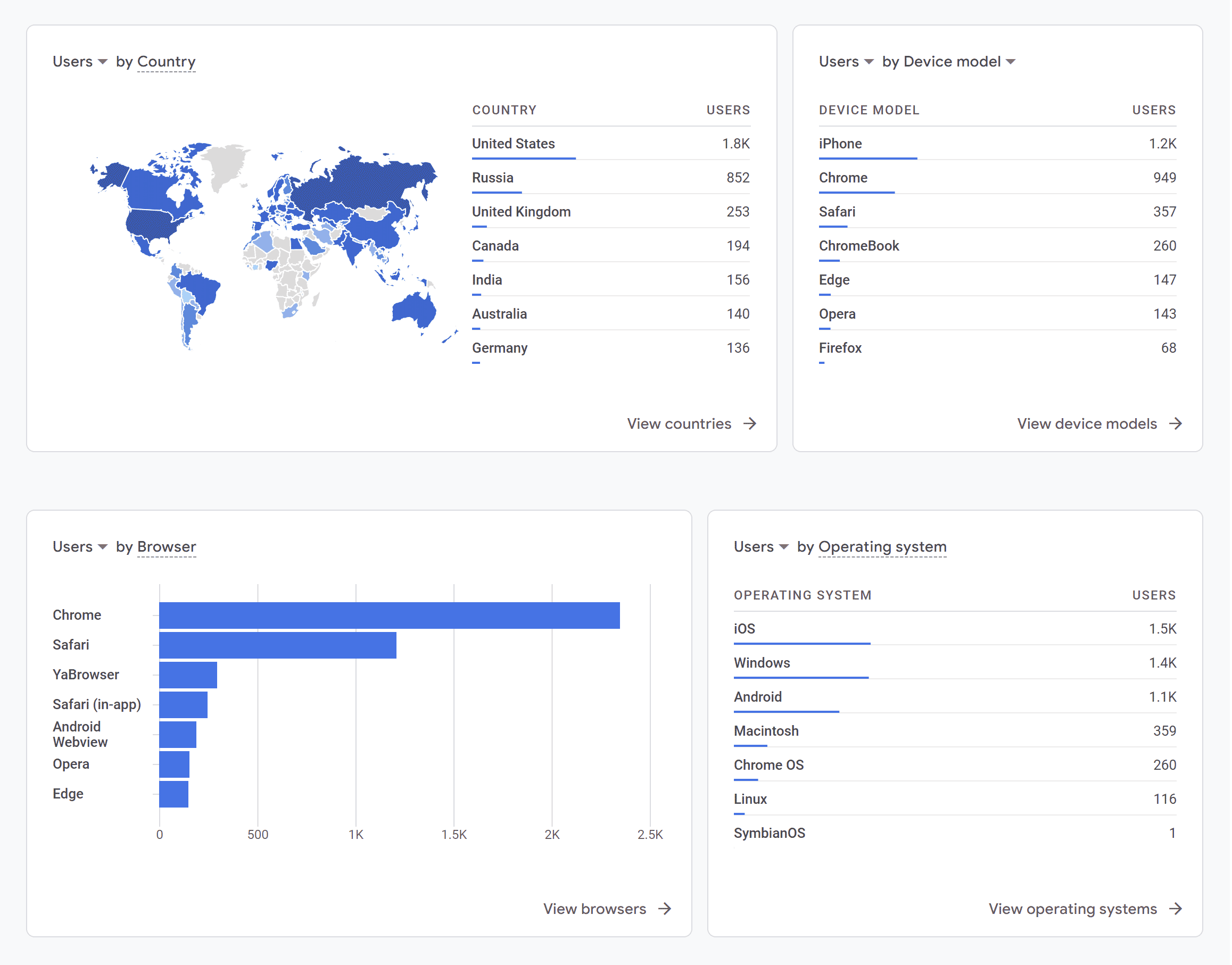
Example demographics data charts

One of the key benefits of Google Analytics is the ability to gain insight into your website visitors’ demographics. This information can help you understand who your target audience is and how to tailor your content and marketing efforts to their interests and needs.

To access this data, navigate to the “Reports” section of Google Analytics and select “Demographics” and “Overview.” Here, you can view information about your visitors’ age, gender, location, and interests. This information can be useful for tailoring your content and marketing strategies to your audience’s preferences. For example, if your website primarily attracts an audience of young adults, you may want to create content that is more relevant and engaging to that age group. Keep in mind that this data is only available for a subset of your website visitors who are logged into their Google accounts or have enabled cookies in their browsers.

Overall, tracking website traffic with Google Analytics is an essential part of any digital marketing strategy. If you are serious about improving your website’s performance, then you should consider using data gathering software like Google Analytics. It is a free service that can provide you with a wealth of information about your website’s traffic. By analyzing this data, you can identify areas for improvement and make changes to optimize your website for conversions and better user experiences.

Keyword Research: Optimizing Your SEO Plan

Keyword research is a vital aspect of search engine optimization (SEO). It’s the process of identifying and analyzing the search terms and phrases that people use to find information on the internet. Keyword research helps website owners and marketers to understand their target audience and create content that matches their search queries. Here we discuss what’s involved with keyword research for effective SEO.

Identify Your Target Audience

Before you start researching keywords, you need to know who your target audience is. Who are the people that you want to attract to your website? What are their interests, needs, and pain points? Understanding your audience will help you choose relevant keywords that will attract them to your website.

This can be done by analyzing your website’s traffic, surveying your current customers, and researching your competitors. Once you have a clear understanding of your target audience, you can begin to develop a list of relevant keywords that they’re likely to use when searching for your products or services. By focusing on the keywords that your target audience is using, you can better optimize your website for SEO and improve your chances of ranking higher in search engine results pages (SERPs).

Brainstorm Potential Keywords

Brainstorming a list of potential keywords can be a critical step in conducting keyword research for SEO. It involves coming up with relevant and related words and phrases that people might use when searching for information related to your website or business. You can use a variety of sources such as Google Autocomplete, related searches, and industry-specific tools to come up with a comprehensive list of keywords.

One way to do this is to put yourself in your target audience’s shoes and think about what they would type into a search engine. Consider the pain points, questions, and interests that your target audience might have and then brainstorm relevant words and phrases that match those topics.

Another helpful technique is to use keyword research tools such as Google Keyword Planner, SEMrush, Ahrefs, or Moz’s Keyword Explorer. These tools can help identify keywords and phrases that are frequently searched for by your target audience and provide insight into the competitiveness and potential traffic associated with each keyword.

It’s also essential to prioritize your keywords based on their relevance, search volume, and competition. This will help you focus on the most important keywords and optimize your website’s content accordingly.

Analyze Keyword Competitiveness

After you have generated a list of potential keywords, analyze their competitiveness to find keywords that have a good balance between search volume and competition. This will help you determine which keywords are worth targeting and which ones you should avoid. Keyword competitiveness can be evaluated by looking at metrics such as search volume, competition level, and keyword difficulty. You can use tools like Google Keyword Planner or Ahrefs to see how many people are searching for a particular keyword and how difficult it is to rank for it.

Search volume refers to the number of searches that a keyword receives in a given period. It’s important to target keywords that have a reasonable search volume to ensure that your content is being seen by enough people.

Competition level refers to the number of other websites or web pages that are also targeting the same keyword. Higher competition means it will be more difficult to rank for that keyword.

Keyword difficulty is a metric that estimates how difficult it is to rank for a specific keyword based on various factors such as the competition level, domain authority, and page authority of the top-ranking pages. This metric can help you determine which keywords are worth targeting and which ones may be too difficult to rank for.

It’s important to find a balance between search volume and competition when selecting keywords for your SEO strategy. Targeting highly competitive keywords can be difficult for smaller websites, while targeting keywords with very low search volume may not generate enough traffic to be worthwhile.

Focus on Long-tail Keywords

Long-tail keywords are longer and more specific phrases that people use to search for information, and shouldn’t be overlooked. They usually contain more than three words and are less competitive than broader keywords. They may have lower search volumes, but they are often easier to rank for and attract more qualified leads to your website.

For example, instead of a highly competitive term like “running shoes,” you might find more success from targeting longer niche phrases like “women’s running shoes for overpronation” or “minimalist running shoes for flat feet.” As you can see, long-tail keywords are more specific and targeted than broad keywords and often indicate a specific problem, need, or interest.

Using long-tail keywords can help you reach a more targeted audience, which means you’re more likely to attract visitors who are interested in what you have to offer. They can also help you rank higher in search engine results because they are less competitive than broad keywords.

To find long-tail keywords, try using tools like Google’s Keyword Planner, Moz’s Keyword Explorer, or Ahrefs’ Keyword Explorer. These tools will help you identify long-tail keyword opportunities based on search volume, competition, and relevance to your business.

Consider User Intent

When selecting keywords, consider the intent behind the search. User intent refers to the reason behind a user’s search query and the type of information they are looking for. Are people looking for information, products, or services? Understanding user intent will help you create content that meets their needs and matches their search queries.

There are three main types of user intent: informational, navigational, and transactional. Informational intent is when a user is searching for information on a particular topic. Navigational intent is when a user is searching for a specific website or webpage. Transactional intent is when a user is searching for a product or service with the intent to purchase.

When creating content for your site, it’s helpful to take user intent into consideration. This can help you create content that matches the user’s intent and provides them with the information they are looking for. By creating content that matches user intent, you can increase the likelihood of your content ranking higher in SERPs and driving more targeted traffic to your website.

Keyword research is an ongoing process, and it’s important to regularly monitor and update your list of keywords to stay ahead of the competition. By following these tips, you can conduct effective keyword research and improve your website’s visibility and ranking in search engine results pages.

The Art of Writing Clean and Efficient HTML Code

Writing clean and efficient HTML code is important for the overall quality and functionality of a website. It ensures that the code is easy to read and understand, which makes it easier to maintain and update. Clean HTML code also helps with website optimization for search engines, as it ensures that the code is correctly structured and free from errors.

HTML is a markup language that is used to create web pages. It is a relatively simple language to learn, but it is important to write clean and well-organized code in order to make your web pages more readable and maintainable. To write optimized HTML code, it is helpful to follow a few guidelines. Here we will talk about some best practices and tips to help you turn your spaghetti code into art.

Formatting

It can be hard to understand how HTML hierarchy works, but once you have added a child to an element, it becomes apparent.

Properly formatting your HTML code can make it much easier to read and edit, especially when working with larger files. A best practice is to use indentation to clearly show the hierarchy of elements. For example, when a child element is nested inside a parent element, it should be indented to clearly show the relationship between the two. Some developers use tabs for indentation, others might use two or four spaces. Neither way is wrong, just remember to be consistent.

Another formatting consideration is the use of line breaks and white space to separate different sections of code. Adding line breaks can make the code easier to read, especially when working with long blocks of code. However, be careful not to add too much white space, as this can make the file larger and slower to load.

Semantics

Using semantic tags in HTML is incredibly helpful for creating clean and organized code. These tags have descriptive names that convey the meaning of their content to search engines, web crawlers, and screen readers. Instead of using generic tags like <div> or <span>, semantic tags such as <header>, <nav>, <main>, <article>, <section>, and <footer> allow for more efficient and meaningful markup.

Not only does this improve the accessibility and usability of your website, but it can also positively impact your SEO efforts. By using semantic tags, search engines can better understand the structure of your content and display it more prominently in search results.

Less Is More

Another important aspect of writing efficient HTML is to avoid unnecessary code. Remove any code that is not essential to the structure, content, or functionality of the page. Unnecessary code can slow down the page’s loading time, make it harder to maintain, and create confusion for other developers who may work on the project. Remove any unused CSS or JavaScript files and avoid using inline styles and scripts to keep your HTML document clean and brief.

Note To Self

HTML comments are a great way to leave notes and reminders for yourself or other developers who may be working on the code. Comments are ignored by the browser, so they won’t appear on the website, but they can be helpful in keeping your code organized and easy to understand.

To add a comment in HTML, simply enclose the text or code you want to comment out between <!-- and --> tags. It’s also a good practice to use comments to describe the purpose of each section of your HTML code, making it easier for others to understand and modify the code in the future. However, be careful not to overuse comments, as too many can clutter your code and make it difficult to read.

Leave the Styling to CSS

Using CSS for styling instead of HTML can make your code much cleaner and easier to read. HTML is intended for content and structure, while CSS shines at presentation and styling. By separating these concerns, you can create more maintainable code that is easier to update and modify.

To maximize the benefit of CSS, you can define a separate stylesheet that contains all of your CSS rules. This allows you to apply consistent styles to all elements on your website, and also makes it easier to make global changes to your design. By keeping your styles in a separate file, you can also avoid cluttering up your HTML code with inline styles or repeated style definitions.

Another benefit of using CSS for styling is that it allows you to create more complex and dynamic designs. CSS includes a number of advanced features, such as animations, transitions, and grid layouts that can be used to create engaging and interactive user experiences. By using CSS instead of HTML for styling, you can take advantage of these features and create more engaging and visually appealing websites.

Validate

If you’re trying to step up your HTML game, it’s a good idea to make sure that your code is valid and standards-compliant. This is made easy using helpful tools like the W3C Markup Validation Service. Validating helps to identify any errors or warnings in the code, and ensures that the website is compatible with different browsers and devices. Be sure to identify and fix any errors in your code before they cause problems.

In addition to these essential best practices, here are a few more things to keep in mind when writing HTML:

  • Use a DOCTYPE declaration. This will tell browsers how to render your page.
  • Avoid using deprecated tags and attributes that are no longer supported by modern browsers. This includes tags like <center> and attributes like align=”center”.
  • Use descriptive and consistent naming conventions for your classes and attributes. Using logical names can help you remember what they do and where they are used. This will make your code more self-documenting, and can make it easier to understand the structure of the page and to make changes later on.
  • Break up your code into logical blocks. This will make your code more manageable and easier to maintain.
  • Minimize the use of tables for layout purposes. Instead use CSS grid, flexbox, or other more modern layout methods.
  • Avoid using inline styles. This will make your code much cleaner, and make it far easier to make design changes across your site.

Writing good HTML is indeed an artform. By following these guidelines, web developers can create clean, efficient, and beautiful HTML code that results in improved website performance and user experience. Your future self will thank you for taking the time to craft well-organized HTML code that is easy to read and maintain.

Website Maintenance: Keeping Your WordPress Site Healthy

WordPress is by far the most popular content management systems (CMS) in the world, with millions of websites using it to power their online presence. However, building a WordPress website is only the beginning of your journey. Maintaining your website is just as important as building it, as it helps ensure that your website stays secure, up-to-date, and optimized for the best possible user experience. In this article, we’ll explore the essential ongoing maintenance tasks you need to perform on your WordPress website to keep it running smoothly.

Keep WordPress Updated

WordPress regularly releases updates to fix security issues, bugs, and improve functionality. Keeping your WordPress site updated is an essential part of website maintenance, as it helps to ensure that your site remains secure, stable, and performs optimally.

You can update your WordPress site manually or automatically. To update WordPress manually, you need to log in to your WordPress dashboard and navigate to the updates section. Alternatively, you can download the WordPress core files from wordpress.org and upload them to your server manually.

To enable automatic updates, head to the updates page in the WordPress dashboard and choose to enable automatic updates for maintenance and security releases only, or for all new versions of WordPress. This will ensure that your site is always up to date without having to do it manually.

Update Plugins and Themes

Like the WordPress core, updating plugins and themes is also critical for maintaining the security and functionality of a WordPress website. Outdated plugins and themes can potentially introduce security vulnerabilities or compatibility issues with new versions of WordPress.

It is important to regularly check for updates and install them as soon as they become available. Most plugins and WordPress themes will display a notification in the WordPress dashboard when updates are available, and users can also check for updates manually.

Before updating plugins and themes, it is recommended to create a backup of the website to avoid potential data loss or other issues. In addition, it’s important to read the update release notes and check for any compatibility issues or known bugs that may affect the website.

If a plugin or theme is no longer being maintained or updated by the developer, it’s recommended to find an alternative solution or consider removing it from the website to avoid potential security risks.

Backup Your Website

Backing up a WordPress website is an important part of ongoing maintenance. Regular backups can help you restore your website to a previous state if anything goes wrong, such as a hacking attack or accidental deletion of important files.

There are several backup options available for WordPress, including manual backups and automated backup plugins. Manual backups involve downloading a copy of your website files and database to your local computer or cloud storage. This method is more time-consuming and may require technical knowledge, but it gives you complete control over the backup process.

Automated backup plugins, on the other hand, offer a more convenient option for backing up your website. There are several popular backup plugins available for WordPress, including UpdraftPlus, Jetpack Backup, and BackupBuddy. These plugins can schedule regular backups of your website files and database, and store the backups in a secure offsite location such as Dropbox, Google Drive, or Amazon S3.

No matter which backup option you choose, it’s important to test your backups periodically to make sure they are working properly. This can involve restoring your website from a backup and checking that everything is functioning as expected. By taking the time to back up your website regularly, you can ensure that your data is safe and secure, and that your website can be quickly restored in the event of an emergency.

Monitor Website Performance

Website speed is critical to test on a regular basis. Over time, your WordPress website may become slow and sluggish. This can be caused by a number of factors, such as outdated plugins, inefficient code, and too many images. Slow page load times and other performance issues can lead to a poor user experience and lower search engine rankings. There is a plethora of things that affect page speed, so it’s important to optimize your website on a regular basis to keep it running smoothly.

You can use free tools like Google PageSpeed Insights or GTmetrix to analyze your website’s speed and identify any areas for improvement. These utilities can help identify any bottlenecks in website performance, such as slow-loading images or inefficient code. They can also provide reports on page load times, file sizes, and other metrics that can help you optimize your website for better performance. If your website is slow, you can optimize images, use a caching plugin, or upgrade your hosting plan.

Secure Your Website

Securing your WordPress website is essential to protect it from hackers, malware, and other security threats. You can use plugins like Wordfence or Sucuri to monitor your website for suspicious activity, implement two-factor authentication, and add a firewall to your website.

WordPress websites are a common target for malware attacks. Malware is a type of malicious software that can infect your website and steal your visitors’ data. It is important to scan your website for malware regularly using a reputable security plugin. There are a number of free and paid malware scanning tools available.

Keep it Clean

Keeping your WordPress installation clean is an important part of ongoing maintenance. Over time, websites can accumulate and become cluttered with unnecessary data such as spam comments, post revisions, and unused media files, which can slow down the site’s performance and make it harder to manage. It is recommended to regularly clean up your website’s database, remove any unused plugins and themes, and delete any unnecessary files or data. There are even plugins available to help with cleaning up and optimizing your database and removing unnecessary files.

Additionally, optimizing images, using caching plugins, and minimizing the use of external scripts can help improve the speed and performance of your WordPress website. It’s also important to regularly test your website’s functionality and user experience to ensure that everything is working as intended.

Test and Fix

Checking your site for broken pages and incompatibilities with plugins is an important part of regular maintenance for any website. Broken links and display bugs can lead to a poor user experience, and incompatibilities with plugins can cause errors or even crashes on your site.

Every time your site receives a WordPress update or a plugin update, you should give your site a good once-over to make sure everything is still kosher, as often these updates can introduce new issues. If you notice any errors or problems after updating a plugin, you may need to troubleshoot or even uninstall the plugin to prevent further issues. It’s also important to only use well-reviewed and reliable plugins to minimize the risk of incompatibilities or other issues.

To check your site for broken links, you can use a plugin like Broken Link Checker or WP Broken Link Status Checker. These plugins will scan your site and alert you to any broken links so that you can quickly fix them.

In addition to these important maintenance tasks, here are a few other things to keep in mind:

  • Monitor your website traffic. It is important to monitor your website traffic so that you can see how people are interacting with your website. This information can be used to improve your website’s design, content, and functionality.
  • Keep your content fresh. One of the best ways to keep visitors coming back to your website is to keep your content fresh. This means regularly adding new blog posts, products, or services to your website. Don’t be afraid to shuffle things around, reword some of your copy, and add new images to keep it interesting.
  • Monitor your SEO performance. You can use tools like Google Search Console to track how well your site is ranking, which pages are performing well, and to see which are your most successful keywords. It can also help identify many other SEO and UX issues.
  • Moderate your comments. If your site has comments enabled, you will need to take time to approve the good comments, delete the toxic comments, and report the spam comments.

Maintaining a WordPress website is an ongoing process that requires time and effort. Think of a website as a living and breathing organism that requires constant TLC to keep it healthy. By following these essential maintenance tasks, you can ensure that your website stays secure, optimized, and up-to-date. Remember to back up, clean up, and test your website regularly to ensure the best possible user experience for your visitors.


What Part Do Wireframes Have in the Web Design Process?

Wireframing is an essential step in the web design process. It involves creating a rudimentary visual representation of a website’s layout, structure, and content before any coding or graphic design work begins, and it is used to plan the layout, functionality, and content of the final product. This can help designers and clients get a sense of the site’s overall structure, organization, and flow, and can help you improve the usability of your website by ensuring that the layout and functionality are easy to use and understand.

What is wireframing?

A wireframe is a two-dimensional illustration of a page’s interface that specifically focuses on space allocation and prioritization of content, functionalities available, and intended behaviors. Wireframes are typically created using simple, low-fidelity sketches or digital mockups. They help web designers map out the site’s hierarchy, content blocks, navigation, and other key elements. This can help identify potential usability issues, highlight areas where content might be missing, and ensure that the site’s overall structure is easy to understand.

One of the key benefits of wireframing is that it allows developers and stakeholders to quickly iterate on ideas and experiment with different layouts and structures. This can help ensure that the site’s design is flexible and adaptable, and that it can evolve over time as the project progresses. Wireframes can help you save time and money in the development process by identifying and resolving potential problems early on.

Another advantage of wireframing is that it helps creators focus on the site’s content and functionality, rather than getting bogged down in the details of the visual design. This can help ensure that the site’s structure and organization are solid before moving on to the more detailed work of graphic design and coding.

How To Use Wireframing Effectively

There are many different ways to wireframe. Some people prefer to use pen and paper, while others prefer to use software. There are also many different wireframing tools available, each with its own strengths and weaknesses.

The best way to wireframe is to find a method that works for you and your team. If you have a favorite graphics creation program, that would be a great place to start. There is no right or wrong way to wireframe, as long as you are able to communicate your ideas effectively.

Here are some tips to keep in mind when creating wireframes:

  • Start with a clear understanding of your goals. What do you want your website or app to do? What do you want your users to do?
  • Think about your users. Who are they? What are their needs?
  • Keep it simple. Wireframes are not meant to be beautiful. They are simply a way to communicate the basic structure of a website or app. Use simple shapes and text to create your wireframes. Try not to cram too much into your wireframe, or spend too much time making it visually appealing.
  • Sketch your ideas first. Before you start creating your wireframes in a wireframing tool, it can be helpful to sketch out your ideas on paper. This will help you to get a better understanding of the layout and functionality of your product.
  • Label everything. Make sure to label all of the elements of your wireframe. This will help you and others to understand what each element does.
  • Get feedback early and often. Show your wireframes to others and get their feedback. This will help you to identify any potential problems with the layout or functionality of your product.
  • Iterate. Wireframes are not set in stone. Once you have created a wireframe, you can iterate on it as needed. This will help you to create the best possible user experience for your website.

Overall, wireframing is an important part of the web design process, and can help ensure that the final site is functional, usable, and effective. By taking the time to create a clear, well-structured wireframe, designers can lay the foundation for a successful website that meets the needs of both the client and the end user.

Supercharging Web Design with JavaScript

JavaScript is a powerful tool that can be used to add interactivity and dynamic functionality to web design. It is a programming language that is widely used in web development, and has become an essential tool for creating engaging, interactive websites. JavaScript can be used to create animations, add form validation, create responsive designs, and much more.

One of the most common uses of JavaScript in web design is for creating animations and effects. This can include scrolling effects, hover effects, and other dynamic animations that can make a website more visually appealing and engaging. JavaScript can also be used to create responsive designs that adjust to different screen sizes and orientations.

Another important use of JavaScript in web design is for form validation. JavaScript can be used to validate user input on web forms, ensuring that data is entered correctly and preventing errors that could cause frustration for users. This can include checking for required fields, validating email addresses and phone numbers, and ensuring that passwords meet certain requirements.

JavaScript can also be used to create interactive elements on a website, such as sliders, tabs, lightboxes, and other types of user interface elements. This can make it easier for users to navigate a website and find the information they need. JavaScript can even be used to build web apps, browser-based games, and other interactive experiences on a website, making it possible to create engaging and entertaining content that keeps users coming back.

Here are some additional tips for using JavaScript in web design:

  • Use JavaScript sparingly. Too much JavaScript can slow down your website and make it less user-friendly.
  • Use JavaScript to add value to your website. Don’t use JavaScript just for the sake of using it. Make sure that the JS you add is actually adding value to your website.
  • Use progressive enhancement: Progressive enhancement is a technique that involves using JavaScript to add features to a web page, but not requiring it for the site to function properly. This ensures that users who do not have JavaScript enabled can still view and use the web page.
  • Test your JavaScript thoroughly. Make sure that your code is working properly without any errors before you publish your website.
  • Keep your JavaScript up-to-date. JavaScript is constantly evolving, so make sure that you are using the latest version of JavaScript.
  • Use a JavaScript framework. A JavaScript framework is a collection of pre-written code that can help you to create interactive web pages more quickly and easily. Some popular JavaScript frameworks include jQuery, React, Angular, and Vue.
  • Document your JavaScript with instructional comments. This will make it easier for you to maintain your code in the future.

Overall, JavaScript is an incredibly versatile tool that can be used in many different ways in web design. Whether you’re looking to create animations, add form validation, or create interactive elements, JavaScript can help you achieve your goals and create websites that are engaging, interactive, and easy to use. With its broad range of capabilities, it’s no wonder that JavaScript has become such an essential part of modern web design.

Modernize Your Website Layouts With CSS Grid

Have you ever struggled with designing a responsive layout for your website? If so, CSS Grid might just be the solution you’re looking for! Here we’ll explore what the CSS grid system is, how it works, and why it’s such a powerful tool for web designers.

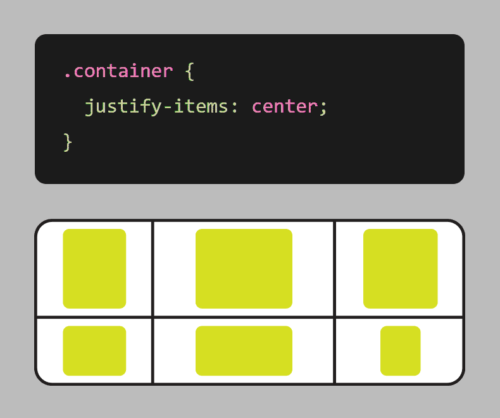
CSS Grid is a two-dimensional layout system that allows you to create complex, responsive layouts with ease. Part of the CSS3 standard, it allows you to define a grid of columns and rows, and then place elements anywhere within that grid. This means you can create layouts that adapt to different screen sizes, without having to write complicated media queries or rely on other layout systems.

One of the biggest advantages of CSS Grid is its flexibility. You can define a grid with any number of columns or rows, and you can even define different sized columns and rows. This means you can create layouts that are truly unique, and that stand out from the crowd.

Another plus of CSS Grid is its simplicity. Once you understand the basics of how it works, creating complex layouts becomes much easier. You no longer have to worry about floats, clears, tables, libraries, or other CSS hacks that were necessary in the past.

It’s hard to justify not using CSS Grid

So how does CSS Grid work? There’s a lot to it, but it’s actually quite simple. First, you define a grid container by setting its display property to “grid”. Then, you define the columns and rows of the grid using the “grid-template-columns” and “grid-template-rows” properties. Finally, you place elements within the grid using the “grid-column” and “grid-row” properties.

Grid also comes with a number of other useful features, such as the ability to span elements across multiple columns or rows, and the ability to align elements within the grid.

Here’s an example of using CSS grid to create a responsive layout:

.container {
    display: grid;
    grid-template-columns: repeat(auto-fit, minmax(250px, 1fr));
    grid-gap: 20px;
}

In this example, we first define a container element with the display property set to grid. We also set the grid-template-columns property to create a grid with columns that will automatically adjust based on the available space, with a minimum size of 250px and a maximum size of 1fr (which means the column will take up as much available space as possible).

We also use the grid-gap property to add some spacing between the boxes.

With these styles in place, the grid will adjust and reflow as the browser window is resized, ensuring that the items are always displayed in an organized, responsive manner.

It’s worth noting that CSS Grid is different from CSS Flexbox, another popular layout system. While Flexbox is great for laying out elements in a single row or column, Grid is more suited for creating complex, two-dimensional layouts. With Flexbox, you define a row or column, and then place elements within that row or column. With Grid, you define a grid of rows and columns, and then place elements anywhere within that grid. This makes it more powerful for complex layouts, while Flexbox is better suited for simpler, one-dimensional layouts.

CSS Grid is a powerful tool that allows you to create complex, responsive layouts with ease. Its flexibility and simplicity make it an essential tool for any web designer looking to create beautiful, responsive websites. So why not give CSS Grid a try? Your website (and your users) will thank you!

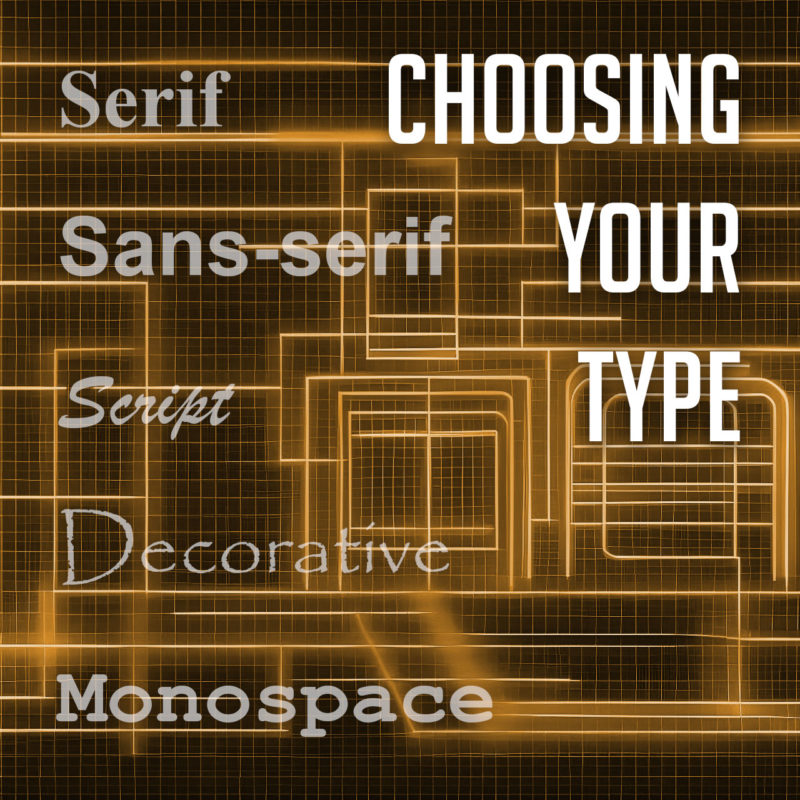
Choosing Your Type: Fonts and the Art of Typography

Typography is the art and technique of arranging type to make written language visually appealing and easy to read. It involves selecting the right typeface, font size, and other typographic elements to create a desired effect.

Fonts are the core of typography. They can be used to create a variety of effects, from setting the tone or mood of a piece of text to making it more visually appealing. There are many different types of fonts available, each with its own unique characteristics. But with so many different fonts to choose from, it can be tough to know where to start.

Types of Fonts

There are many different types of fonts, but they can generally be divided into a few categories:

  • Serif fonts have small projections or flourishes called serifs at the ends of the main strokes of the letters, which can help guide the reader’s eye along the text. Serifs are thought to help with legibility by providing visual cues that help the eye track from one letter to the next. Serif fonts are often used in print publications like newspapers and books, and are often considered to be more traditional and formal than sans-serif fonts. Some popular serif fonts include Times New Roman, Georgia, and Trajan.
  • Sans serif fonts do not have serifs. They are often considered to be more modern and clean-looking than serif fonts. Sans-serif fonts are often used in digital media, such as websites and mobile apps, as they are easier to read on screens. Popular sans serif fonts include Arial, Helvetica, and Tahoma.
  • Script fonts are designed to look like handwriting or calligraphy. They often have a flowing, elegant appearance, and can be used to create a more personal or informal tone. Script fonts are often used for invitations, greeting cards, or other creative projects. Some common script fonts include Brush Script, Lobster, and Zapfino.
  • Display fonts, or decorative fonts, are more stylized to be eye-catching and attention-grabbing. They can be used for headlines, logos, or other special purposes, as they can add personality and visual interest to a design. The sky’s the limit for display fonts, but some of the most popular decorative fonts include Impact, Papyrus, and Curlz.
  • Monospace fonts have a fixed width for each character, and are typically characterized by their blocky appearance. This makes them useful for programming and coding, or other applications where precise alignment is necessary. They often have a simple, utilitarian design, which makes them well-suited for technical applications. Some popular monospace fonts include Courier, Consolas, and Source Code Pro.

Choosing the Right Font

11 out of 10 designers agree: Comic Sans is not your type

The best way to choose the right font for your project is to consider the overall look and feel you’re trying to achieve, and take into account the context and purpose of the text. If you’re designing a formal document, you might want to use a serif font. If you’re designing a modern website or marketing materials, you might want to use a sans serif font. And if you’re designing a logo or other special piece of artwork, you might want to use a script or decorative font. Different fonts can convey different emotions or tones, and choosing the right font can help enhance the message you’re trying to communicate.

It’s also important to consider the readability of your font. Some fonts are easier to read than others, especially at small sizes. If you’re using a font for body copy, it’s important to choose one that is easy to read on screen or in print.

Using Fonts Effectively

If the Pebbles font is too thin, try making it a little boulder

Once you’ve chosen the right font, it’s important to use it effectively. Here are a few tips:

  • Use only a few different fonts in a single project. Too many fonts can be overwhelming and distracting.
  • Use different fonts for different purposes. For example, you might use a serif font for body copy and a sans serif font for headlines.
  • Consider the size and weight of the font when choosing it. A large, bold font will be more eye-catching than a small, light font.
  • Use leading (the space between lines of text) and kerning (the space between individual letters) to improve the readability of your text.
  • Use a consistent font family throughout a piece of text. This will help to create a cohesive and professional look.
  • Use fonts to create visual interest. For example, you could use a decorative font for a call to action or a unique font for a logo.
  • Proofread your text carefully before using it in your designs.
  • Experiment with different fonts and layouts to find what works best for your project. There are no hard and fast rules in typography, so don’t be afraid to try new things.

When used effectively, fonts can be a powerful tool for creating visually appealing and effective typography. By choosing the right fonts and using them effectively, you can create beautiful and effective designs.

The Power of CSS3: Creating Stunning Web Designs Without Images or JavaScript

Cascading Style Sheets (CSS) is a fundamental technology of web design. It is used to define the presentation of a web page, including colors, fonts, layout, and more. With the introduction of CSS3, web designers have gained access to a wealth of new tools and features that allow for more creative and efficient designs, while greatly improving page load speeds. Read on to explore some of the things you can do with CSS3 that used to require heavy images or complex JavaScript.

Gradient Backgrounds

CSS3 makes it possible to create gradient backgrounds with just a few lines of code. This means that designers no longer need to use large images to achieve gradient effects. Using the “background-image” and “linear-gradient” properties, designers can create smooth and stylish gradient backgrounds that are customizable and responsive.

Rounded Corners

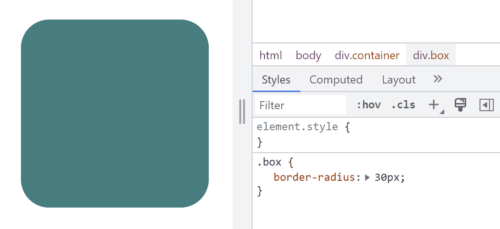
Example of border-radius CSS code
Border control… Get it?

Previously, rounded corners could only be achieved with multiple images and complex table layouts, but CSS3 now allows designers to create rounded corners with a single property. The “border-radius” property allows designers to easily add rounded corners to any element, from containers to buttons and images and more.

Box Shadows

Box shadows are a popular design element that used to require images or JavaScript to achieve. With CSS3, designers can create box shadows with the “box-shadow” property. This property allows designers to add shadows to elements such as boxes, buttons, and images, creating a subtle and stylish effect.

Animations

CSS3 allows designers to create animations without the need for JavaScript or Adobe Flash. The “animation” property allows designers to define keyframes that specify the animation’s behavior, including timing, duration, and style. This makes it possible to create animated elements such as looping animations, hover effects, and more, all with pure CSS.

Transitions

CSS transitions are another popular design element that can now be achieved with CSS3. The “transition” property allows designers to specify the transition effect between two states of an element, such as changing its color or opacity. This makes it possible to create subtle and smooth state changes that enhance the user experience.

Custom Fonts

Not long ago, custom fonts on the web meant typing your text into a graphics editor and saving it as an image. True text was limited to the standard fonts that come with a user’s computer or device. The “@font-face” rule changes that. With a simple style sheet, designers can specify custom fonts to be used on their website, giving them more flexibility and creative control over typography.

So Much More

In addition to these exciting and useful features, CSS3 has many other tools that allow designers to create more dynamic and visually appealing web designs. Here are just a few other things you can do with CSS3:

  1. Flexbox Layout: Flexbox is a new layout mode introduced in CSS3 that allows designers to create complex layouts with ease. With the “display: flex” property, designers can create responsive layouts that adjust to different screen sizes and orientations. Flexbox is particularly useful for creating layouts with dynamic content, such as image galleries, product listings, and more.
  2. Media Queries: CSS3 introduced media queries, which allow designers to specify different styles for different screen sizes and orientations. With CSS media queries, designers can create responsive designs that adapt to different devices, from desktop computers to smartphones and tablets. This allows designers to create a consistent user experience across all devices.
  3. Transformations: CSS3 allows designers to transform elements on their web pages with the “transform” property. This property can be used to rotate, scale, skew, and translate elements, creating dynamic and engaging effects. Transformations can be applied to a wide range of elements, from images to text and more.
  4. Filters: CSS filters are a powerful tool that allow designers to apply visual effects to HTML elements. Designers can apply effects such as grayscale, sepia, blur, and more, without the need for additional images or JavaScript. This makes it easy for designers to create dynamic and engaging visual effects.
  5. Custom Properties: CSS custom properties, also known as CSS variables, allow designers to define reusable values in their CSS code. This can make it easier to maintain a consistent design across a website by allowing designers to use the same values in multiple places without having to update each instance individually. Custom properties also make it easier to change the values of a design element, as the variable can be updated in one place and the change will be reflected across the entire website. This can save time and reduce the likelihood of errors and inconsistencies in the design process.

We’ve come a long way since the early days of web design! CSS3 has revolutionized web design by providing designers with new a range of new tools and features that eliminate the need for images, JavaScript, or slow and insecure plug-in’s. With CSS3, designers can create gradients, rounded corners, shadows, and animations with just a few lines of code. This makes it easier and more efficient to create beautiful and responsive web designs that enhance the user experience. By staying up-to-date with the latest CSS3 trends and techniques, designers can take their web design skills to the next level and create truly exceptional web designs.