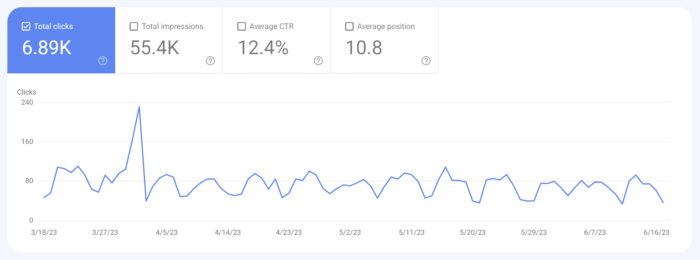
You open Google Analytics on a Monday morning and there it is: a traffic graph shaped like a hockey stick. Sessions are up 400%. For about four seconds you feel like a genius. Then you notice your new biggest market is Lanzhou, China, nobody stayed longer than zero seconds, and every one of these “visitors” showed up through Direct with a landing page of (not set).
Congratulations, you have bot traffic in GA4. You are in good company. It is one of the most common complaints in analytics circles this year, and the good news is that it is usually harmless to your site and very fixable in your reports.
Think of your analytics as a guest book at a wedding reception. Most signatures belong to real guests. But somebody left the door open, and now a busload of mannequins has been wheeled through, each one “signing” the book on the way past. They didn’t eat the cake. They didn’t dance. They just make the headcount look amazing. Your job isn’t to panic about the mannequins. It’s to learn what a mannequin signature looks like, stop counting them, and maybe put a bouncer at the door.
What GA4 Already Filters (and What It Doesn’t)
First, some credit where it’s due. According to Google’s known bot-traffic exclusion documentation, GA4 automatically excludes traffic from known bots and spiders, using Google’s own research plus the IAB’s International Spiders and Bots List. You can’t turn it off, and you can’t see how much it excluded.
The key word is known. Polite crawlers that identify themselves get caught. Bots that run a real headless browser, execute your Google Analytics tag, and pretend to be Chrome on Windows walk right past the velvet rope. So do spammers who fire fake hits straight at GA without ever touching your site.
The Telltale Signs of Bot Traffic
Mannequins are easy to spot once you know what to look for. Here are the fingerprints showing up most often in 2026:
- Sudden Direct or Unassigned spikes. A big jump in Direct (or Unassigned) sessions that starts and stops abruptly, often with no matching bump in leads or sales.
- Landing page “(not set)”. The session started, but no proper
page_viewwith a page location came along. Real browsers rarely do that in bulk. - Weird cities. Lanzhou and Singapore have been the headline acts; WIRED reported that traffic traced back to cloud networks rather than actual residents. Data-center towns like Boardman, Oregon and Ashburn, Virginia (home to huge AWS footprints) are classic suspects too.
- Zero engagement. Engagement rate near 0%, average engagement time measured in fractions of a second, and one page per session.
- Suspicious sameness. 99% desktop, one browser, one operating system, one screen resolution. Humans are messier than that.
- Referral spam. Referrals from domains you’ve never heard of, sometimes with a “visit my SEO service” vibe, that never seem to send anyone who actually reads anything.
Search Engine Watch described a September 2026 wave where Singapore sessions jumped ninefold in a day with a 0% engagement rate and about half a second per session. Some newer bots are getting better at faking human-looking behavior, so don’t rely on one signal. Look for a cluster of them.
Investigate With an Exploration
Standard reports will show you the spike. An Exploration will show you who’s behind it. Go to Explore, start a Free form exploration, and build a table like this:
Exploration recipe: "Who are these people?"

Rows:     Session default channel group
          City
          Landing page + query string
Columns:  Device category
Values:   Sessions
          Engaged sessions
          Average engagement time per session
Filter:   Session default channel group exactly matches Direct
Date:     The spike, plus a normal week before it
Then swap in Browser, Operating system, Screen resolution, and Hostname as rows. If one combination accounts for most of the spike, and its engagement is basically zero, you’ve found your mannequins. Hostname is especially useful: if hits are arriving for a domain that isn’t yours, that’s spam sent straight to your measurement ID rather than visits to your site.
Hide the Noise in Your Reports
Once you know the pattern, you have a few non-destructive ways to look past it:
- Comparisons. In standard reports, add a comparison that excludes the suspicious city or country. Great for a quick “what does reality look like?” check.
- Segments. In Explorations, build a session segment that excludes the bot fingerprint (say, City is Lanzhou, or Screen resolution equals that one suspicious value with zero engagement). Reuse it any time you analyze.
- Report filters. Google itself recommends report filters when you want to hide data without permanently removing it.
These views are reversible, which matters. If you exclude all of Singapore and you actually have customers there, you can simply undo it.
Data Filters: Powerful, Permanent, and Picky
GA4 also has data filters, which stop matching events from being processed at all. Here’s the fine print you need to know before reaching for them:
- They only work going forward. Data filters don’t affect historical data. GA4 can’t retroactively delete last week’s bot spike.
- Exclusions are permanent. Excluded data is never processed and won’t show up in GA or BigQuery later. Always run a filter in Testing state first.
- The menu is short. The filter types are Developer traffic, Internal traffic (by IP address), and, more recently, Web hostname traffic. There’s no “exclude Lanzhou” or “exclude screen resolution” data filter.
Internal and developer filters are still worth setting up, because your own team’s visits are a different flavor of noise. Define your office IPs under your web data stream’s tag settings (Define internal traffic), then activate the Internal traffic filter under Admin → Data collection and modification → Data filters. If you see spam arriving for strange hostnames, a hostname filter that includes only your real domain(s) is the best defense GA4 offers against fake hits.
What About Unwanted Referrals?
GA4’s List unwanted referrals setting (in your web stream’s tag settings) sounds like a spam filter, but it isn’t. It tells GA4 not to credit certain domains as referrers, which is meant for things like payment processors bouncing shoppers back to your checkout. It doesn’t delete the sessions. Use it for legitimate third-party hops, and use segments or report filters for spam.
Check the Door, Not Just the Guest Book
GA4 only sees visitors that run your tag. To see what’s really knocking, cross-check with your CDN or server. If your site sits behind Cloudflare, its traffic and security analytics show requests by country, ASN, and user agent, and paid plans add Bot Analytics with bot scores. Cloudflare’s CDN layer is also where you can actually block or challenge bad traffic with a rule, before it ever reaches your site:
# Cloudflare custom rule (expression) → Action: Managed Challenge
(ip.src.country eq "SG" and not cf.client.bot)
Adjust that to whatever your Exploration revealed, and only challenge regions you don’t actually serve. Your web host‘s raw access logs are the other source of truth: a burst of requests from one cloud provider’s IP range with one user agent tells you more than any GA dashboard can.
AI crawlers are a related but separate headache. Most of them don’t run JavaScript, so they rarely show up in GA4 at all, but they do show up in your logs and bandwidth bill. I wrote a separate guide on which AI crawlers to block with crawl rules and robots.txt.
Common Pitfalls
- Excluding whole countries forever. Fine as a report view, risky as a habit if you sell internationally.
- Skipping the Testing state. A sloppy data filter can permanently delete real data. Test first.
- Blaming SEO. Bot hits in GA4 don’t hurt your rankings. Keep an eye on Google Search Console for real search performance.
- Assuming it’s always bots. A broken tag, consent banner change, or slow-firing
session_startcan also produce Unassigned or(not set)data. Check your setup before you blame the robots. - Ignoring your forms. If bots are filling out your contact form too, that’s a security problem, not just an analytics one.
Count the Guests, Not the Mannequins
Bot traffic in GA4 is annoying, but it doesn’t have to ruin your data. Recognize the fingerprints, isolate them with an Exploration, hide them with segments and comparisons, use data filters carefully for what they can handle, and stop the worst offenders at the door with Cloudflare or your server. Then annotate the spike so future-you doesn’t spend another Monday morning wondering if you went viral in Lanzhou.
Planning a new site and want it built with clean analytics, sensible filters, and bot protection from day one? Request a custom web design quote and let’s make sure your numbers tell the truth from launch.